Troubleshooting Symptom Charts - 5
Geometry
Shape of raster is
distorted
1 Read “First Checklist” at the beginning of this chapter.
2 Rotate monitor at least 90 degrees or move it to another
location. If symptom changes, there is an environmental
problem caused by stray magnetic fields, and the monitor is
operating normally.
3 From the Monitors & Sound control panel, click Geometry
icon and then click Factory Settings button.
4 If necessary, adjust geometry controls to optimize front-of-
screen performance.
5 Call Apple Technical Support. (In the US, call 1-800-919-
2775, option 3.)
Screen Color
Screen is one
predominant color
1 Remove video cable and adapter at computer and check for
damaged or missing pins.
2 Verify that video cable and adapter are securely connected to
computer.
3 Open Monitors & Sound control panel, and click Color icon.
Verify that a standard white point has been selected (D50,
6500, or 9300). Then click Recalibrate button
(recalibration can take 20 seconds to 2-1/2 minutes).
4 Check that CRT socket connection is tight and there are no
bent pins on the CRT neck.
5 Call Apple Technical Support. (In the US, call 1-800-919-
2775, option 3.)
Screen shows blotches
of color
1 From the Monitors & Sound control panel, click Geometry
icon and then click Beam Landing button.
Caution:
Changes made from the Beam Landing screen are
automatically saved when you click OK. Therefore, only click OK
when you are sure the adjustments you have made are optimal. If
you click Reset before clicking OK, the screen will reset to the
previously saved screen configuration (the state of the screen
when “OK” was clicked last).
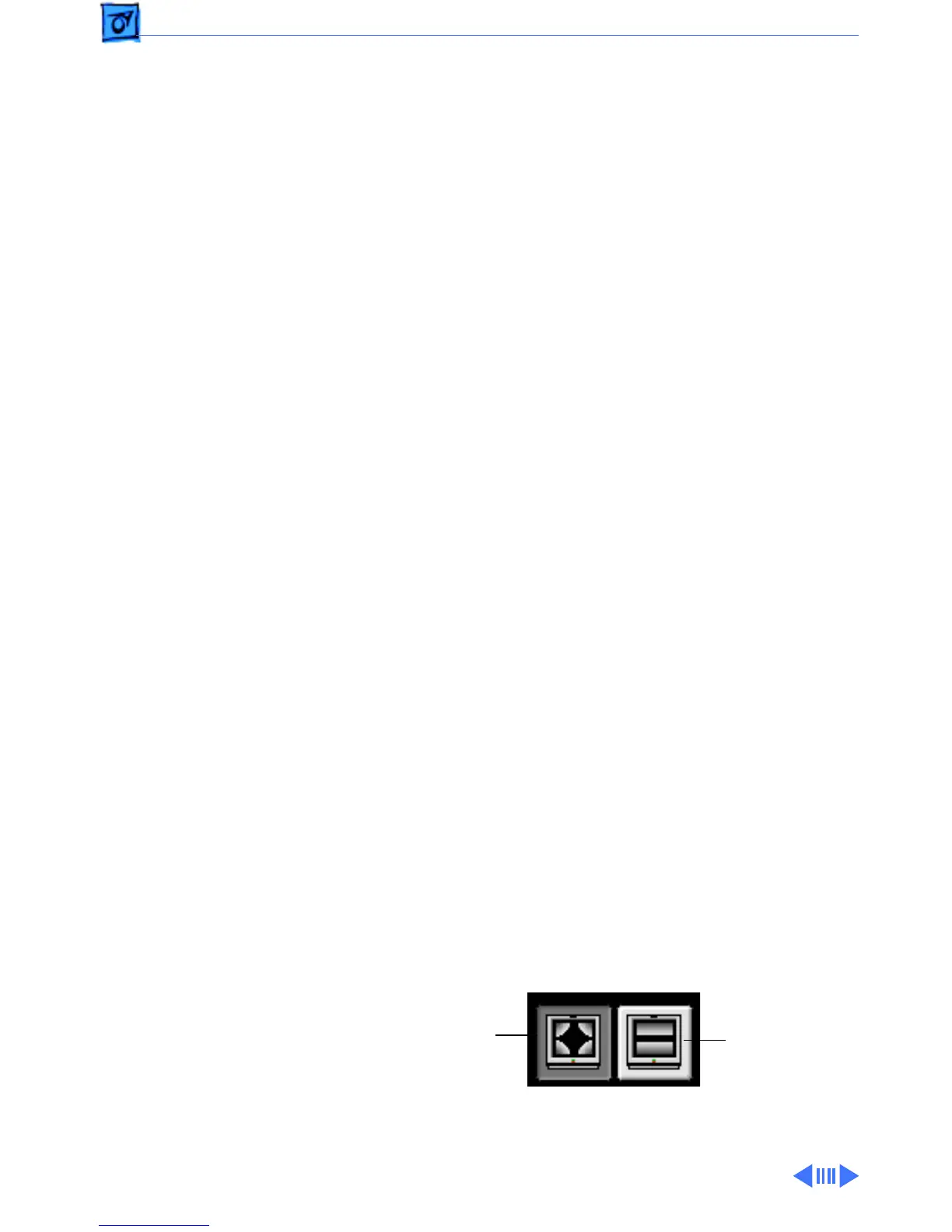
2 Adjust the display as follows to minimize color blotches:
• If color blotches appear in the corners of the screen only
(not along the top or bottom of the screen), then click the
Corner
Beam Landing
Icon
Top/Bottom
Beam Landing
Icon



 To Next Page