7
3. Cutoff adjustment
(a) Set the pattern to “GrayScale 16”.
(b) Check that the cutoff is at 2
nd
bar just slightly visible. If not then start the cutoff
adjustment. Note: For better judgement of the 2
nd
bar use the reverse setting by
selecting [Quantum Data>801 Controls>Reverse].
(c) Adjustment - In the color page, click on “Preset Color”.
(d) Use the scroll bar “RGB Cutoff” to adjust until the second gray bar just disappear or
barely visible. Note: The “RGB Cutoff” control is a pseudo cutoff scroll bar control
to ease the adjustment of R, G, B cutoff controls together – actual steps change will
be reflected in the individual R, G, B cutoff scroll bars.
4. White balance check
(a) Set the pattern to “VPT Page”.
(b) Place and hold the CA100 probe in the center of the white page.
(c) If the white balance data was downloaded from the factory file or the original video
board, a check must be performed to ensure that the white balance is within high
brightness specifications (contrast at max 0x60) of x = 283±10, y = 298±10, Y=
33±3, and low brightness specifications (adjust contrast to achieve Y= 2.5±1 FL) of x
= 283±10, y = 298±10.
(d) If white balance is not within specifications then perform the manual or auto white
balance procedures.
5. Manual white balance alignment
(e) Set the pattern to “VPT Page”.
(f) Place and hold the CA100 probe in the center of the white page.
(g) Adjust the contrast to achieve about 2.5±1fl.
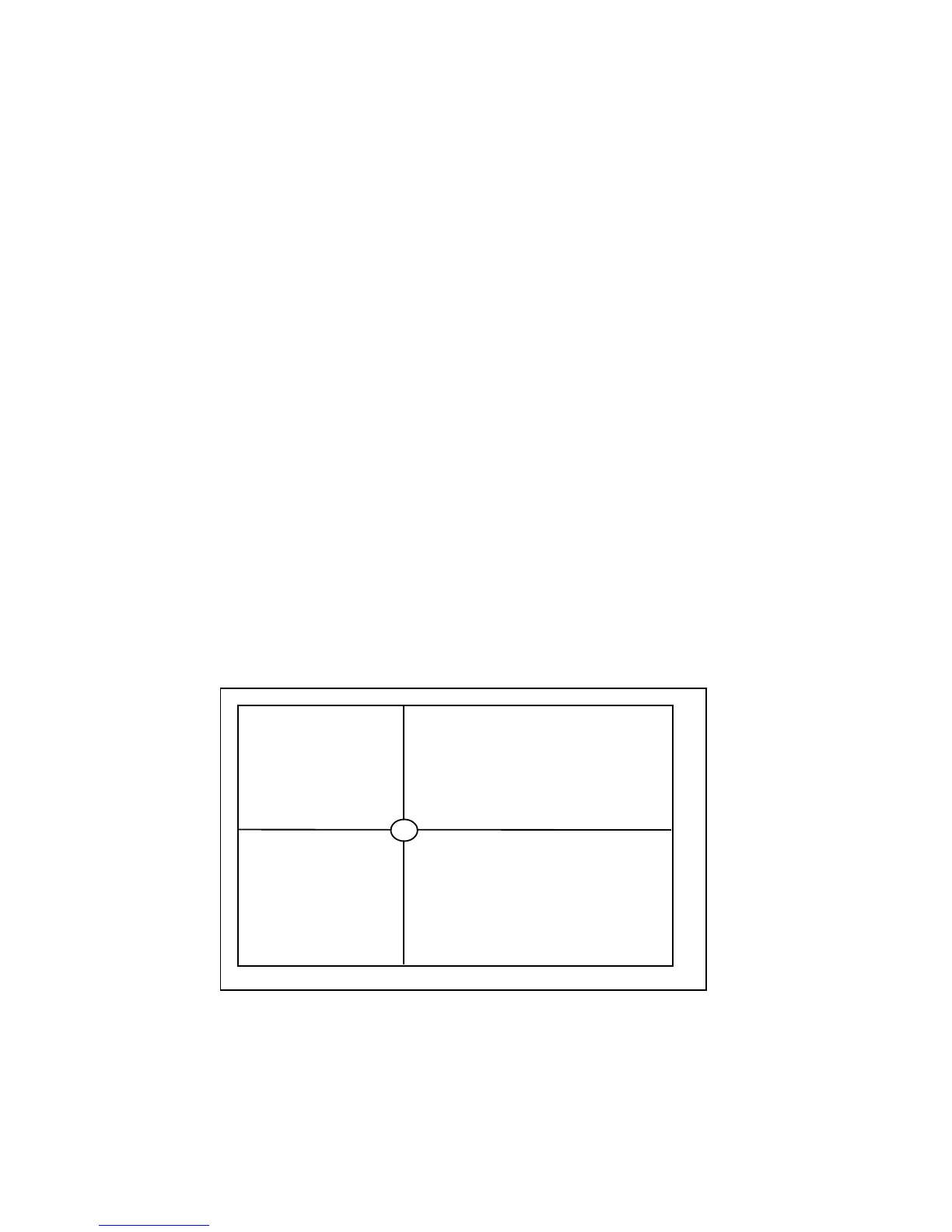
(h) Measure the low light color to determine whether the CRT is red, green or blue bias.
Use the biasing template shown below to judge the biasing. CIE specifications for this
product is at x = 283, y = 298.



 To Next Page