46 Chapter 4
Removing the Flip-Out Stand
1 Lift the display up slightly and press the power (®) button to turn the display off.
2 Turn off your computer and any video equipment attached to the display.
3 If necessary, remove the locking cable from the security slot on the back of the display.
4 For Mac OS–based computers, remove the ADB cable from the ADB port (marked with V)
on the back of the display.
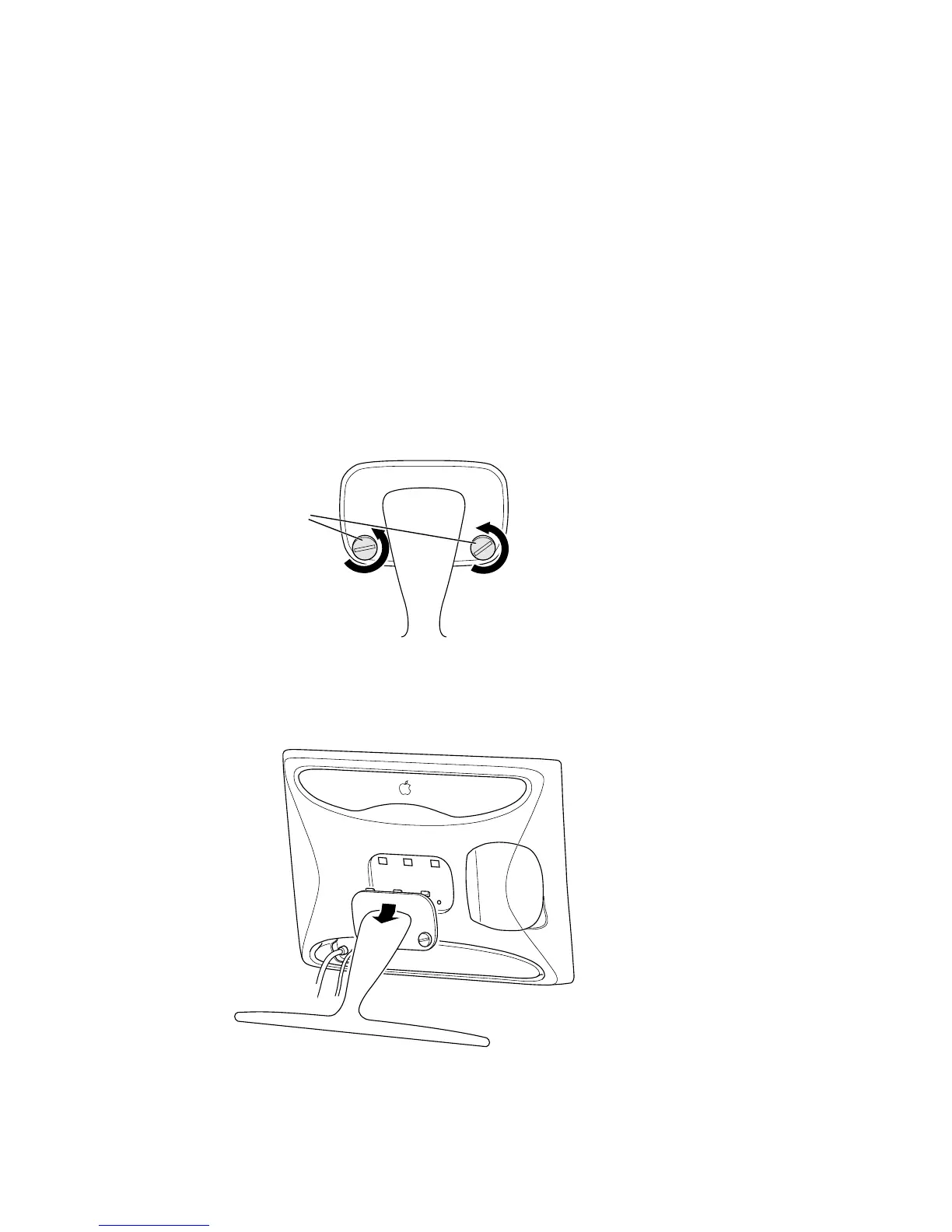
5 Use a coin or flathead screwdriver to unscrew the two plastic thumbscrews connecting the
flip-out stand to the display.
6 With one hand holding the display, use your other hand to move the flip-out stand slightly
downward to disconnect the three plastic tabs from the three openings on the back center
area of the display.
Important Before you start, make sure there is a clean, flat surface where you can place the
display once it’s removed from the stand. To protect the screen, place a towel or cloth on the
surface.
Plastic
thumbscrews



 To Next Page