48 Chapter 4
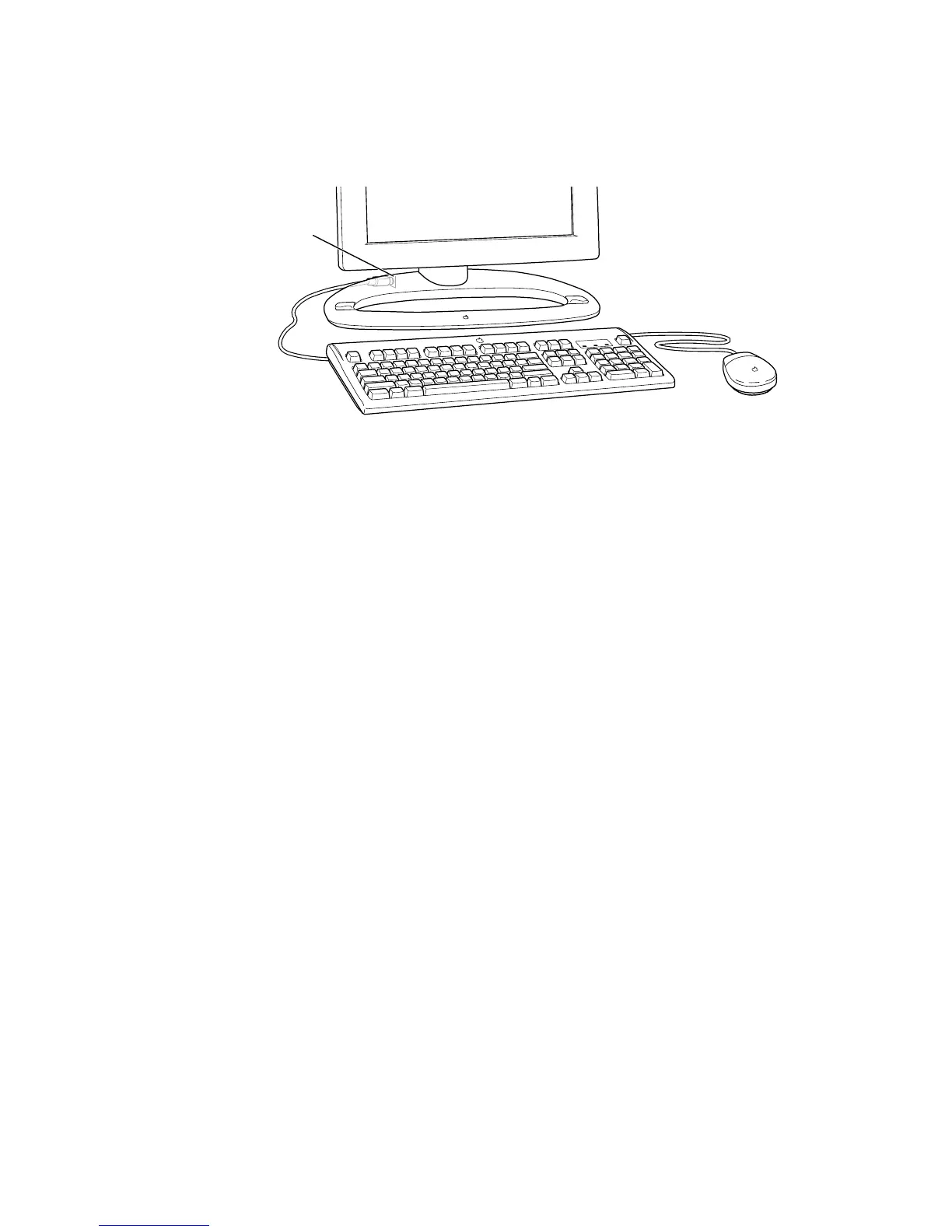
7 Connect your keyboard and mouse cables to ADB ports (marked by V) on the desktop
stand, according to your preference.
When connecting ADB cables, make sure you align the symbol on the connector with the
same symbol on the port. If you force a connector the wrong way, you will damage it. Make
sure the ADB connector is attached firmly.
Note: If you have a USB keyboard and mouse, see the documentation that came with your
computer for instructions on connecting your keyboard and mouse to your computer.
8 If you’re using a locking cable, attach it to the security slot on the back of the display.
9 Press the power (®) button on the right underside of the display to turn the display on.
10 Turn your computer on.
11 If desired, use the height, tilt, and swivel adjustments to position the display the way you
want.
ADB port on the
desktop stand



 To Next Page