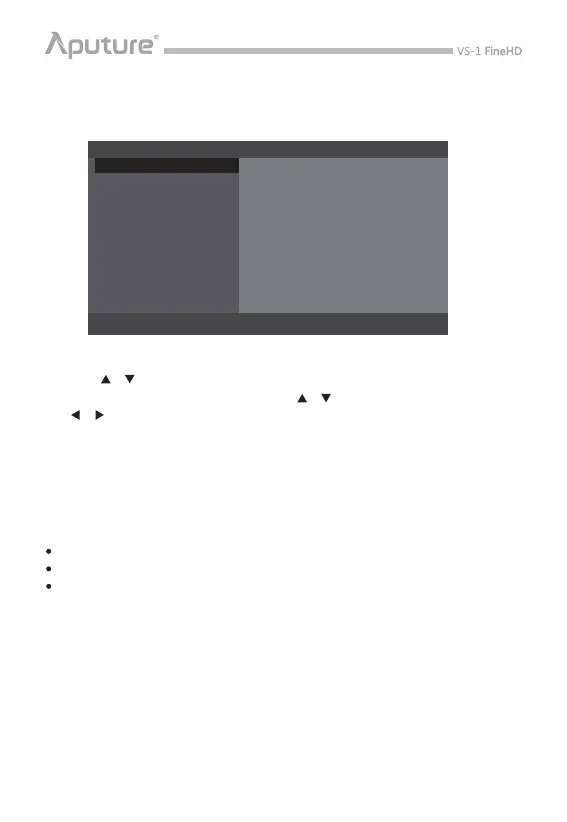
EXTRA OSD
FIRMWARE UPDATE
ACCESSING THE MENU
MENU
1) Press the Menu Button <M> to display the menu.
2) Press< / >to select the desired menu.
3) Press <M> to enter sub-menu, then press < / > to navigate to your choice, and
< / > to adjust parameters.
4) Navigate to “RETURN” to return to main menu. Navigate to “EXIT” to exit main menu.
* The menu will be exited when there is no operation for 15 seconds.
On the bottom of the screen, there is a Extra OSD to indicate the following information:
Battery status
Input signal format
Shortcut information
VS-1 FineHD monitor software is constantly under development, which means
Aputure may release latest rmware on ocial website.
1) Website: http://www.aputure.com/V-Screen-VS-1-FineHD/Update/.
2) Please update rmware following the instructions on our ocial website.
3) Please download the rmware to USB disk and connect it to V-Screen by the rmware
update cable.
ASSISTANT FUNCTIONS
MARK
IMAGE
COLOR SETTING
SHORTCUT
OTHER SETTING
EXIT
MONOCHROME OFF
V1.0
CAMERA MODE
RETURN
OFF
COLOR BAR
OFF
-7-



 To Next Page