Installation
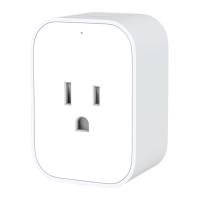
Plug in the Smart Plug, if the blue indicator light blinks once, it
indicates the power supply is working properly. Short press once, if the
red indicator light blinks slowly, it indicates the Smart Plug is working
properly
Quick Setup
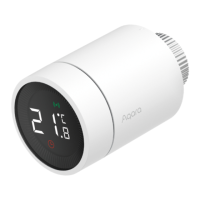
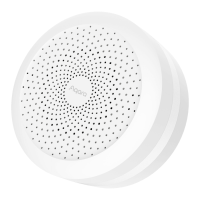
1. Please add the Hub to the app according to the Hub Quick Start
Guide.
2. Please open the app, tap "Home" and then tap "+" in the top right
corner to enter "Add Device (Accessory)" page Select 'Smart Plug",
and add it according to instructions.
• If the connection fails. please move the Smart Plug closer to the Hub. plug in and try
again.
Effective Range Test: Quick press the push button on the accessory 5
times. If the Hub makes voice prompts, it indicates that the accessory
can communicate effectively with the Hub.
Identify an Accessory: Open the app, go to "Device List (Accessories)"
page. Quick press the push button on the accessory 5 times. If the
Hub makes voice prompts and the related accessory icon in the app
blinks, it indicates that the accessory is identified.
• Only Aqara Home app and Aqara app support this tunction


 To Next Page