Need help?
Do you have a question about the Aqara Wireless Mini Switch and is the answer not in the manual?
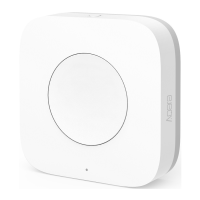
Introduces the Aqara Wireless Mini Switch, its design, function, and key parts like buttons and indicator.
Steps to set up the Aqara Home app and hub for accessory activation.
Guidance on device placement and testing its communication range with the hub.
Details two options for installing the device: direct placement and adhesive mounting.
Provides model, dimensions, wireless protocol, battery, operating conditions, and frequency.
Essential warnings regarding product use, safety, and handling to prevent hazards.
States the device's compliance with FCC rules and the conditions for its operation.
Information on FCC radiation exposure limits and recommended minimum operating distance.
Details compliance with Canadian regulations, including IC and RSS standards.
The Aqara Wireless Mini Switch is a compact, low-energy remote control designed to enhance your smart home experience. Its small size and versatile placement options allow you to integrate it seamlessly into almost any environment, whether placed directly on a surface or stuck to a desired position. This device acts as a control hub for various smart accessories within your Aqara ecosystem, such as smart lights and smart plugs, offering a convenient way to manage your home's automation.
To begin using the Wireless Mini Switch, you'll first need an Aqara Hub, which serves as the central brain for your smart home devices. The hub is essential for the switch to function and to enable its compatibility with HomeKit technology, expanding your control options and integration possibilities within Apple's smart home platform. For detailed information on HomeKit integration and other features, you can refer to the Aqara website.
Setting up the Wireless Mini Switch is a straightforward process. Before activation, ensure you have the Aqara Home app downloaded on your mobile device and that your Aqara Hub is properly installed and configured. Once these prerequisites are met, open the Aqara Home app, navigate to the "Home" section, and tap the "+" icon in the top right corner to access the "Add Device (Accessory)" page. From there, select "Wireless Mini Switch" and follow the on-screen instructions to pair it with your hub. If you encounter any connection issues, try moving the switch closer to the hub and attempting the pairing process again.
The Wireless Mini Switch offers multiple interaction methods to control your smart accessories. A single press, double press, or long press can be configured to trigger different actions, providing flexibility in how you manage your devices. For instance, a single press might turn a light on or off, while a double press could activate a specific scene, and a long press might adjust the brightness of a smart bulb. This multi-functional control allows for a personalized and efficient smart home experience.
Before finalizing the placement of your Wireless Mini Switch, it's recommended to perform an effective range test. This ensures optimal communication between the switch and your Aqara Hub. To conduct this test, simply single-press the reset button on the accessory while it's in your desired position. If the hub provides voice prompts, it indicates that the switch is within effective communication range and can reliably interact with the hub. This step helps prevent connectivity issues and ensures consistent performance.
When choosing a location for your Wireless Mini Switch, consider avoiding metal surfaces, as these can interfere with signal strength and potentially reduce the device's effective range. For optimal performance, select a non-metallic surface. The switch can be placed directly in your desired position, or if you prefer a more secure attachment, you can remove the protective film and stick it to a clean, dry surface. Ensuring the surface is clean and dry before adhesion will maximize the stickiness and longevity of the placement.
Maintenance of the Wireless Mini Switch is minimal due to its low-energy consumption and durable design. The device is powered by a CR2032 battery, which typically offers a long operational life, reducing the frequency of battery replacements. The reset button, located on the device, serves multiple purposes: a long press for 3 seconds initiates the reset/connect to network function, allowing you to re-pair the device or connect it to a new network, while a single press performs the effective range test. An indicator light on the switch provides visual feedback, confirming actions or indicating status.
It's important to note that this product is designed exclusively for indoor use. It should not be used in humid environments or outdoors, as exposure to moisture can damage the device. Furthermore, avoid spilling water or other liquids onto the product. To ensure the longevity and safe operation of the Wireless Mini Switch, do not place it near a heat source or in an enclosure without normal ventilation. This product is not a toy and should be kept away from children. Any repairs should be performed by an authorized professional; attempting to repair the device yourself is not recommended.
The Wireless Mini Switch is intended to enhance the convenience and entertainment aspects of your home life by providing easy control and status reminders for your devices. Adhering to the product use instructions is crucial, as the manufacturer will not be liable for any risks or property losses resulting from violations of these guidelines. By following these instructions, you can enjoy a seamless and efficient smart home experience with your Aqara Wireless Mini Switch.
 General
| Product Type | Wireless Mini Switch |
|---|---|
| Model | WXKG11LM |
| Battery Type | CR2032 |
| Wireless Protocol | Zigbee |
| Operating Temperature | -10°C to 50°C |
| Battery Life | 2 Years |
| Functions | Single Click, Double Click, Long Press |
| Operating Humidity | 0% - 95% RH, non-condensing |
| Compatibility | Apple HomeKit, Aqara Home |

 To Next Page