3
Speaker back
Single-Speaker Setup
1
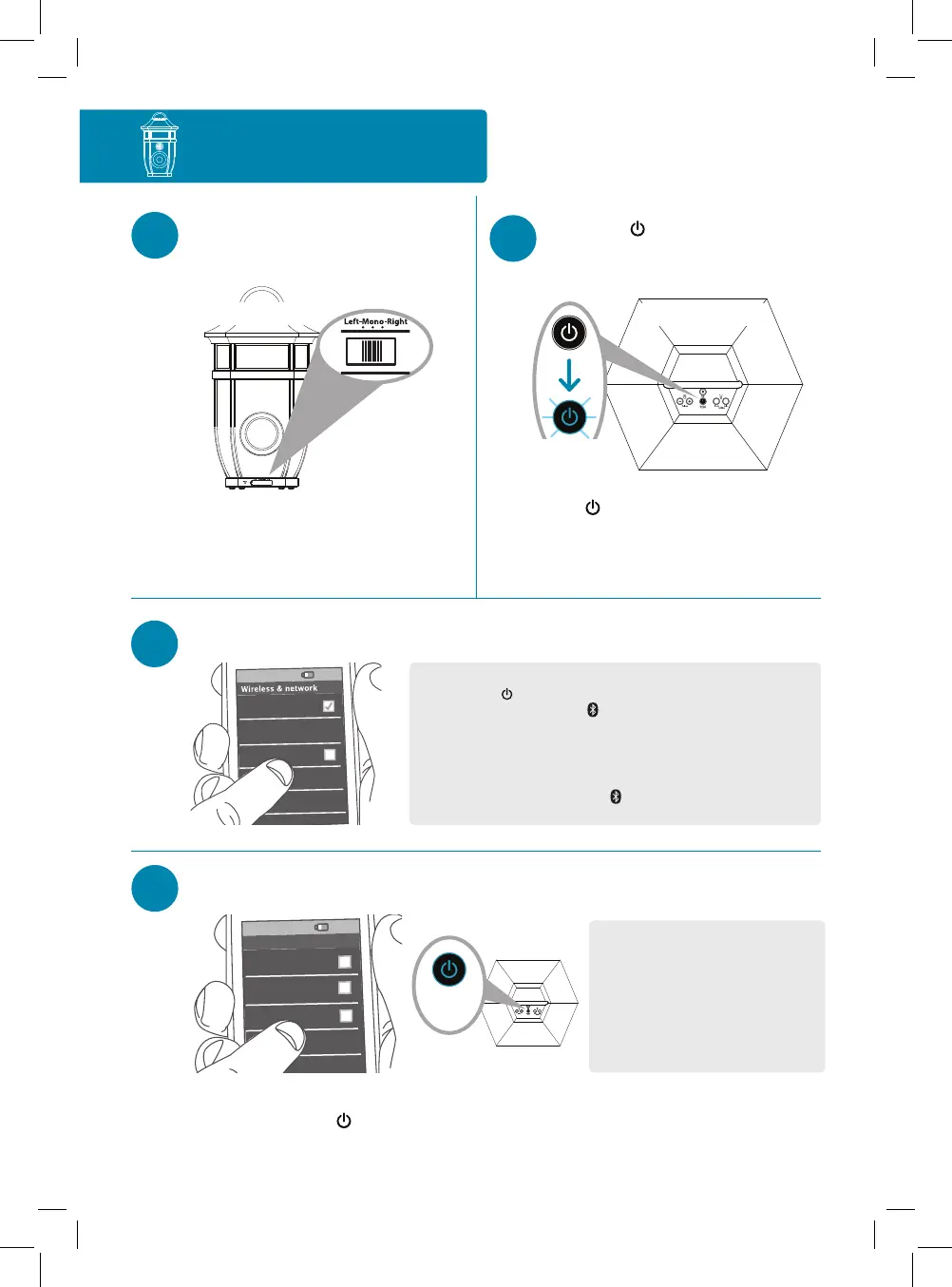
Set the Left-Mono-Right
switch to Mono.
2
Press the (Speaker On/Off)
button on the top of the speaker
to turn it on.
The
button on the top of the
speaker starts blinking blue,
and the speaker says “Pairing.”
3
Enable Bluetooth on your device (if it isn’t already on).
Wi-Fi
Bluetooth
Bluetooth Settings
VPN Settings
Wi-Fi Settings
8:45PM
Notes:
Make sure the
button on the top of the speaker is blinking blue.
(If it isn’t, press and hold the
(Pair) button on the top of the
speaker until the speaker gives an audio signal.)
If you’ve previously paired a different Bluetooth device with this
speaker, the speaker will automatically attempt to reconnect to
that device when you switch the speaker on. If you want to pair to
a new device, press and hold the
button on the speaker until the
speaker gives an audio signal.
Headset
AR Saratoga
Computer
8:45PM
Bluetooth devices
4
Select AR Saratoga from the list of Bluetooth devices available.
Notes: If you don’t see AR Saratoga
in the list of Bluetooth devices on
your phone, choose “Scan” from your
phone’s Bluetooth menu.
The process of enabling Bluetooth
and connecting varies from device
to device. See your device’s owners
manual for more information and
specific instructions.
The speaker says “Connected” when it’s finished connecting to your
smartphone. The button on the top of the speaker turns solid blue.
Continues on the next page...
Speaker top
Blinking
blue
Speaker top
Solid
blue


 To Next Page