7
ENGLISH
Touch to activate
an item
Touch and hold
for an alternate
action
Drag an item to
change its position
Touchwithyourngertip.
Touchandholditforamoment,thenwithoutliftingyourngertip,moveyourngertiponthe
screen until the item reaches its destination.
Swipe up/down
to scroll through
a list
Double-tap
Touchtheitemanddonotliftyourngertipuntiltheactionoccurs.
Swipe left/right
to change the view
Pinch
Touchthescreenandthenquicklymoveyourngertipsacrossthescreenwithoutliftingyour
ngertip.Donotpauseonthescreenwithyourngertipsattheinitialpointofcontactoryou
may drag an item.
Insomeapps(suchasMaps),youcanzoominandoutbyplacingtwongersonthescreenat
once and pinching them together (to zoom out) or spreading them apart (to zoom in).
Quickly tap the screen twice on a webpage or other application screen to zoom.
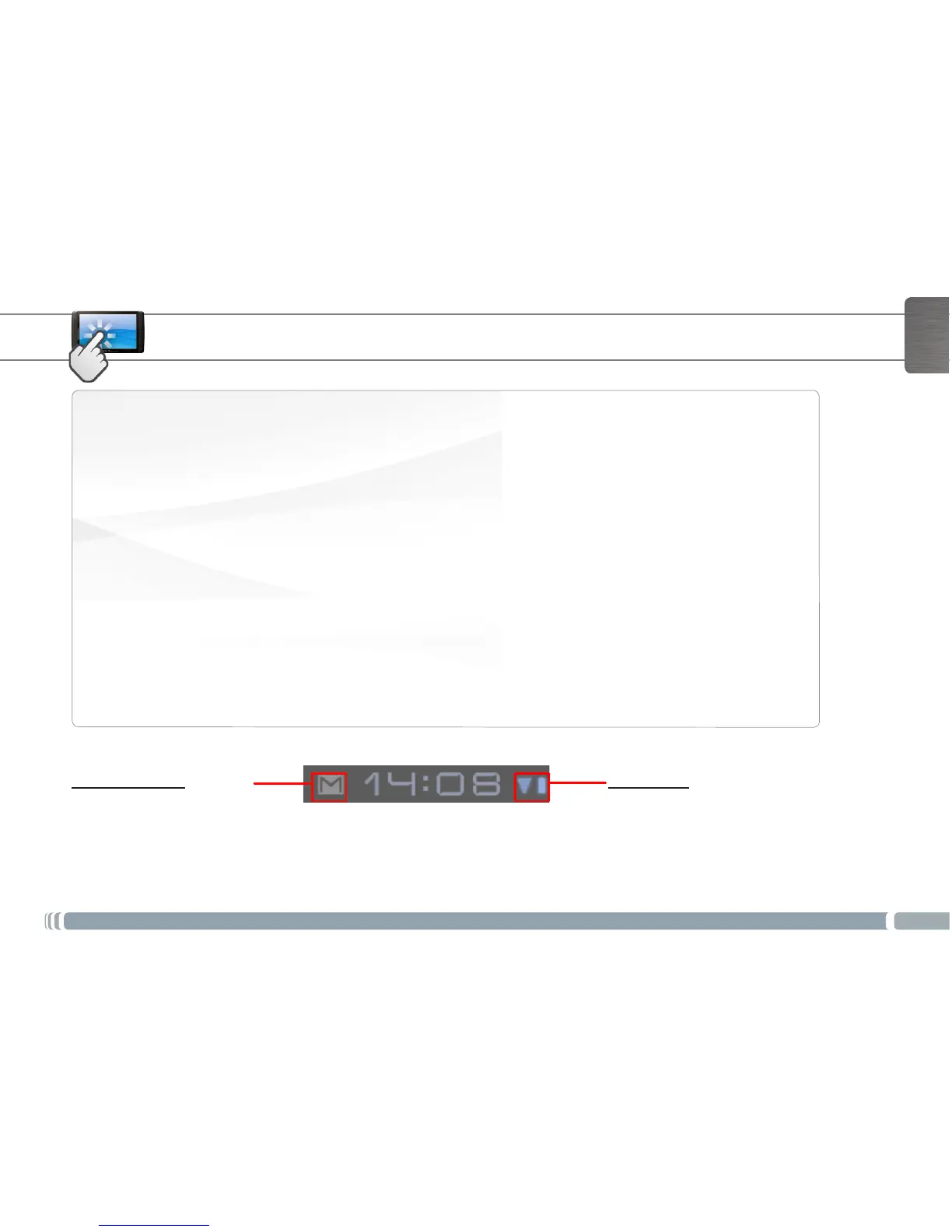
Notication icons
Touch the time in the System bar,
- toopenorrespondtonotications,
- toclosenotications
The system bar displays status icons (Time, Wi-Fi connection status, battery level, etc.) and notification icons.
THE ARCHOS INTERFACE
Status icons: Wi-Fi connection, Battery
Touch the time in the system bar,
- to get details about the current date and
time, networking, and battery
- to have access to Quick settings (to view or
change the most common tablet settings
Touchscreen actions


 To Next Page