EasyManua.ls Logo

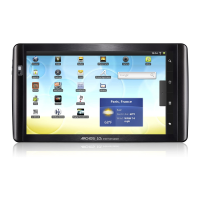
Archos Arnova 10 4GB - User Manual

Archos Arnova 10 4GB
48 pages
Print Icon
To Next Page IconTo Next Page
Loading...
www
?
1
English
P/N: 109563
NEED HELP?
As we are often updating and improving our products, your device’s software may have
a slightly different appearance or modified functionality than presented in this Quick Start Guide.
On our Website: See the Frequently Asked Questions section on http://arnovatech.com/faq
Contact our Technical Support Team: Visit
http://arnovatech.com/support
for e-mail support.
Please register your product before contacting Technical Support (see
Register your Product
).
REgistER youR PRoDuct!
Thank you for choosing this ARNOVA product. We hope that you will enjoy using it and that it will give you satisfaction for many
years to come. Once you unpack your ARNOVA product, we recommend that you take a few minutes to register it
(http://arnovatech.com/register). This will allow you to get access to ARNOVA technical support (http://arnovatech.com/support).
On the web at http://arnovatech.com/register Ä
UserGuide_Arnova_10_PN109563_book.indd 1 15/02/2011 17:46:49
Question and Answer IconNeed help?

Do you have a question about the Archos Arnova 10 4GB and is the answer not in the manual?

Summary

Register Your Product

Device Description and Ports

Volume and Indicator Buttons

Controls for adjusting volume and indicators for device status.

Audio and Power Connections

Ports for connecting headphones and the power adapter.

Data Transfer and Expansion Ports

Ports for USB devices, computer connection, and memory cards.

Device Input;Output Features

Features for camera capture and microphone input.

Starting Up Your Device

Initial Battery Charging

Instructions for fully charging the device before first use.

Using the Installation Wizard

Guides through initial setup of language, country, and time.

Navigating the Arnova Interface

Home Screen Overview

Displays default shortcuts and allows customization.

Accessing Applications

Button to reveal and launch all installed applications.

Understanding the Top Bar

Displays time, status icons, and navigation controls.

Customizing Your Arnova

Navigating the Extended Home Screen

Slides horizontally to access additional home screen panels.

Managing Home Screen Items

Add, move, or remove shortcuts and widgets from the home screen.

Installing Apps via AppsLib

Download free and paid applications from the online store.

Adjusting Device Settings

Configure wireless, sound, display, and date/time settings.

Connecting to the Internet

Playing Multimedia Files

Video Playback and Controls

Pause, resume, and navigate within video playback on screen.

Music Playback and Controls

Play, pause, and skip tracks using on-screen icons.

Photo Slideshow and Navigation

Start, pause, and view next or previous photos in a slideshow.

Transferring Media to Arnova

Summary

Register Your Product

Device Description and Ports

Volume and Indicator Buttons

Controls for adjusting volume and indicators for device status.

Audio and Power Connections

Ports for connecting headphones and the power adapter.

Data Transfer and Expansion Ports

Ports for USB devices, computer connection, and memory cards.

Device Input;Output Features

Features for camera capture and microphone input.

Starting Up Your Device

Initial Battery Charging

Instructions for fully charging the device before first use.

Using the Installation Wizard

Guides through initial setup of language, country, and time.

Navigating the Arnova Interface

Home Screen Overview

Displays default shortcuts and allows customization.

Accessing Applications

Button to reveal and launch all installed applications.

Understanding the Top Bar

Displays time, status icons, and navigation controls.

Customizing Your Arnova

Navigating the Extended Home Screen

Slides horizontally to access additional home screen panels.

Managing Home Screen Items

Add, move, or remove shortcuts and widgets from the home screen.

Installing Apps via AppsLib

Download free and paid applications from the online store.

Adjusting Device Settings

Configure wireless, sound, display, and date/time settings.

Connecting to the Internet

Playing Multimedia Files

Video Playback and Controls

Pause, resume, and navigate within video playback on screen.

Music Playback and Controls

Play, pause, and skip tracks using on-screen icons.

Photo Slideshow and Navigation

Start, pause, and view next or previous photos in a slideshow.

Transferring Media to Arnova

Archos Arnova 10 4GB Specifications

General IconGeneral
Display Size10.1 inches
Display TypeTFT LCD
Resolution1024 x 600 pixels
Internal Storage4 GB
RAM512 MB
ConnectivityWi-Fi 802.11 b/g

Related product manuals