9
TOUCHSCREEN CALIBRATION
When touchscreen functioning is impaired, you can recalibrate it.
- If you can access the Android interface
1. In the device homescreen, touch Settings.
2. In the Settings screen, touch Repair & Formatting at the bottom of the menu list.
3. In the Repair & Formatting screen, touch Touchscreen Calibration.
A message will tell you to put your ARCHOS down.
4. Putthedeviceonaatsurface.
5. Touch Calibrate the touchscreen.
Thecalibrationofthetouchscreenstarts.Donottouchtheproductuntilthecalibrationisnished.
IMPORTANT:Ifyoudonotputthedeviceonaatsurface(e.g.Table),thetouchscreencalibrationwillnotbesuccessful.
- If you do not have access to the Android interface
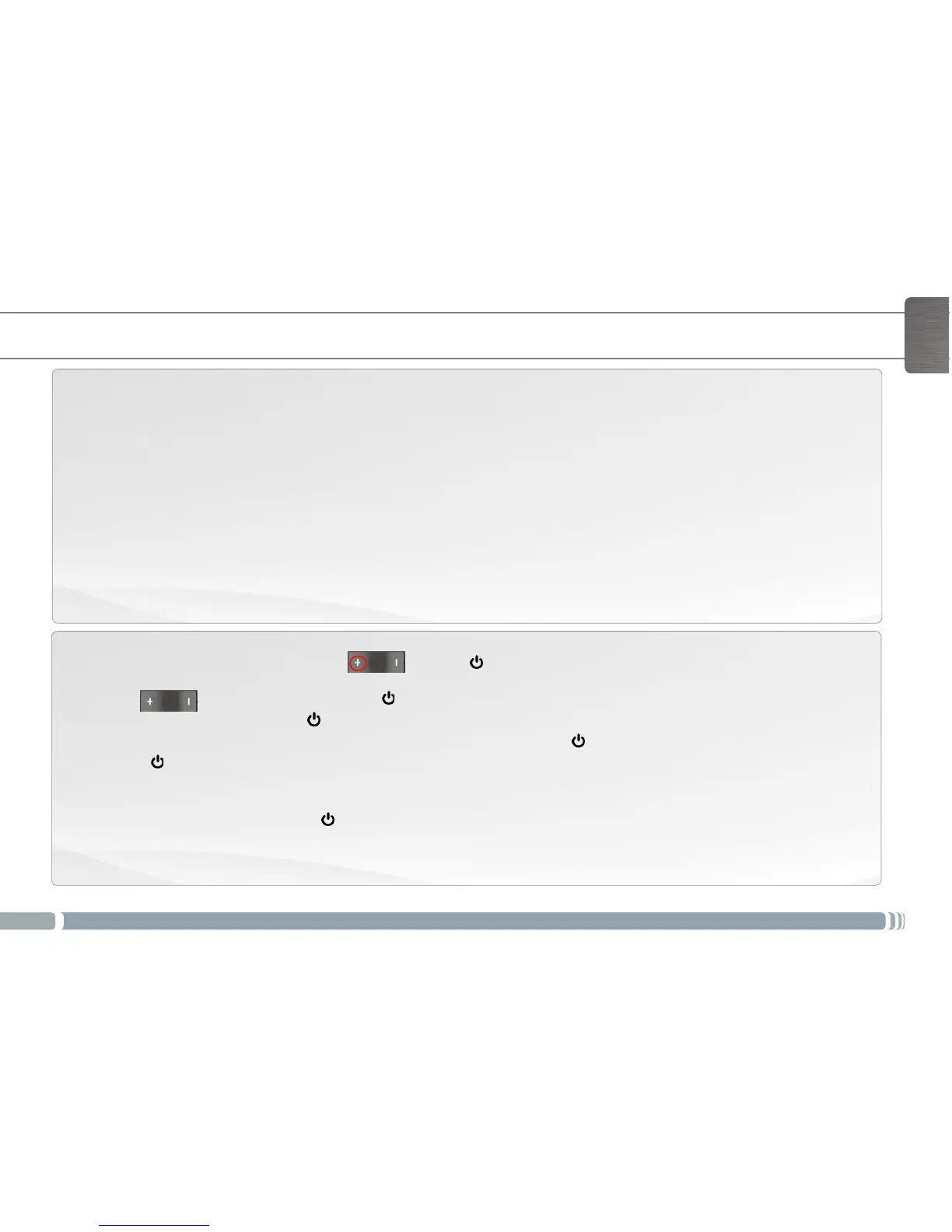
1. When turning on the device, hold down and press .
The ARCHOS Recovery screen is displayed.
Use to switch between options and to validate your selection.
2. Select Repair system and press .
3. In the Repair system screen, select Force touchscreen calibration and press .
4. Press againtoconrm.Andputyourproductonaatsurface.
Thecalibrationofthetouchscreenstarts.Donottouchtheproductuntilthecalibrationisnished.
IMPORTANT:Ifyoudonotputthedeviceonaatsurface(e.g.Table),thetouchscreencalibrationwillnotbesuccessful.
5. At the end of the calibration, press . The ARCHOS Recovery screen is displayed.
6. Select No. Your device will reboot. The touchscreen is now recalibrated.
ENGLISH


 To Next Page