6
ENGLISH
Making a Recording Using the CamCorder Application of your ARCHOS Device
On the
to open the CamCorder application.
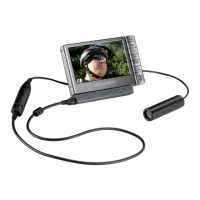
Your ARCHOS device now powers the camera. On the screen, you see the image the camera is cur-
rently seeing. This preview screen thus permits you to adjust the position or direction of the camera
before you start your recording.
Settings
A number of settings such as resolution and bitrate can be adjusted. Normally you need not change
these settings.
To access these recording parameters
To access these recording parameters, press
To return to the pre-recording screen
To return to the pre-recording screen, press the ARCHOS device’s button.
Setting the
Time Stamp
parameter to ‘ON’ will show the date and time on the recorded image.
Note: For information on the other settings, please refer to the section on making a video recording in the user
manual of your ARCHOS device. Please note that the parameter
Format
does not exist as the setting is pre-deter-
mined by the camera. For the same reason, the parameter
Source
can only be set to ‘Composite’ or ‘Black & White’.
To start recording, press the
Start recording menu item.
To pause and restart your recording
To pause and restart your recording, press the
To stop and save your recording
To stop and save your recording, press the button.
Note: alternatively, you can press the
Start/Stop
button on your camera controller to start and stop
the recording.
•
•
•
•
•
•
•
•
•
x04_HelmetCam_Manual_v2_PN1049836 6x04_HelmetCam_Manual_v2_PN1049836 6 19/09/2006 14:06:0119/09/2006 14:06:01


 To Next Page
 Loading...