7
ENGLISH
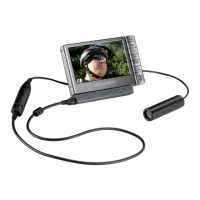
Checking the Status of the Archos Helmet CamCorder
In order to fi nd out whether the Helmet CamCorder is idle or recording, press the
Status
Button. The
lights will indicate the status of the ARCHOS device as shown below:
No light: the Helmet CamCorder is not connected properly to the ARCHOS device or the device is off.
Notes on the Archos Helmet CamCorder
Do not be concerned if the controller’s lights are not lit while your Helmet CamCorder is in use. This is normal.
The loudspeaker of your ARCHOS device will be disabled during the recording as this could result in
audio feedback. The microphone integrated into the camera controller will record the sound. Therefore
make sure that it is not covered in order to obtain the best possible sound for your recording.
If images look distorted, you might be too close to the object you are fi lming. This effect is also re-
ferred to as “fi sh eye effect”. The range for obtaining undistorted images is between 1.5 and 10 meters.
While the camera is connected to your ARCHOS device, the


 To Next Page
 Loading...