78 79
CZ CZ
1. During installation, we recommend that you allow all
authorisations that you will be requested, including the
running of the app in the background.
2. Depending on your mobile phone model, we also recommend
checking setting authorisations in the app management in
your phone, especially location tracking.
3. Before pairing, activate Bluetooth (making sure it is visible for
all devices for an unlimited time) and GPS in your phone. Do
not pair the watch using the Bluetooth menu of the phone.
4. Open the WearPro app. It is recommended that you create
an account.
5. The watch should be as close as possible to the phone during
pairing.
6. By tapping on the “Device” icon on the bottom bar in the app,
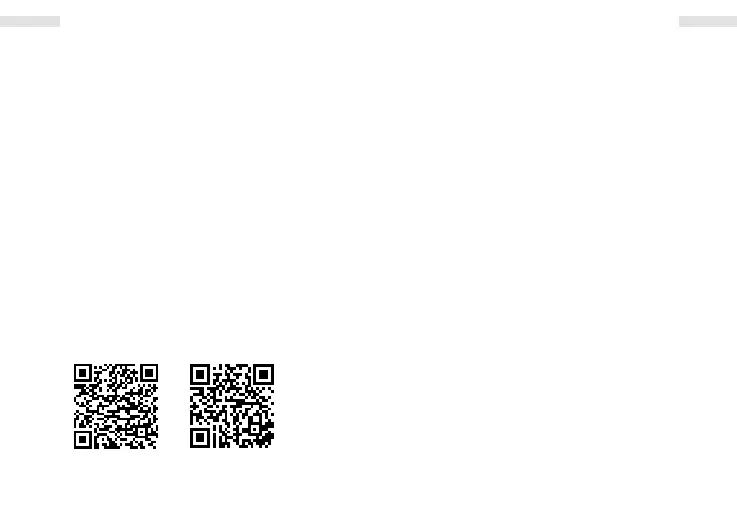
you can pair the watch with by scanning the watch’s QR code
(see “Quick set-up” - icon i) (Fig. 6) or manually (Fig. 1).
7. When pairing manually, tap on your device in the scanned
devices shown (Fig. 2).
8. Once the devices have been paired, set the required watch
functions in the app (Fig. 3).
9. To allow for more precise measurements, it is recommended
that you fill in your personal profile in the app.
Charging and Switching On
1. The watch must be fully charged before first use. Use the
charging cable supplied with the watch. Always charge for
at least 2 hours and do not move the watch while it is
being charged.
2. Connect the charging cable to the USB port of your notebook
(it must be plugged in) or conventional mobile phone adapters
(5 V) and attach the magnetic charging puck at the opposite
end of the cable to the watch’s charging surfaces.
3. If the display does not come on on its own, gently press the
top button button 1 for at least 3 seconds.
Pairing the watch with a mobile phone
Watch settings, the current time and date and their proper
operation require that the watch be paired with a mobile phone
via the recommended WearPro app. Do not connect the watch
to your mobile phone via your phone’s Bluetooth; always use
the app. You can download the app using the QR code below or
look it up in Google Play or the App Store.
Language settings
Tap on the Settings icon in the watch and then on the Language
icon and select the desired language.
iOSAndroid
ENEN


 To Next Page