82 83
CZ CZ
Touchscreen
Swipe from left to right to show a list of calls, messages and the
most recent functions used (Fig. 7).
Swipe from right to left to show “Favourite functions”, and by
tapping on “+”, you can add them or remove them by keeping
your finger on a selected function.
Swipe from top to bottom to show “Quick settings” (Fig. 6).
Swipe from bottom to top to display the function menu.
Swipe from bottom to top then from top to bottom to switch
between functions.
A short tap activates the function of your choice.
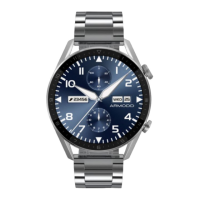
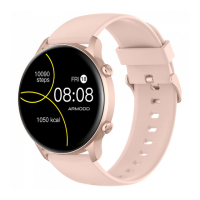
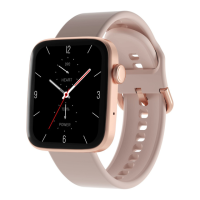
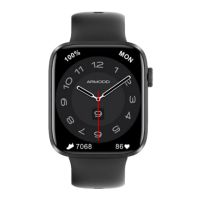
Change the watch face
You may change it using several methods, both in the watch and
using the app.
Turning side button 2
Watch face change – Holding your finger on the display shows an
overview of watch faces to select from by swiping from right to
left. Tap on the watch face of your choice to select it.
In “Settings” – Change watch face
Other watch faces can be added directly from the app. In the app,
tap on the first row of choices (Fig. 3) and select from the gallery
the desired watch face to be transferred to the watch.
Watch face settings
Successfully setting up the watch face requires that the watch
and the mobile phone be charged sufficiently.
In the app, tap on the first row of choices (Fig. 3) and then on the
first watch face in the gallery (Fig. 4). Tap again on the watch face
(Fig. 5) and select whether to take another photo or select an
image from your phone. Edit the image in the viewport. To
transfer the image to the watch, tap on “Start update” (Fig. 5). In
the event of an error message during the upload, please charge
the phone and the watch and repeat the process.
Messages
To receive messages and notifications, your watch must be
paired with your phone, and the receipt of messages and
notifications must be allowed in the WearPro app (Fig. 3).
Furthermore, you must allow the app access to messages and
notifications in the settings of your phone. (This is typically
done during installation.)
Display activation by twisting the wrist
Allow and set up in the WearPro app in your phone (Fig. 3).
ENEN


 To Next Page