- EN 6 -
Aromasound App Connection
Once you have installed the Aromasound app, launch the app, power on your Kumo and then press
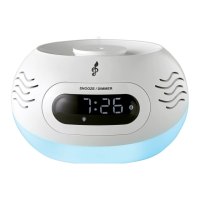
the + button on the home page to connect to your Kumo product. The Kumo name and image will then
appear on the connection page. Select the name and the app will then connect and allow you to control
lighting, mist, alarms and music remotely.
If you experience any problems in connection, always check to install the latest version of the app. If
you have any further problems please contact us at assistance@aromasound.eu and please state the
phone model and operating system version you are using. i.e. Samsung Galaxy S8 – Android version
8.0
Setting the time
• In standby mode, press and hold the button to conrm entering clock-setting mode, and the
time format 24-hour (default) display.
• Press the + or - button to select 24-hour or 12-hour clock display format.
• Press the button to conrm and the ‘hour’ digits on the display will ash
• Press the + or - button to adjust the hour (press and hold the buttons for rapid setting)
• Press the button to conrm and the ‘minutes’ digits on the display will ash
• Press the + or - button to adjust the minutes (press and hold the buttons for rapid setting)
• Press the button a nal time to complete the time setting.
Note: DO NOT press and hold this button for more than 5 seconds as this will trigger the set-up
procedure again.
You can also automatically set the time by connecting the Kumo to the Aromasound app.
Setting the alarm
You can set two alarms to ring at dierent time.
• In standby mode, press and hold the or button to conrm entering clock-setting mode; the clock
digits and alarm icon ( or ) on the display will ash.
• Press the - or + Button to adjust the hour.
• Press the or button to conrm and the minutes digits on the display will ash.
• Press the - or + Button to adjust the minute.
• Press the or button to conrm the time settingand the alarm icon ( or )on the display will
ash.
Note: You can also set the alarm ringtone, alarm diuser, and alarm light eect when the alarm icon
( or ) on the display is ashing,
• Alarm ringtone setting: Press the button to select the ringtone ,and these
icons will appear on the display.
• Alarm diuser setting: Press the button to select 3 diuser modes.
Red icon Every 30 secs for 30 minutes
Blue icon Every 2 minutes for 2 hours
Green icon Every 5 minutes for 2 hours
• Alarm light eect setting: Press the button repeatedly to select the brightness of the LED light.
100% 75% 50% 25% OFF
• And press the or button to conrm and the icon ( or ) will appear on the display.
Note: Press the or button to stop the alarm when the alarm function activates.
Alarms can also be set using the Aromasound app.
Snooze
• Simply tap the Snooze button to temporarily stop the alarm ringtone, but the ringtone will sound
again after 10 minutes.
• Press the or button to fully stop the alarm ringtone.


 To Next Page
 Loading...