5
Setup the WR2100
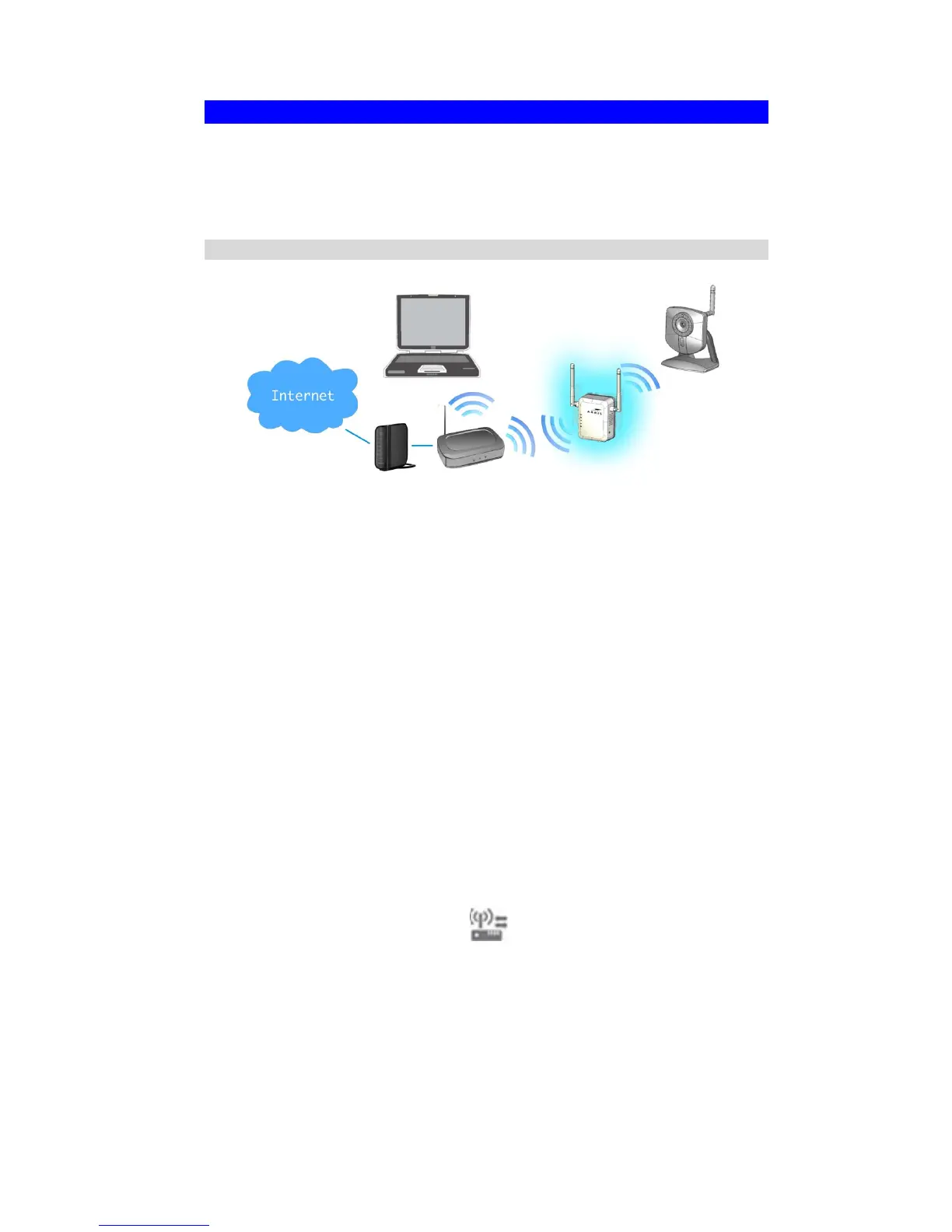
The installation allows the WR2100 to directly connect to a wireless
router (or Wireless Access Point). You can extend the range of your
wireless network, or to add an extension of your network without
running cables.
Configured without a PC - Using WPS
Step 1: Locate the WR2100 near the Wireless Access Point while doing
the configuration.
Step 2: Make sure the Wireless Access Point is on and working
properly.
Step 3: Plug the WR2100 into the power outlet and press the Power
button to power it on.
Step 4: Wait for the Power LED to remain on, the WR2100 is now
ready for use.
Step 5: Press the WPS button on the Wireless Access Point and make
sure the Wireless Access Point is in WPS mode. (The LED on the AP
will blink and active for 2 minutes.)
Step 6: Press and hold the WPS button on the WR2100 for more than 3
seconds. The WPS LED on the device will start blinking for 2 minutes.
The WR2100 will automatically associate to the Wireless Access Point
with the strongest signal and make connection. Make sure to press the
button within 120 seconds (2 minutes) after pressing the Wireless
Access Point WPS button.
Step 7: The connection of the WR2100 and Wireless Access Point is
successfully established after the LED remains on.


 To Next Page