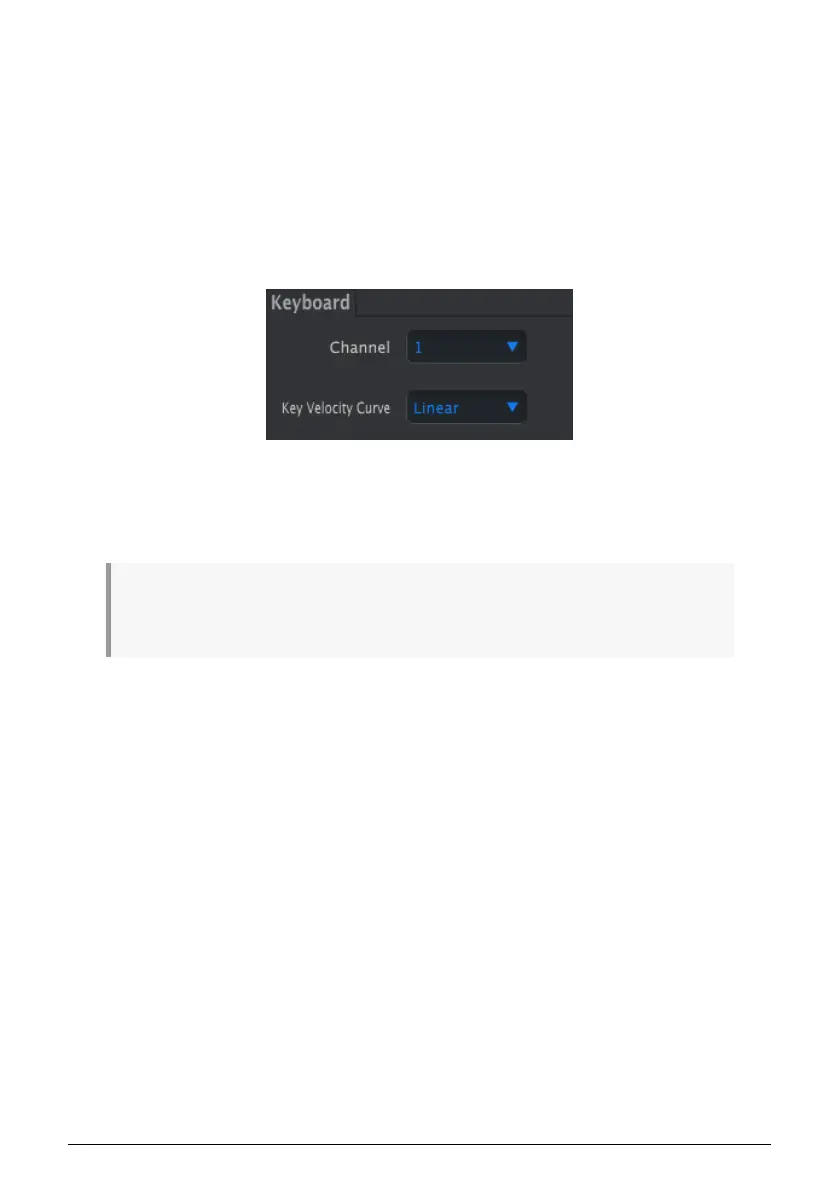
4.2.2. MicroLab's Available Controls
You can modify the following items on MicroLab:
• Keyboard
• Hold Button
• Pitch Slider
• Mod Slider
4.2.2.1. Keyboard
• Channel lets you select an output MIDI channel for the MicroLab keyboard (from
1-16). This can be useful in situations, for example, where you have configured
your virtual instruments to receive MIDI data only on specific channels. By
switching between channels, you can play different instruments.
♪: It is possible to change the MIDI Channel setting directly from MicroLab (without using MCC) by
using shift commands. See the
Shift Functions
section in Chapter 2 of this user manual to learn how to
do this.
• Key Velocity Curve lets you adjust the "sensitivity" or "feel" of the MicroLab keys
by adjusting the velocity response curve of the keyboard. Some performers
prefer "heavier" action whereas others enjoy a "lighter" action from their
keyboards and MicroLab's four options (
Linear
,
Logarithmic
,
Exponential
and
Full
) can help adapt the keyboard to suit a player's preference. We recommend
experimenting with these settings to see what works best for you.
14 Arturia - User Manual MicroLab - MIDI Control Center



 To Next Page