EasyManua.ls Logo

ASA Electronics Voyager AOM681 - User Manual

Default Icon
12 pages
Print Icon
To Next Page IconTo Next Page
Loading...
1
AOM681
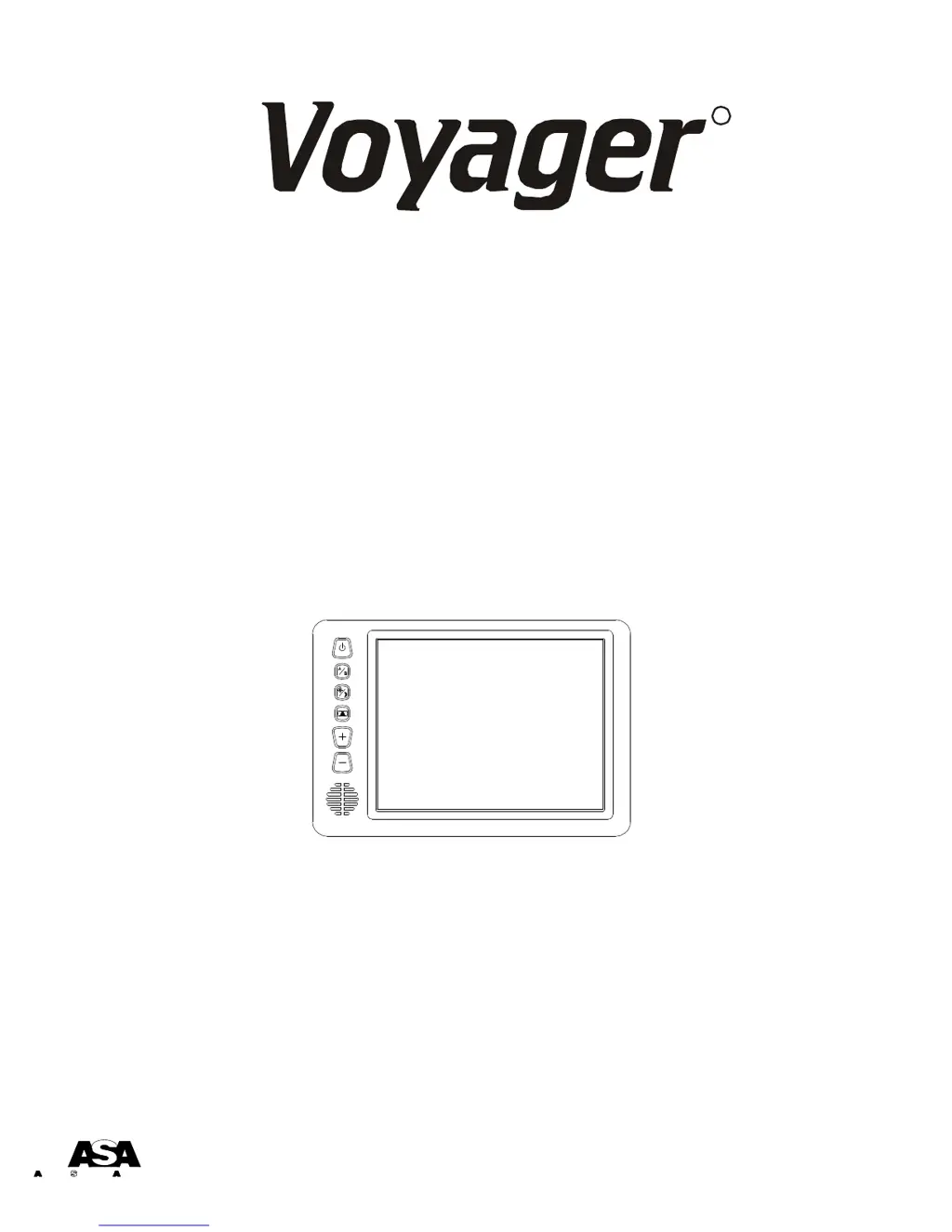
6.8” FLAT PANEL COLOR OBSERVATION
MONITOR OWNERS MANUAL
AOM681 Features:
? 6.8High Performance Color LCD
? Water Resistant Design
? Built-in Audio Speaker with Volume Control
and 12V Trigger
? 2 Camera (A/V) Input with A/B Select Control
? Backlit Controls and Day/Night Picture Modes
for Nighttime Use
? Auto/Manual Power On
? Sun Visor Included
Visit us at http://www.asaelectronics.com
PPLICATIONS, L.L.C.UDIOVOX PECIALIZED
R

Questions and Answers

  • T
    Tristan BonillaJul 29, 2025
    What to do if there is no video or audio on my ASA Electronics Voyager AOM681?
    • T
      Taylor MerrittJul 29, 2025
      If the ASA Electronics monitor is not displaying video or audio, ensure the camera input selection is correct. Also, check the connection to the camera and junction box to confirm it's properly connected and plugged in correctly.
  • J
    Jonathan BrownAug 3, 2025
    Why is the video image on my ASA Electronics Voyager AOM681 Monitor negative or dark?
    • K
      Kimberly WilsonAug 3, 2025
      If your ASA Electronics monitor displays a negative or dark video image, check the voltage power and ground connections. Also, increase the brightness by adjusting it upwards.
  • C
    Christopher LongAug 8, 2025
    Why is my vehicle battery draining when using the ASA Electronics Voyager AOM681?
    • J
      Jennifer GuzmanAug 8, 2025
      If your vehicle's battery is being drained, it might be because the +12V ACC (red wire) is connected directly to the vehicle's battery. To resolve this, provide +12V ACC (red wire) power from a switched circuit.
  • A
    averyamyAug 13, 2025
    Why doesn't my ASA Electronics Monitor activate in reverse?
    • T
      torrestonyAug 13, 2025
      If the ASA Electronics monitor does not activate when the vehicle is in reverse, ensure the blue standby wire is connected to the reverse circuit +12V.
  • J
    John NormanAug 18, 2025
    How to fix video but no audio on ASA Electronics Voyager AOM681 Monitor?
    • C
      Caitlin OlsonAug 18, 2025
      If you are experiencing video but no audio on your ASA Electronics monitor, ensure the blue or white audio trigger wire is powered by connecting it to +12V ACC or the reverse light circuit. Also, check if the volume is turned down and adjust it upwards.
  • C
    Connor HancockAug 23, 2025
    What to do if ASA Electronics Monitor has no power?
    • S
      Sean SmithAug 23, 2025
      If your ASA Electronics monitor has no power, replace the circuit fuse. Note that the monitor has a built-in protection device that may need to be reset. Check the ground connection and verify that power is being supplied, ensuring it is not mis-wired or reversed and that there is +12V accessory.

Summary

Important Information and Warnings

Before Installing

Recommends reading the manual thoroughly before installation for proper use.

Safety Warnings

Covers installation location legality, tampering risks, and moisture resistance.

Packing Contents

Included Components

Lists and illustrates included items like monitor, harnesses, screws, and accessories.

Controls and Operation

Power;Stand-By Button

Explains manual and stand-by modes, wiring, and dual-illumination feature.

A;B Input Select Button

Describes how to toggle between camera inputs AV1 and AV2.

Day;Night Mode Button

Details toggling between day and night LCD illumination modes.

Picture Adjustment Menu

Explains accessing OSD for brightness, contrast, color, and tint adjustments.

Volume +;- Buttons

Covers adjusting speaker volume and their use in picture adjustment menus.

Installation Instructions

Before Installation

Emphasizes securing cables and keeping them away from hazards.

Wiring Definitions

Details pin assignments for power, camera inputs, and LCD panel.

Procedure Steps

Outlines steps for choosing locations, routing cables, and making connections.

Mounting Guidelines

Provides instructions for mounting the monitor and junction box using provided hardware.

Cable Connections

Covers connecting the monitor to the junction box and cameras.

Typical System Connection

Connection Diagram

Illustrates the overall system layout and component interconnections.

Rear Observation Installation: Distance Marker Use

Marker Placement

Explains how to place indicator markers and range marker decals for visual reference.

Mounting Templates

Junction Box Template

Provides dimensions for drilling mounting holes for the junction box.

PanaVise Mount Template

Details dimensions for mounting the optional PanaVise accessory.

Troubleshooting and Accessories

Common Issues and Solutions

Lists symptoms, causes, and solutions for common operational problems.

Accessory List

Provides a list of compatible accessory items for the monitor.

Product Specifications

LCD Panel Specifications

Details screen size, type, brightness, contrast ratio, view angles, and response time.

Operating Environment

Covers temperature range, humidity, vibration, shock, and voltage specifications.

Video and Audio Input

Specifies aspect ratio, input format, input level for video and audio signals.

Physical Characteristics

Provides product weight and overall physical dimensions.

ASA Electronics Voyager AOM681 Specifications

General IconGeneral
Input Voltage12VDC
Aspect Ratio16:9
Contrast Ratio500:1
Screen Size6.8 inches
Resolution800 x 480
Display TypeTFT LCD
Operating Temperature-20°C to 60°C
Storage Temperature-30°C to 70°C

Related product manuals