12/04/2016 - 15 - Concept
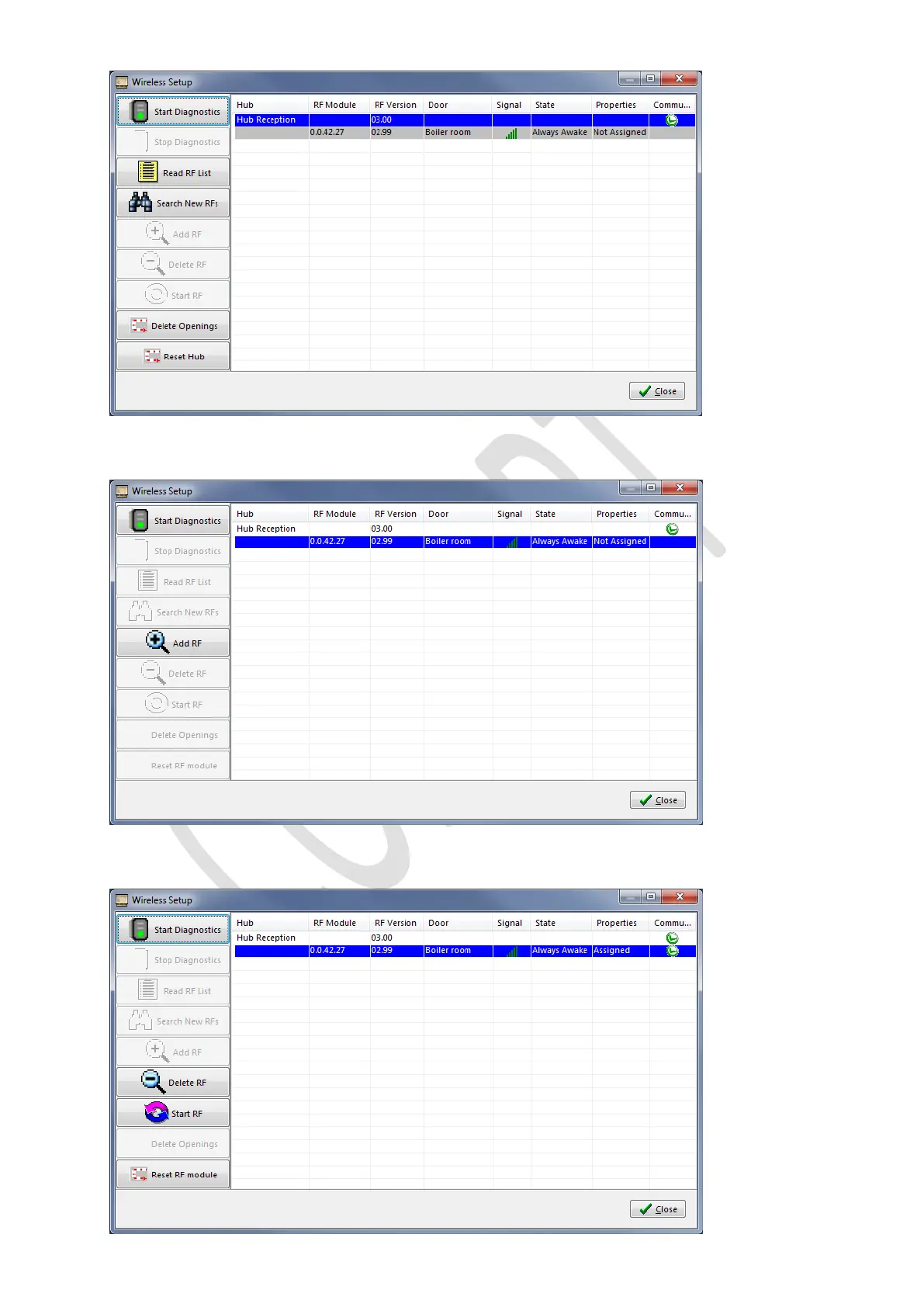
Notice the device is in Always Awake mode, that the device is not Assigned/Paired with the hub and we can see the signal
strength of the RF communication.
If you are happy with the signal strength (best 3 bars are more, 2 or 1 bar is not good) you can assign/pair this device to this
hub by selecting the device you want to pair and click on Add RF.
Once the device is added to the hub, you will see that the properties have changed to Assigned.
Notice that the device is still in Always Awake mode, we now must click on the Start RF button to change the State of the RF
module into Standard mode.



 To Next Page