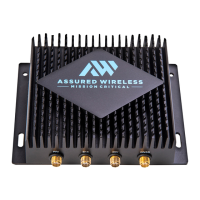
The Assured Wireless AW12 HPUE Modem, when connected to a Cradlepoint IBR1700 Router, provides mission-critical connectivity, particularly for FirstNet services, where staying connected means saving lives. This setup is designed to ensure reliable and high-performance wireless communication, especially in scenarios where traditional connectivity might be challenging.
Function Description:
The core function of this system is to provide robust and reliable wireless WAN connectivity, primarily utilizing FirstNet's High-Power User Equipment (HPUE) capabilities. The Cradlepoint IBR1700 Router acts as the central networking device, managing WAN connections, providing local Wi-Fi access, and handling routing functions. The Assured Wireless AW12 HPUE Modem serves as the primary WAN interface, leveraging FirstNet's Band 14 for enhanced signal strength and coverage, crucial for public safety and emergency services. The AW12-EI Companion Ethernet Injector facilitates the connection between the IBR1700's Ethernet WAN port and the AW12 modem, also providing power to the AW12. The system supports failover and failback mechanisms, ensuring continuous connectivity by switching between the primary AW12 HPUE WAN and an internal LTE modem in the IBR1700 if the primary connection is lost.
Important Technical Specifications:
- Cradlepoint IBR1700 Router:
- Power: Requires an approved 9-36 V DC power source.
- Modems: Features an integrated modem (e.g., Internal 1200M) and supports external modems like the AW12.
- WAN Interfaces: Supports Ethernet WAN, internal modems, and Wi-Fi as WAN.
- LAN: Default Primary LAN is 192.168.0.x, configured for DHCP and NAT.
- Wi-Fi: Supports 2.4 GHz and 5 GHz Wi-Fi bands with default SSIDs and WPA2 Personal security.
- Ethernet Ports: Includes 10/100/1000 Ethernet switch ports.
- SIMs: Internal SIMs are located behind a cover secured by two Philips-head screws.
- MTU: Assured Wireless recommends an MTU size of 1328 bytes for video applications on LTE WAN when using the Ethernet WAN.
- GPS: Integrated GPS for location services.
- Assured Wireless AW12 HPUE Modem:
- HPUE Capability: Leverages FirstNet's Band 14 for high-power user equipment, enhancing signal strength and coverage.
- Connections: Requires three LTE connections: LTE, LTE Diversity, and Band 14 for HPUE.
- Interface: Connects to the IBR1700 via a USB 3.0 interface, adapted by the AW12-EI to an Ethernet WAN port.
- SIM: Requires a FirstNet SIM installed in the AW12.
- AW12-EI Companion Ethernet Injector:
- Function: Adapts the IBR1700 Ethernet WAN port to the AW12 USB 3.0 interface.
- Power: Provides power to the AW12 modem.
- Status Lights:
- Solid Blue: AW12-EI booting up.
- Flashing Red: No FirstNet data connection yet.
- Solid Red: No SIM or SIM problem.
- Flashing Green: Connecting to FirstNet.
- Solid Green: Connected to FirstNet.
Usage Features:
- Connectivity Setup:
- Connect the AW12 HPUE Modem to the AW12-EI Ethernet Injector.
- Connect the AW12-EI to the IBR1700 Router's Ethernet WAN port using a Cat6a Ethernet cable.
- Install a FirstNet SIM in the AW12 and, if desired, a SIM for the internal modem in the IBR1700.
- Ensure proper antenna connections for both the AW12 (three LTE connections) and the IBR1700 (Wi-Fi and GPS).
- Configuration Access:
- Connect a PC with a browser and Ethernet interface to the IBR1700's Ethernet LAN.
- Access the IBR1700's web interface by navigating to 192.168.0.1 in a browser.
- Default login credentials: Username
admin, Password found on the IBR1700 label.
- WAN Management:
- The IBR1700's NetCloud Dashboard provides an overview of WAN connections.
- The Ethernet WAN (connected to AW12) is typically set as the highest priority WAN.
- WAN priority can be adjusted by dragging and dropping entries in the "WAN Device Interface Profiles & Priority" list.
- Failover/Failback: The router automatically switches to the next available WAN (e.g., internal LTE modem) if the primary WAN (AW12) fails (failover). Failback returns to the higher priority WAN when it becomes available.
- Failback Modes: Options include "Immediate Mode" (failback immediately when higher priority WAN is available), "Time" (failback after a set period, default 90 seconds, range 30-300 seconds), and "Disabled."
- Security:
- Admin Password: It is highly recommended to change the default administrator password for the IBR1700 via the "System > Administration > Router Security" section.
- Wi-Fi Security: Set a password for the IBR1700's Wi-Fi access points (e.g., "WiFi Radio #2 (5 GHz)") using WPA2 Personal security.
- NetCloud Activation: Contact Cradlepoint Support for NetCloud activation.
Maintenance Features:
- Firmware Updates: It is recommended to update the IBR1700 firmware for optimal performance and security.
- Factory Reset: To perform a factory reset on the IBR1700, press and hold the Reset Button until all status lights turn white, then release. This will restore default settings and clear existing configurations.
- Configuration Backup: Configuration changes are auto-saved to the Cradlepoint cloud service. However, it is advisable to download the configuration to a PC file as a backup to protect against data loss.
- Orderly Shutdown/Reboot: When making multiple configuration changes, perform an orderly shutdown or reboot to ensure settings are saved correctly.
- Auto-Update Control: Turn off Auto-Update to control software updates manually, preventing unexpected changes.
- Troubleshooting:
- Monitor AW12-EI status lights for connection status (booting, no data, no SIM, connecting, connected).
- If unable to log in with the default password, a factory reset may be necessary if the password was previously changed.
- Beware of modifying security options incorrectly, as this can disrupt cloud services.
- Take photos of router labels (containing default passwords and other information) before installation, as they may become inaccessible afterward.

 Need help?
 General

 To Next Page