EasyManua.ls Logo

Asus A31BF - User Manual

Asus A31BF
74 pages
Print Icon
To Next Page IconTo Next Page
Loading...
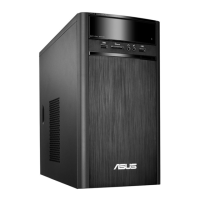
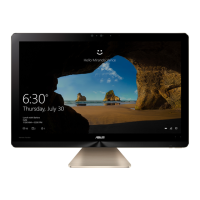
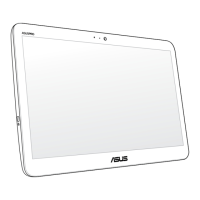
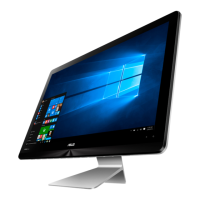
ASUS Desktop PC
A31BF / F31BF / K31BF / M32BF / K30BF
User Guide
K30BF
M32BF
A31BF / F31BF / K31BF

Questions and Answers

  • J
    Jennifer PerryAug 16, 2025
    What to do if my Asus A31BF computer cannot be powered on?
    • J
      Jason JonesAug 16, 2025
      If your Asus Desktop computer does not power on and the front panel power LED is off, ensure the computer is properly connected to a functioning wall outlet and that the Power Supply Unit is switched on.
  • C
    carriephillipsAug 19, 2025
    What to do if there is no display on the monitor connected to my Asus A31BF Desktop?
    • M
      Mr. Corey VillarrealAug 19, 2025
      If there is no display on the monitor connected to your Asus Desktop, check the following: * Ensure the monitor is powered on. * Verify the monitor is properly connected to the video output port on your computer. * If you have a discrete graphics card, connect the monitor to a video output port on it. * Check for bent pins on the monitor video connector, and replace the cable if necessary. * Ensure the monitor is properly plugged into a power source.
  • J
    Jacqueline LewisAug 22, 2025
    What to do if my Asus Desktop speakers produce no sound?
    • Z
      zharrisAug 22, 2025
      If your speakers produce no sound, check the following: * Ensure that you connect your speakers to the Line out port (lime) on the front panel or the rear panel. * Check if your speak is connected to an electrical source and turned on. * Adjust your speakers’ volume. * Ensure that your computer’s system sounds are not muted. If it is muted, the volume icon is displayed as . To enable the system sounds, click from the Windows notification area, then click . If it is not muted, click and drag the slider to adjust the volume. * Connect your speakers to another computer to test if the speakers are working properly.
  • R
    richardacostaAug 26, 2025
    What to do if I cannot access the Internet on my Asus A31BF?
    • S
      Steven MooreAug 26, 2025
      If you cannot access the Internet on your Asus Desktop, try these steps: * Connect the LAN cable to your computer if it is not connected. * Ensure the LAN LED is on; if not, try another LAN cable. * Ensure that your computer is properly connected to a router or hub. * Close the anti-virus software. * Reinstall the LAN driver.
  • A
    Ann DodsonAug 28, 2025
    How to restore my Asus A31BF system settings without affecting personal files?
    • R
      raymondjeffersonAug 28, 2025
      You can restore or undo changes to your Asus Desktop's system settings without affecting your personal data by using the Refresh option. For Windows 8.1, click Settings > PC Settings > Update and recovery > Recovery from the Charms bar, select Refresh everything without affecting your files, and click Get Started. For Windows 10, click Settings > Update & recovery > Recovery from the Start menu, select Refresh your PC without affecting your files, and click Get started.
  • R
    Robert CummingsAug 31, 2025
    What to do if only one monitor has display when using multiple monitors with my Asus A31BF Desktop?
    • D
      Dustin ScottAug 31, 2025
      When using multiple monitors with your Asus Desktop, ensure that both monitors are powered on. During POST, only the monitor connected to the VGA port has display. If a graphics card is installed, connect the monitors to the output port on the graphics card. Also, check if the multiple displays settings are correct.
  • M
    mary47Sep 3, 2025
    How to fix distorted picture on HDTV connected to my Asus Desktop?
    • B
      Brian ParrishSep 3, 2025
      If the picture on your HDTV is distorted, and the signal cable is not connected to the correct VGA port on your computer, adjust the screen resolution to fit your HDTV.
  • C
    Cameron CummingsSep 6, 2025
    What to do if the DVD drive on my Asus Desktop cannot read a disc?
    • L
      Lisa SinghSep 6, 2025
      If the DVD drive on your Asus Desktop cannot read a disc, check if the disc is placed with the label side facing up, if the disc is centered in the tray, and if the disc is scratched or damaged.
  • T
    Tracy JonesSep 9, 2025
    What to do if the DVD drive eject button is not responding on my Asus A31BF?
    • K
      Kendra PetersonSep 9, 2025
      If the DVD drive eject button is not responding on your Asus Desktop: * On Windows 8.1, right-click the CD/DVD drive icon on the Computer screen, and click Eject. * On Windows 10, click File Explorer from the Start menu, right-click the CD/DVD drive icon, and click Eject.
  • J
    Joshua LopezSep 12, 2025
    Why are the arrow keys on the number key pad not working on my Asus A31BF?
    • J
      jeremy74Sep 12, 2025
      If the arrow keys on the number key pad are not working on your Asus Desktop, check if the Number Lock LED is off. When the Number Lock LED is on, the keys on the number key pad are used to input numbers only. Press the Number Lock key to turn the LED off if you want to use the arrow keys on the number key pad.

Asus A31BF Specifications

General IconGeneral
Operating SystemWindows 8.1
Optical DriveDVD Super Multi
NetworkGigabit LAN
AudioHigh Definition Audio
Power Supply300W

Related product manuals