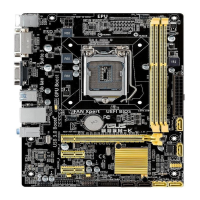
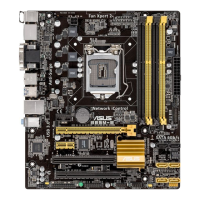
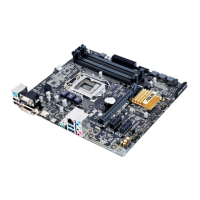
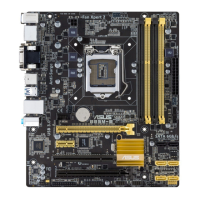
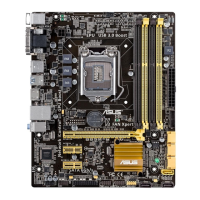
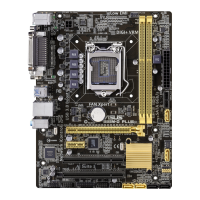
ASUS B85M-D PLUS
2‑13
2.5.1 CPU Core Ratio [Auto]
Allows you to set the CPU core ratio automatically or manually.
[Auto] Sets all CPU Core Ratio to Intel
®
CPU default settings automatically.
[Sync All Cores] Allows you to set CPU Core Ratio settings for all cores.
[Per Core] Allows you to set CPU Core Ratio individually.
The following two items appear only when you set the CPU Core Ratio to [Sync All
Cores] or [Per Core].
1-Core Ratio Limit [Auto]
Select [Auto] to apply the CPU default Turbo Ratio setting or manually assign a 1‑Core
Limit value, which should be higher than or equal to the 2‑Core Ratio Limit.
2-/3-/4-Core Ratio Limit [Auto]
These items become congurable only when you set the CPU Core Ratio item to [Per
Core].
2.5.2 Min CPU Cache Ratio [Auto]
Allows you to set the uncore ratio of the processor to its possible minimum value.
Conguration options: [Auto] [8] ~ [87].
2.5.3 Max CPU Cache Ratio [Auto]
Allows you to set the uncore ratio of the processor to its possible maximum value.
Conguration options: [Auto] [8] ~ [80].
2.5.4 BCLK Frequency : DRAM Frequency Ratio [Auto]
Allows you to set the CPU bus speed to DRAM speed ratio mode.
[Auto] DRAM speed is set to the optimized settings.
[100:133] The BCLK frequency to DRAM speed ratio is set to 100:133.
[100:100] The BCLK frequency to DRAM speed ratio is set to 100:100.
2.5.5 DRAM Frequency [Auto]
Allows you to set the memory operating frequency. The congurable options vary with the
BCLK (base clock) frequency setting. Select the auto mode to apply the optimized setting.
Conguration options: [DDR3‑800MHz] [DDR3‑1066MHz] [DDR3‑1333MHz] [DDR3‑
1400MHz] [DDR3‑1600MHz]
Selecting a very high memory frequency may cause the system to become unstable! If this
happens, revert to the default setting.
2.5.6 Max. CPU Graphics Ratio [Auto]
[Auto] The CPU Graphics ratio is set to its optimized setting depending on the
system loading.
[Manaul] Use the <+> or <‑> keys to adjust the optimal CPU Graphics ratio. The
value may vary depending on the system loading.


 To Next Page