Conguring the USB ports using the BIOS
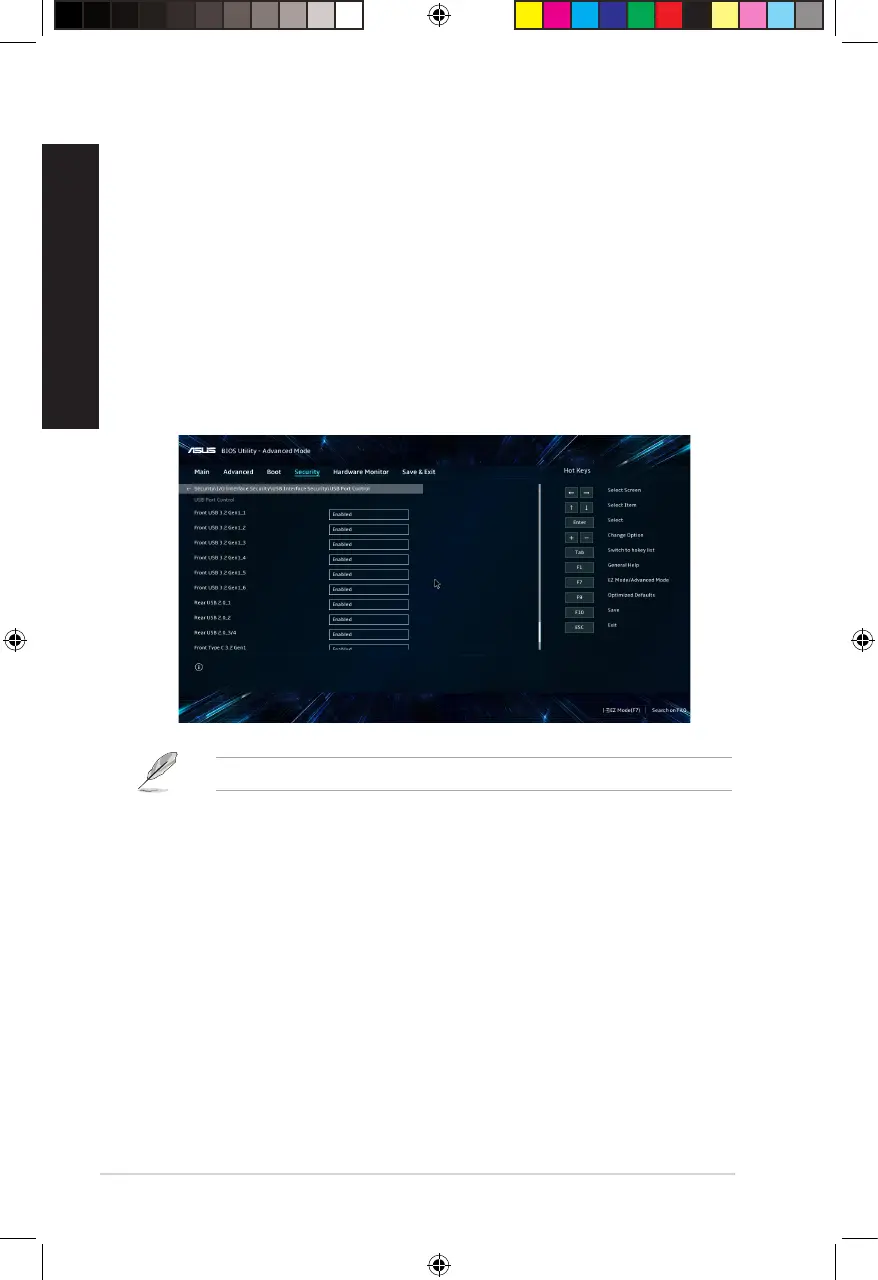
You can enable or disable the front and rear USB 3.2 Gen 1 and USB 2.0 ports from the BIOS Setup.
To disable or enable the front and rear USB 3.2 Gen 1 and USB 2.0 ports:
1. Press <Delete> to enter the BIOS Setup at startup.
2. From the BIOS Setup screen, click Advanced Mode > Security > I/O Interface Security >
USB Interface Security > USB Port Control.
3. Select the USB port that you want to enable or disable.
4. Press <Enter> to enable or disable the selected USB port.
5. Click Exit and select Save Changes & Reset to save the changes made.
Refer to Chapter 1 for the location of the USB ports.
34
Chapter 3: Using your computer
ENGLISH
ENGLISH
E16757_D700SA_D500SA_Series_UM.indb 34E16757_D700SA_D500SA_Series_UM.indb 34 2020/6/9 10:31:102020/6/9 10:31:10



 To Next Page