20
2 Knowing the Parts
Left Side
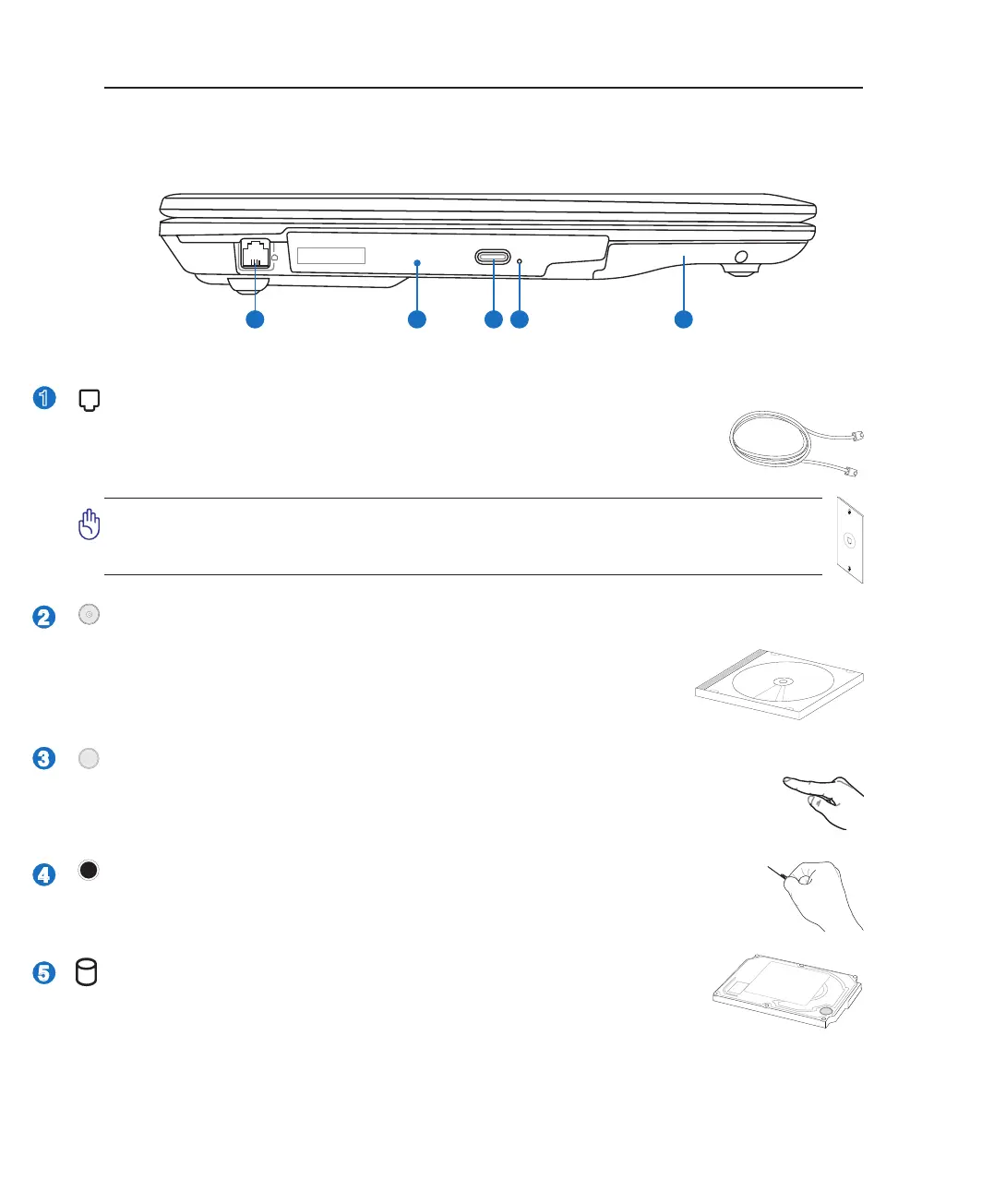
Refer to the diagram below to identify the components on this side of the Notebook PC.
Optical Drive
The Notebook PC comes in various models with different optical drives. The
Notebook PC’s optical drive may support compact discs (CD) and/or digital
video discs (DVD) and may have recordable (R) or re-writable (RW) capabili-
ties. See the marketing specications for details on each model.
Optical Drive Electronic Eject
The optical drive eject has an electronic eject button for opening the tray. You can also
eject the optical drive tray through any software player or by right clicking the optical
drive in Windows™ “My Computer.”
Optical Drive Emergency Eject (location varies by model)
The emergency eject is used to eject the optical drive tray in case the electronic eject does
not work. Do not use the emergency eject in place of the electronic eject.
Hard Disk Drive Compartment
The hard disk drive is secured in a compartment. Hard disk drive upgrades are to
be done by authorized service centers or dealers only.
Modem Port
The RJ-11 modem port with two pins is smaller than the RJ-45 LAN port and supports
a standard telephone cable. The internal modem supports up to 56K V.90 transfers.
The built-in connector allows convenient use without additional adapters.
IMPORTANT! The built-in modem does not support the voltage used in digital
phone systems. Do not connect the modem port to a digital phone system or else
damage will occur to the Notebook PC.



 To Next Page