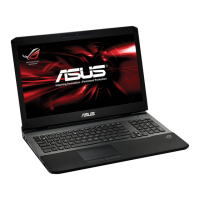
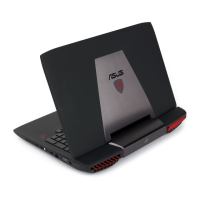
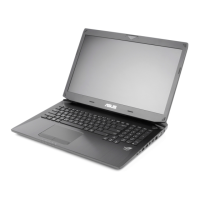
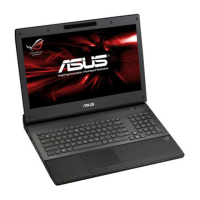
This document is a user manual for an ASUS Notebook PC, model E5094, published in December 2009. It provides essential information for preparing, using, and maintaining the device, along with safety precautions and regulatory statements.
Function Description
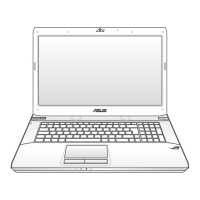
The ASUS Notebook PC is a portable personal computer designed for various computing tasks. It features a display panel, a keyboard, and a touchpad for user interaction. The device is powered by an AC adapter and can also run on a rechargeable battery pack, allowing for mobile use. It includes an optical drive for reading and writing CDs and DVDs, and multiple USB ports for connecting peripherals. An HDMI port (on selected models) allows for connection to external high-definition displays, while a standard D-sub monitor port supports VGA-compatible devices like monitors or projectors. For network connectivity, the notebook is equipped with an RJ-45 LAN port. Audio features include a microphone input jack, a headphone output jack, and a built-in sub-woofer speaker for enhanced multimedia experience. The device also incorporates a flash memory slot for reading various memory cards, expanding its data transfer capabilities.
Usage Features
Preparing the Notebook PC:
- Battery Installation: The manual details a three-step process for installing the battery pack, ensuring it is securely in place.
- Power Adapter Connection: Instructions are provided for connecting the AC power adapter to the notebook, which powers the device and charges the battery.
- Opening the LCD Display Panel: Users are guided to carefully lift and tilt the display panel to a comfortable viewing angle.
- Turning on the Power: The power button is located beneath the LCD display panel. Users can adjust LCD brightness using function keys (Fn+F5 or Fn+F6).
Using the Touchpad:
The touchpad functions similarly to a standard mouse:
- Pointer Movement: Slide a finger across the touchpad to move the pointer on the screen.
- Dragging Items: Hold the left button and slide a finger to drag selected items.
- Standard Mouse Buttons: The left and right buttons on the touchpad operate like standard mouse buttons.
- Scrolling: Slide a finger up or down on the right side of the touchpad to scroll through windows.
Knowing the Parts:
The manual provides a detailed overview of the notebook's physical components:
- Right Side:
- Flash Memory Slot: A built-in high-speed memory card reader compatible with various flash memory cards (e.g., SD, MS/PRO, MMC). This eliminates the need for external card readers.
- USB Port (2.0): Supports USB 2.0 or 1.1 devices, allowing hot-swapping of peripherals without restarting the computer.
- HDMI Port (on selected models): An uncompressed all-digital audio/video interface for connecting to HDTVs and other A/V monitors.
- Display (Monitor) Output: A 15-pin D-sub port for connecting external VGA-compatible displays.
- Power (DC) Input: The jack for connecting the supplied AC power adapter.
- Left Side:
- LAN Port: An RJ-45 port for connecting to a local Ethernet network.
- USB Port (2.0): Additional USB ports for connecting peripherals.
- Optical Drive: Supports various CD/DVD formats, potentially with recordable (R) or re-writable (RW) capabilities.
- Optical Drive Electronic Eject: An electronic button for opening the optical drive tray, also accessible through software.
- Optical Drive Emergency Eject: A manual eject mechanism for use if the electronic eject fails.
- Microphone Input Jack: A 1/8 inch jack for connecting an external microphone, which automatically disables the built-in microphone.
- Headphone Output Jack: A 1/8 inch stereo jack for connecting headphones or amplified speakers, automatically disabling the built-in speakers.
- Rear Side:
- Battery Pack: The rechargeable battery that powers the notebook when not connected to AC.
- Kensington® Lock Port: Allows securing the notebook with compatible security products to prevent theft.
- Front Side:
- Status Indicators: Lights that display various hardware and software conditions.
- Bottom Side:
- Battery Lock - Manual: A manual lock to secure the battery pack.
- Battery Lock - Spring: A spring-loaded lock that automatically secures the battery pack upon insertion.
- Audio Sub-Woofer: A built-in speaker for enhanced bass sounds.
- Memory (RAM) Compartment: Provides expansion capabilities for additional memory modules. The manual advises visiting an authorized service center for upgrades, especially for DIMM slot 2 in four-DIMM models.
- Hard Disk Drive Compartment: Houses the hard disk drive. Upgrades should be performed by authorized service centers.
- Shutdown Button (Emergency): A small button accessible with a straightened paper clip to force a shutdown if the operating system is unresponsive.
Recovering Your Notebook PC:
The manual provides two methods for system recovery:
- Using Recovery Partition:
- This method restores the notebook's software to its original factory state using a reserved partition on the hard drive.
- Users are advised to back up data and note custom settings before proceeding.
- Steps involve pressing [F9] during bootup, selecting Windows Setup [EMS Enabled], choosing a language, and then selecting a recovery option (e.g., "Recover Windows to first partition only," "Recover Windows to entire HD," or "Recover Windows to entire HD with two partitions").
- A warning is given to remove any optional secondary hard disk drives before recovery to prevent data loss.
- Using Recovery DVD (on selected models):
- Creating the Recovery DVD: Users can create recovery DVDs using the "AI Recovery Burner" tool, which requires blank writable DVDs.
- Using the Recovery DVD: Insert the Recovery DVD, restart the notebook, press [Esc] during bootup to select the optical drive, and follow on-screen instructions to restore the system image.
- Crucially, users are warned not to remove the Recovery disc during the process and to ensure the power adapter is connected to prevent recovery failure.
Maintenance Features
Safety Precautions:
The manual emphasizes several safety precautions to extend the life of the notebook and ensure user safety:
- Cleaning: Disconnect AC power and remove the battery before cleaning. Use a damp, soft cloth with nonabrasive detergent.
- Placement: Avoid uneven or unstable surfaces.
- Environmental Exposure: Do not expose to dirty/dusty environments, liquids, rain, moisture, strong magnetic/electrical fields, or operate during a gas leak or electrical storms.
- Physical Handling: Do not press or touch the display panel, place objects on top, or insert foreign objects.
- Heat Exposure: Do not leave the notebook on your lap or body for extended periods to prevent heat discomfort/injury. Avoid using on soft surfaces that block vents.
- Carrying: Do not carry or cover a powered-on notebook with materials that reduce air circulation.
- Power Components: Use only supplied, undamaged power cords, accessories, and peripherals.
- Battery Safety: Do not throw batteries in fire, short circuit contacts, or disassemble the battery. Incorrect battery installation can cause explosion.
- Disposal: Do not dispose of the notebook or battery in municipal waste. Follow local regulations for electronic product recycling.
General Maintenance Advice:
- Memory Upgrades: For memory upgrades, visit an authorized service center or retailer and purchase expansion modules from authorized retailers to ensure compatibility and reliability.
- Hard Disk Drive Upgrades: For hard disk drive upgrades, visit an authorized service center or retailer and purchase drives from authorized retailers.
- Drivers and Utilities: Regularly visit the ASUS website (www.asus.com) for updated drivers and utilities.
Regulatory and Environmental Compliance:
- FCC Statements: The device complies with FCC rules, including guidelines for radio frequency exposure. Users are advised to avoid direct contact with the transmitting antenna and follow operating instructions.
- CE Marking: The notebook complies with EEC directives for electromagnetic compatibility and low voltage. Devices with wireless LAN/Bluetooth also comply with the Radio and Telecommunications Equipment directive.
- IC Radiation Exposure Statement for Canada: The device complies with IC radiation exposure limits, with restrictions on outdoor use for licensed services.
- France Restricted Wireless Frequency Bands: Specific power limits and usage restrictions apply to wireless LAN in certain areas of France, particularly for outdoor use. Users are advised to check with ART for the latest information.
- UL Safety Notices: Adherence to UL 1459 (telecommunications equipment) and UL 1642 (lithium batteries) standards is noted, with specific warnings regarding modem use near water/gas leaks and battery disposal/replacement.
- Power Safety Requirement: Specifies approved power cord types for products with certain electrical current ratings and weight.
- REACH Compliance: ASUS publishes information on chemical substances in its products on its REACH website.
- Nordic Lithium Cautions: Provides warnings in multiple languages about the danger of explosion if the battery is incorrectly replaced and instructions for proper disposal.

 Need help?
 General

 To Next Page