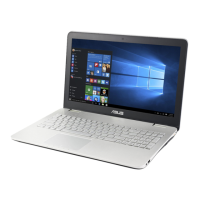
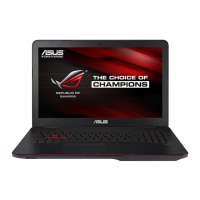
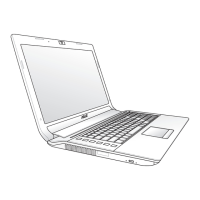
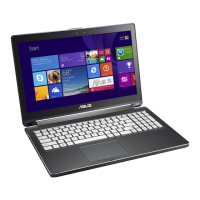
This document is an E-Manual for an ASUS Notebook PC, model E12434, first edition, published in February 2017. It provides comprehensive information on the hardware setup, usage, Windows® 10 operating system, power-on self-test (POST), troubleshooting tips, and regulatory appendices.
Function Description:
The ASUS Notebook PC is a portable computing device designed for general use, running the Windows® 10 operating system. It features a full-sized QWERTY keyboard with function keys for quick access to various system controls and multimedia functions. The integrated touchpad supports multi-gestures for intuitive navigation, simulating a regular mouse. The device includes an array of microphones with echo canceling, noise suppression, and beam forming for enhanced voice recognition and audio recording. A built-in camera with an indicator allows for taking pictures and recording videos. The high-definition display panel is designed for excellent viewing of photos, videos, and other multimedia content.
Important Technical Specifications:
- Model: E12434
- Operating System: Windows® 10
- Power Adapter:
- Input Voltage: 100-240Vac
- Input Frequency: 50-60Hz
- Rating Output Current: 6.32A (120W)
- Rating Output Voltage: 19V
- Connectivity:
- Wi-Fi (Wireless LAN)
- Bluetooth
- LAN port for wired network connection
- USB 2.0 ports (compatible with USB 1.1)
- USB 3.0 port (transfer rate up to 5 Gbit/s, backward compatible with USB 2.0)
- USB Type-C/DisplayPort combo port (transfer rate up to 5 Gbit/s, backward compatible with USB 2.0, supports external display via adapter)
- HDMI port (High-Definition Multimedia Interface, HDCP compliant for HD DVD, Blu-ray, and protected content playback)
- Headphone/Headset/Microphone jack
- Memory card reader (supports SD card formats)
- Environmental Operating Conditions: Ambient temperatures between 5°C (41°F) and 35°C (95°F).
Usage Features:
- Power Management: The power button turns the Notebook PC on/off, and can put it into sleep or hibernate mode. It can also wake the device from these modes. In case of unresponsiveness, holding the power button for at least four seconds performs a forced shutdown.
- Keyboard Functions:
- Function keys (Fn + F1-F12) control various features:
- Fn + F1: Sleep mode
- Fn + F2: Airplane mode toggle (disables all wireless connectivity)
- Fn + F3/F4: Backlit keyboard brightness adjustment
- Fn + F5/F6: Display brightness adjustment
- Fn + F7: Display panel on/off
- Fn + F8: Display mode toggle (requires second display connected)
- Fn + F9: Touchpad enable/disable
- Fn + F10: Speaker on/off
- Fn + F11/F12: Speaker volume down/up
- Windows® 10 keys:
- Windows logo key: Launches Start menu
- Context menu key: Displays drop-down menu
- Multimedia control keys (Fn + arrow keys): Stop, Play/Pause, Skip to previous track/rewind, Skip to next track/fast forward.
- Numeric keypad: Toggles between numeric input and pointer direction keys (Fn + Num Lk/Scr Lk).
- Touchpad Gestures:
- One-finger gestures: Tap/Double-tap (select/launch apps), Drag and drop.
- Two-finger gestures: Tap (right-click), Scroll (up/down, left/right), Zoom in/out.
- Three-finger gestures: Tap (invoke Cortana), Swipe left/right (switch between apps), Swipe up (overview of open apps), Swipe down (show desktop).
- Four-finger gestures: Tap (invoke Action Center).
- Customization: Touchpad settings can be adjusted via All settings > Devices > Mouse & touchpad.
- Windows® 10 Features:
- Start Menu: Main gateway to programs, apps, folders, and settings. Allows launching apps, adjusting settings, getting help, turning off the PC, and logging off.
- Windows® Apps: Pinned apps on the Start menu for easy access. Can be launched, moved, resized, unpinned, or pinned to the taskbar.
- Task View: Quickly switch between opened apps and programs, and manage multiple desktops.
- Snap Feature: Displays apps side-by-side for multitasking by dragging app title bars to screen edges.
- Action Center: Consolidates notifications and provides quick actions.
- Keyboard Shortcuts: Various Windows key combinations for launching Search, Project panel, Run window, Ease of Access Center, Start button context menu, magnifier, and Narrator Settings.
- Network Connectivity:
- Wi-Fi: Connect to wireless networks via the taskbar icon. Airplane mode must be off.
- Bluetooth: Pair with Bluetooth-enabled devices for wireless data transfers. Airplane mode must be off.
- Wired Networks: Connect to local area networks or broadband internet via the LAN port. Configuration options for dynamic IP/PPPoE and static IP connections are available in Settings > Network & Internet.
- System Recovery: Options include "Keep my files" (refresh without affecting personal files), "Remove everything" (reset to factory settings), "Go back to an earlier build," and "Advanced startup" (for troubleshooting, system restore, image recovery, startup repair, command prompt, UEFI firmware settings, and startup settings). Accessed via Settings > Update and security > Recovery.
- BIOS Settings: Access during POST or via Windows® 10 Advanced startup. Allows configuration of boot options, administrator/user passwords, and hardware access. BIOS updates can be performed using ASUS EZ Flash 3 Utility.
Maintenance Features:
- Cleaning: Disconnect AC power and remove the battery (if applicable). Use a clean cellulose sponge or chamois cloth dampened with a nonabrasive detergent solution and warm water. Wipe off excess moisture with a dry cloth. Avoid strong solvents.
- Battery Care:
- Charge for 3 hours before first use.
- Do not dispose of in fire.
- Never short-circuit or disassemble the battery (for non-removable batteries, only ASUS-authorized technicians should remove it).
- Recycle or dispose of properly.
- Keep away from children.
- If not using for a long period (at least a month), remove the battery (if removable).
- General Tips:
- Update Windows® and anti-virus software periodically.
- Avoid force shutdown unless necessary.
- Regularly back up data to an external storage drive.
- Avoid using the Notebook PC in extremely high temperatures.
- Disconnect unused USB devices to maximize battery life.
- Close unused applications to free up system memory.
- Prior to resetting, ensure product keys, backup data, login IDs/passwords, and internet connection information are noted.
- Safety Precautions:
- Use within 5°C (41°F) to 35°C (95°F) ambient temperatures.
- Ensure power adapter rating matches the Notebook PC.
- Do not leave on lap or near body for extended periods to prevent heat exposure.
- Do not use damaged power cords or accessories.
- Do not cover air vents while powered on.
- Do not place on uneven or unstable surfaces.
- Can be sent through x-ray machines, but avoid magnetic detectors.
- Consult airline provider for in-flight usage restrictions.
- Do not place objects on top of the Notebook PC.
- Avoid strong magnetic or electrical fields.
- Keep away from liquids, rain, moisture, dusty environments, and gas leaks.
- Optical Drive Safety: Contains a Class 1 laser product. Do not disassemble or repair. Invisible laser radiation when open; do not stare into beam or view directly with optical instruments. Use of controls or adjustments other than specified may result in hazardous radiation exposure.
- Hearing Protection: To prevent hearing damage, avoid listening at high volume levels for long periods.

 Need help?

 To Next Page
 General