EasyManua.ls Logo

Asus PG27AQDM - User Manual

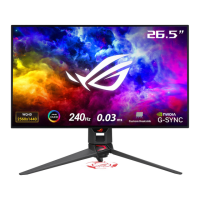
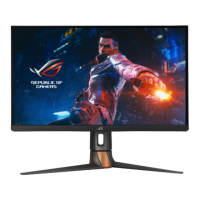
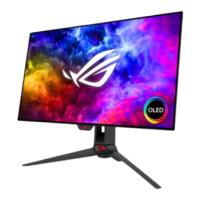
Asus PG27AQDM
12 pages
Print Icon
To Next Page IconTo Next Page
Loading...
1
Monitor Service Manual
Model: PG27AQDM
Version no. 01
Release date: 2023/09/15

Questions and Answers

  • A
    Alicia Flores MDAug 7, 2025
    What to do if the Asus PG27AQDM Monitor power LED is red but there is no screen image?
    • J
      Jacob LopezAug 7, 2025
      If your Asus monitor's power LED is red but there's no image on the screen, first, verify that both your monitor and computer are powered on. Then, ensure the signal cable is securely connected to both devices and inspect it for any bent pins. As a final step, connect your computer to another monitor to confirm that the computer is functioning correctly.
  • M
    Mathew YangAug 13, 2025
    Why is the screen image too light or dark on my Asus PG27AQDM Monitor?
    • B
      Brad NashAug 13, 2025
      If the screen image on your Asus monitor appears too light or dark, or if you notice bouncing, wave patterns, or abnormal picture, try the following: First, adjust the Contrast and Brightness settings using the OSD menu. Next, ensure that the signal cable is properly connected to both the monitor and your computer. Also, move any electrical devices that might be causing interference. Finally, try removing the adapter and plugging it back into the power outlet before turning the monitor back on.
  • M
    Michael HooperAug 19, 2025
    How to fix no sound on Asus Monitor?
    • K
      Kara ChandlerSep 12, 2025
      If your Asus monitor isn't producing any sound or the sound is very low, start by adjusting the volume settings on both your monitor and computer. Next, ensure that the sound card driver on your computer is correctly installed and activated. Finally, verify the audio source.
  • S
    Steven FloresAug 25, 2025
    How to turn on the power LED on Asus PG27AQDM Monitor?
    • L
      Larry HenryAug 26, 2025
      If the power LED on your Asus monitor is not turning on, first, press the power button to ensure the monitor is switched on. Next, check that the adapter and power cord are correctly connected to both the monitor and the power outlet. Lastly, verify the Power Indicator function in the OSD menu and select “ON“ to enable the power LED.
  • A
    Amanda VasquezSep 1, 2025
    What to do if Asus PG27AQDM screen image has color defects?
    • J
      Justin ShepardSep 1, 2025
      If the screen image on your Asus monitor has color defects (e.g., white doesn't look white), begin by inspecting the signal cable for any bent pins. If the cable is fine, perform an All Reset via the OSD. You can also select the appropriate color temperature (Color Temp.) via the OSD.

Summary

Copyright Information

Limitation of Liability

Defines ASUS' liability for damages and clarifies what is not covered under warranty, limiting claims.

Service and Support

Provides information on where to find multi-language support and technical assistance for the product.

Safety Precautions

Care and Cleaning

Instructions on how to safely clean the monitor surface and screen to avoid damage.

Exploded View Diagram

Disassembly and Assembly Procedures

Disassembly Procedure

Step-by-step guide on how to take apart the monitor, including necessary tools and precautions.

Assembly Procedure

Step-by-step guide on how to reassemble the monitor after disassembly, including tools and steps.

Troubleshooting Guide

Asus PG27AQDM Specifications

General IconGeneral
Screen Size27 inches
Resolution2560 x 1440 (QHD)
Panel TypeOLED
Refresh Rate240 Hz
Response Time0.03 ms (GTG)
Aspect Ratio16:9
Contrast Ratio1, 500, 000:1
Display Colors1.07 billion
HDRHDR10
Adaptive SyncNVIDIA G-Sync Compatible
Color Gamut99% DCI-P3
VESA Mount100x100 mm
Brightness450 nits (typical), 1000 nits (peak)
Ports1x DisplayPort 1.4, 2x HDMI 2.0
Weight6.9 kg
USB HubYes (2 x USB 3.2 Gen 1 Type-A)

Videos

How To Change Game Visual Preset In Asus ROG Swift PG27AQDM

How To Adjust RGB In Asus ROG Swift PG27AQDM

How To Factory Reset Asus ROG Swift PG27AQDM

Related product manuals