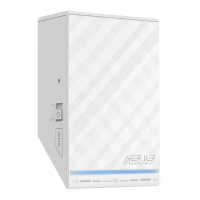
Pair button (optional)
Pairing devices via the Pair button
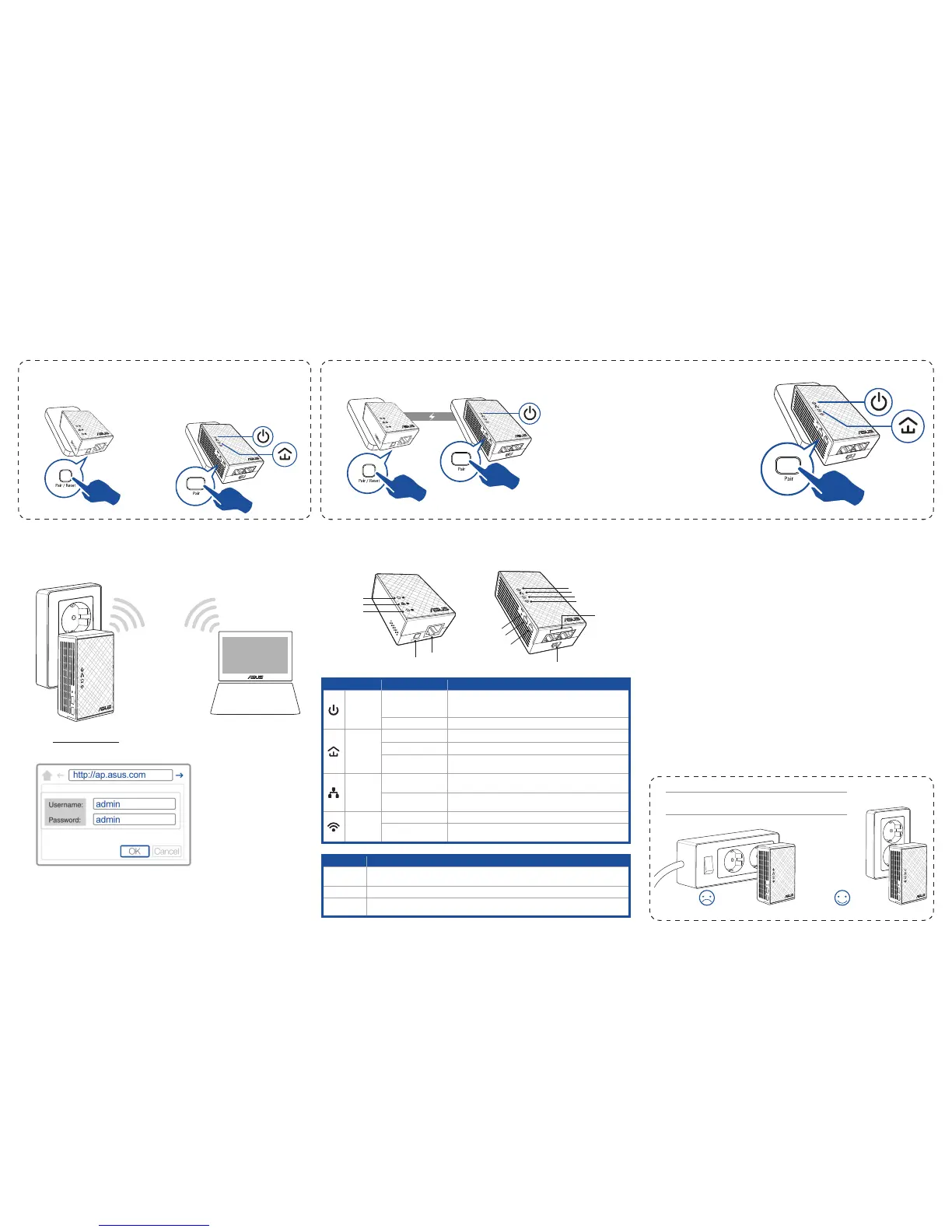
Use the Pair button to create a secure powerline network, and add up to 16 powerline devices to this network.
Creating a secure powerline network
1. Press the Pair/Reset button on your
PL-E14.
2. Press the Pair button on your PL-N12.
WaituntilthepowerlineLEDlights
up,indicatingthatasecurepowerline
network has been created.
Joining a secure powerline network
1. Press the Pair button on a powerline device in the powerline network.
2. Press the Pair button on another extend-
er.WaituntilthepowerlineLEDlightsup,
indicatingthatpairingissuccessful.
PL-N12 Wireless Settings (optional)
1. Set up your PL-N12 via wired or wireless connection. For details, refer to the section
Plug-n-Playonthepreviouspage.
2. Go to http://ap.asus.com
3. Use admin as both the username and password.
4. Go to Wireless > General and set the SSID (network name) and password.
5. When done, click Apply.
Frequently Asked Questions (FAQs)
Q1: How do I reset my PL-N12?
With your PL-N12 switched on, use a pin to press and hold the Reset button until the
Wi-FiLEDstartsblinking.WhenthepowerLEDturnsgreenandtheWi-FiLEDison,the
reset process is completed.
Q2: My devices cannot connect to the Internet.
• CheckyourInternetconnection.
• EnsurethatthepowerlineLEDlightsuponallyourpowerlinedevicesinthe
network.Iftheydonot,trypairingthedevicesagain.
• Ensurethatallyourdevicesareinthesamenetwork.
• Ensurethatalltheextendersandadaptersareinthesameelectricalcircuit.
Q3: My successfully-paired PL-N12 does not work after I moved it to a new
location.
• Ensurethatalltheextendersandadaptersareinthesameelectricalcircuit.
• Trytopairyourextenderwithyouradapteragain.Fordetails,seePairing devices
via the Pair button.
• Checkforanypossibleinterferencesthatmaybetooclosetoyourextenders
oradapterssuchasairconditioners,washingmachines,andotherelectrical
appliances.
• Ensurethatallyourdevicesareinthesamenetwork.
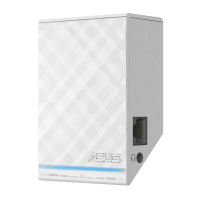
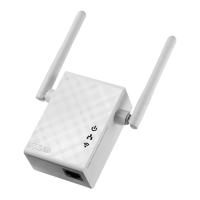
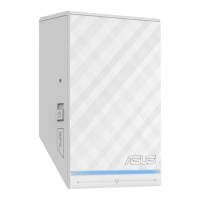
LEDs and buttons
Ethernet port
Pair/Reset
button
Power LED
Ethernet LED
Powerline LED
Reset button
Pair button
Clone button
Power switch
Ethernet ports
Power LED
Ethernet LED
Powerline LED
Wi-Fi LED
PL-E41 Adapter
PL-N12 Extender
Power Strip Wall Outlet
IMPORTANT!EnsurethatyouplugPL-N12/PL-E41to
wall outlets in the same electrical circuit.
LED STATUS DESCRIPTION
Power On/Off Your PL-N12 is on/off.
Whenswitchedon,thepowerLEDturnsfromredtogreen
inaboutoneminute,indicatingthatitisreadytouse.
Blinking Blinkingeverysecond:Pairingisinprogress.
Powerline On The device is connected to one or more powerline devices.
Off The device is not connected to any powerline devices.
Blinking InPower-Savingmode,thepowerlineLEDblinksevery15
seconds.
Ethernet On/Off A device is connected or not connected to the Ethernet
port.
Blinking ThepowerlineadapteristransferringdataviatheEthernet
port.
Wi-Fi Blinkingrapidly YourPL-N12iscloningtheparentAP’sSSIDandpassword.
Blinkingeveryve
seconds
YourPL-N12isresettingtothefactorydefaultsettings.
BUTTON DESCRIPTION
Clone PressandholdthebuttonforaboutonesecondtostartcloningtheparentAP’sSSID
and password.
Pair Pressandholdthebuttonforaboutonesecondtostartthepairingprocess.
Reset Press and hold the button for about five seconds to restore the PL-N12 to the factory
defaultsettings.
Blinking
On
Blinking
Blinking
On


 To Previous Page
 Loading...