11
:PVDBOBMTPVTFZPVSNPCJMFEFWJDFTVDIBTBTNBSUQIPOFPSBUBCMFU1$UPTFU
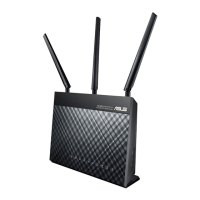
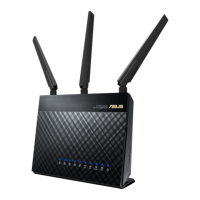
up RT-AC68P through QIS wizard. The QIS wizard will automatically switch to
UIFNPCJMFWFSTJPOJGZPVVTFBTNBSUQIPOFPSBUBCMFU1$UPMBVODIJU
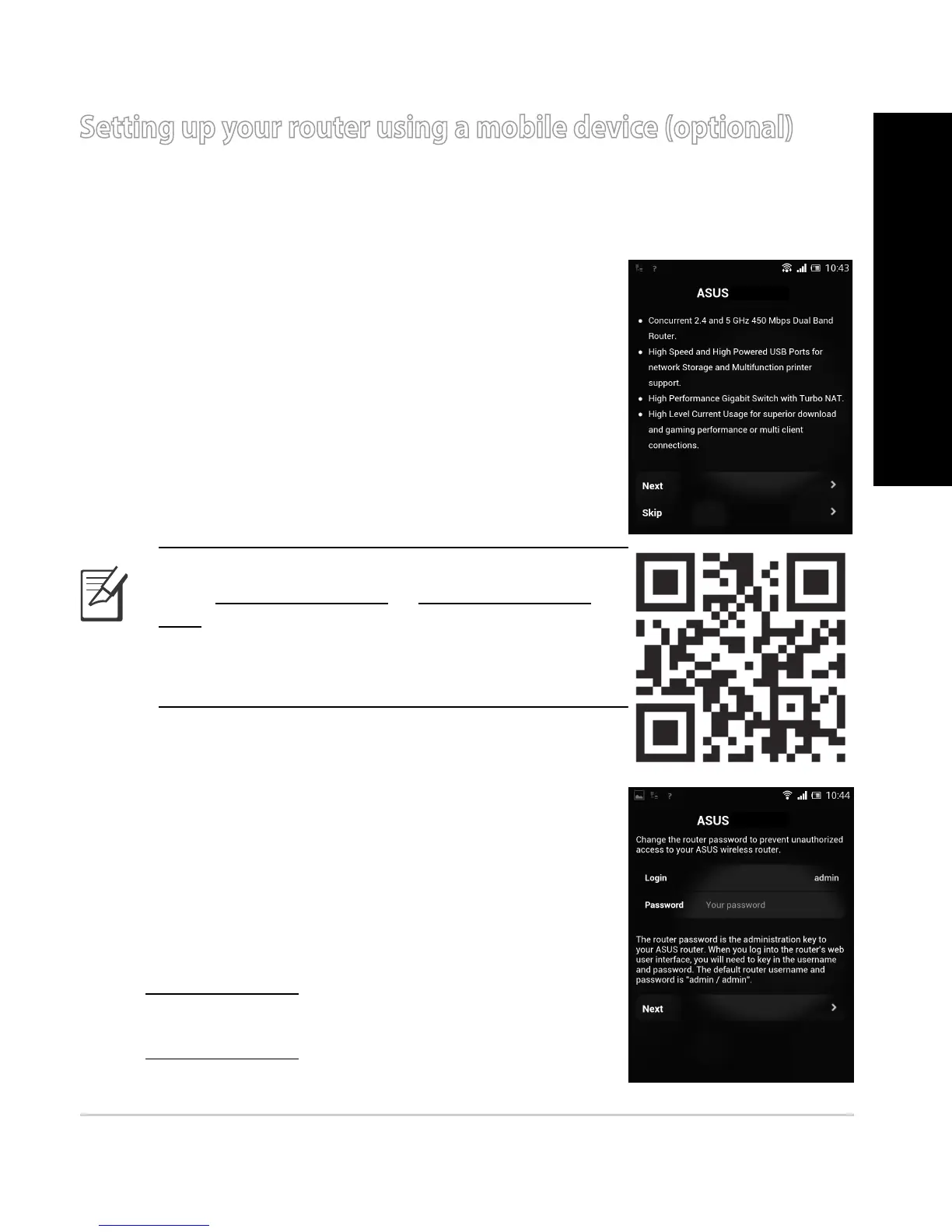
5PTFUVQZPVSSPVUFSVTJOHBNPCJMFEFWJDF
1. Turn on RT-AC68P.
2. &OBCMF8J'JGVODUJPOPGZPVSNPCJMFEFWJDF
3. Search for the SSID ASUS, which is the default SSID
of your RT-AC68P wireless network. Click this SSID
to connect and wait for the status to display Wi-Fi
connected.
4. -BVODIZPVSNPCJMFEFWJDFXFCCSPXTFS
Setting up your router using a mobile device (optional)
NOTE: If QIS does not launch automatically,
enter http://192.168.1.1 or http://router.asus.
com in the address bar and refresh the browser
BHBJO:PVDBOBMTPVTFZPVSNPCJMFEFWJDFUP
scan for the QR code here to go to RT-AC68P’s
web interface.
5. Assign your router login name and password, and
click Next. You will need this login name and pass-
XPSEUPMPHJOUP35"$1TXFCJOUFSGBDFUPWJFXPS
change router settings. Ensure that you take note of
your router login name and password for future use.
Login name:
Login password:
RT-AC68P
RT-AC68P
English


 To Next Page