13
8. Your Internet and wireless settings are displayed. Click Next to continue.
9. Read the wireless network connection tutorial. When done, click Finish.
NOTES: You can assign a network name with up to 32 characters.
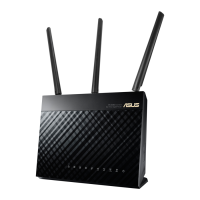
There are two ways for your wireless clients (notebook, tablet PC, smartphone
and so on) to connect to RT-AC68P’s wireless network.
Connect to the wireless network manually
To connect to the wireless network manually:
1. &OBCMFUIF8J'JGVODUJPOPOZPVSXJSFMFTTDMJFOUUPTDBOGPSBWBJMBCMFXJSFMFTT
networks.
2. Select the SSID or network name that you assigned to your RT-AC68P’s net-
work.
3. Enter the password and click Connect.
Connect to the wireless network through WPS
RT-AC68P has a WPS (Wi-Fi Protected Setup) button for you to connect your
wireless client to RT-AC68P’s network without entering password.
To connect to the wireless network through WPS:
1. Press the WPS button at the back of RT-AC68P. Refer to the section A quick
look at your RT-AC68P for the location of the WPS button).
2. Press the WPS button of your wireless client within two minutes or follow the
814JOTUSVDUJPOTUIBUDBNFXJUIUIFXJSFMFTTDMJFOU8IFODPOOFDUJOHWJB
WPS, the Power LED on your router blinks fast.
3. Wait until your router’s Power LED turns into a solid light indicating a suc-
cessfully connection between your router and your wireless client.
Connect to the wireless network
English


 To Next Page