12
RT-G32 Chapter 2: Setting up the hardware
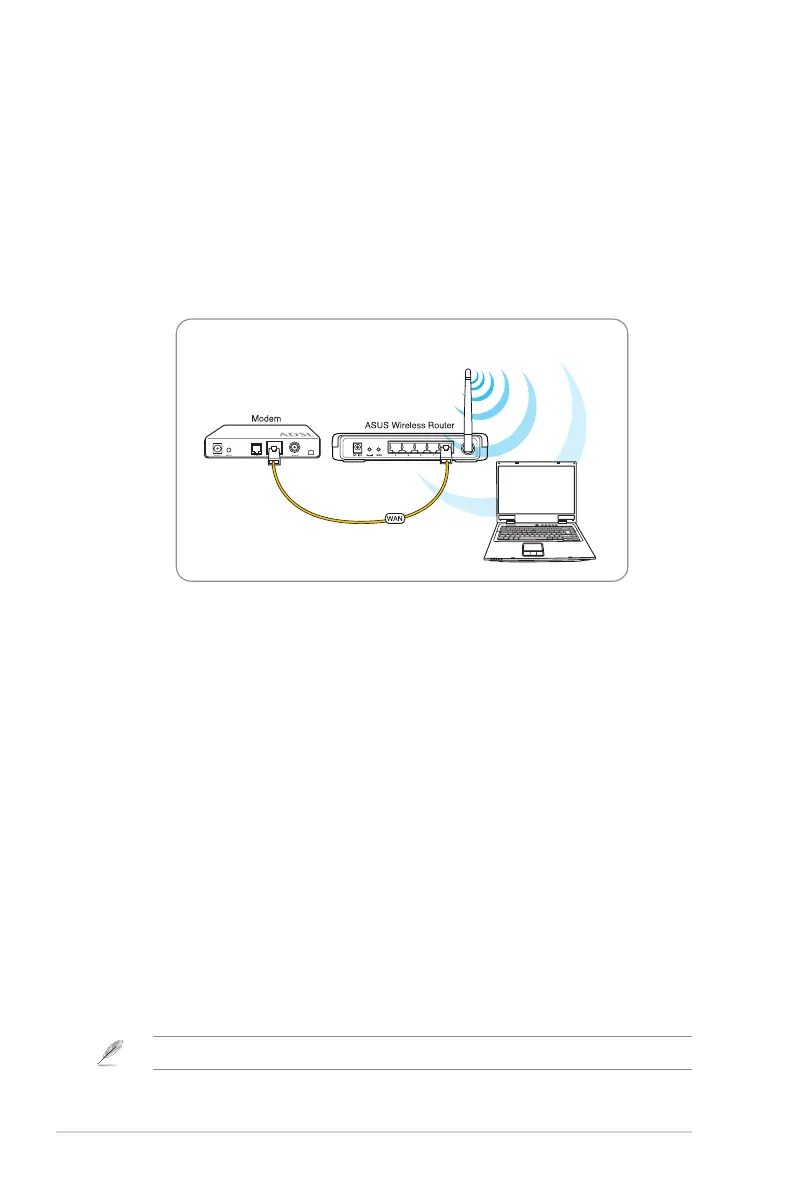
Setting up a wireless connection
To set up a wireless connection:
1. Turn on your router and the modem.
2. Using an Ethernet cable, connect the modem to the router’s WAN port.
3. Connect an IEEE 802.11b/g compatible WLAN card. Refer to your wirelessRefer to your wireless
adapter user manual for wireless connection procedures. By default, the SSID
of ASUS Wireless Router is “default” (in lower case), encryption is disabled and
open system authentication is used.
Conguring the wireless router
The ASUS Wireless Router includes a web graphics user interface (web GUI)
which allows you to congure the wireless router using a web browser on your
computer.
Using the web GUI
If your PC connects to the router using a cable, launch a web browser and the
login page of the router’s web GUI is automatically launched.
If your PC connects to the router wirelessly, you have to select the network rst.
To select the network:
1. Click Start > Control Panel > Network Connections > Wireless Network
Connection.
2. Select a network from the Choose a wireless network window. Wait for it to
connect.
Note: By default, the SSID of wireless router is default. Connect to this default SSID.


 To Next Page