EasyManua.ls Logo

Asus RT-G32 - User Manual

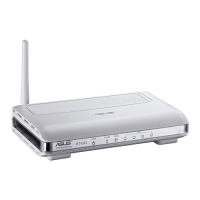
Asus RT-G32
44 pages
Print Icon
To Next Page IconTo Next Page
Loading...
RT-G32
Wireless Router
User Manual

Other manuals for Asus RT-G32

Questions and Answers

  • T
    trevinomasonAug 18, 2025
    What to do if Asus Wireless Router won't connect to wireless?
    • P
      Patricia PaulAug 19, 2025
      If your client cannot establish a wireless connection with the Asus Wireless Router, it could be due to several reasons. You might be out of range, so try moving the router closer to the wireless client or changing the channel settings. If it's an authentication issue, use a wired connection to connect to the router or check the wireless security settings. If you cannot find the router, or have authentication problems, press the Reset button on the rear panel for more than five seconds. Also, verify the settings in the wireless adapter such as SSID and encryption settings.
  • G
    Gabriel Brown DDSAug 21, 2025
    How to fix Asus Wireless Router when internet is not accessible via wireless LAN adapter?
    • T
      Travis RamirezAug 21, 2025
      If you cannot access the Internet via the wireless LAN adapter with your Asus Wireless Router, try these steps: move the router closer to the wireless client, check if the wireless adapter is connected to the correct wireless router, and ensure the wireless channel conforms to the channels available in your country/area. Also, check the encryption settings and make sure the ADSL or Cable connection is correct. If the problem persists, try using another Ethernet cable.
  • A
    Alyssa KerrAug 23, 2025
    How to restore Asus Wireless Router to default settings?
    • R
      Robert MorseAug 23, 2025
      To restore your Asus Wireless Router to its default settings, press the Restore button at the rear panel of the wireless router for more than five seconds.
  • W
    Wyatt GonzalesAug 26, 2025
    What to do if my Asus Network Router client cannot establish a wireless connection?
    • M
      Michelle WilliamsAug 26, 2025
      If your client cannot establish a wireless connection with the router, it may be due to several reasons: being out of range (in this case, put the router closer to the wireless client, or try to change the channel settings), authentication issues (try using a wired connection to connect to the router, check the wireless security settings, or press the Reset button at the rear panel for more than five seconds), or the router cannot be found (in this case, press the Reset button at the rear panel for more than five seconds, or check the setting in the wireless adapter such as SSID and encryption settings).
  • A
    Andrew SantiagoAug 28, 2025
    Why is my Asus Network Router internet not accessible?
    • D
      Diane BlackAug 28, 2025
      If your internet is not accessible, check the status indicators on the ADSL modem and the wireless router. Also, check if the WAN LED on the wireless router is ON. If the LED is not ON, change the cable and try again.
  • B
    bryanhernandezAug 30, 2025
    What to do if I cannot access the Internet via wireless LAN adapter on my Asus Network Router?
    • S
      Sarah MayAug 30, 2025
      If you cannot access the Internet via a wireless LAN adapter, try these steps: Move the router closer to the wireless client. Check whether the wireless adapter is connected to the correct wireless router and whether the wireless channel in use conforms to the channels available in your country/area. Also, check the encryption settings and if the ADSL or Cable connection is correct. You may also retry using another Ethernet cable.
  • F
    fthomasSep 1, 2025
    What to do if I forgot my Asus Network Router network name or encryption keys?
    • C
      cevansSep 1, 2025
      If you have forgotten your network name or encryption keys, try setting up the wired connection and configuring the wireless encryption again. Alternatively, press the Restore button at the rear panel of the wireless router for more than five seconds.
  • J
    Jimmy LewisSep 3, 2025
    What to do if ADSL Modem “Link” light is ON but Internet Access is impossible on Asus Wireless Router?
    • K
      katherine27Sep 4, 2025
      If the ADSL Modem “Link” light is ON but Internet Access is impossible with your Asus Wireless Router, try restarting your computer. Check if the WAN LED on the wireless router is ON and verify the wireless encryption settings. Also, ensure that your web browser is configured to use the local LAN and not a proxy server. Check if the computer can get the IP address via both wired and wireless networks.
  • N
    npollardSep 6, 2025
    How to restore my Asus RT-G32 Network Router to its default settings?
    • T
      Tiffany RoseSep 6, 2025
      To restore the system to its default settings, press the Restore button at the rear panel of the wireless router for more than five seconds.
  • H
    Holly WilliamsSep 8, 2025
    What to do if I forgot network name or encryption keys for Asus Wireless Router?
    • C
      carterbrendaSep 8, 2025
      If you've forgotten the network name or encryption keys for your Asus Wireless Router, try setting up a wired connection and configuring the wireless encryption again. Alternatively, press the Restore button at the rear panel of the wireless router for more than five seconds.

Summary

Knowing your wireless router

Setting up the hardware

Setting up the wireless router

Guides on configuring the wireless router for various scenarios and using EZSetup.

Setting up a wired connection

Provides step-by-step instructions for establishing a wired connection to the router.

Setting up a wireless connection

Details the procedure for setting up a wireless connection to the router.

Using the web GUI

Explains how to access and use the router's web GUI for configuration.

Configuring the network clients

Configuring via the web GUI

To configure via the web GUI

Steps to access and log into the router's web interface.

Configuring the Setting

Overview of settings available for Wireless, LAN, WAN, Firewall, Administration, and System Log.

Upgrading the firmware

Instructions for downloading and upgrading the router's firmware.

Restoring;Saving;Uploading settings

Guides on how to restore, save, and upload router settings.

Installing the utilities

Firmware Restoration

Details on using the Firmware Restoration utility for recovery from failed upgrades.

Troubleshooting

Troubleshooting

Solutions to common problems encountered while installing or using the router.

Cannot access the Internet via wireless LAN adapter

Steps to resolve issues with accessing the internet via a wireless LAN adapter.

Internet is not accessible

Steps to resolve general internet accessibility issues.

How to restore the system to its default settings

Guide to restoring the router to its default factory settings.

Asus RT-G32 Specifications

General IconGeneral
Input current1 A
Input voltage12 V
Rack mountingNo
Dimensions (WxDxH)110 x 167 x 33 mm
Maximum data transfer rate0.1 Gbit/s
Compatible operating systemsWindows Vista
VPN supportIPSec, PPTP, L2TP
Ethernet LANYes
Cabling technology10/100Base-T(X)
Networking standardsIEEE 802.11b, IEEE 802.11g, IEEE 802.3, IEEE 802.3u
Ethernet LAN data rates10, 100 Mbit/s
Ethernet LAN interface typeFast Ethernet
Supported network protocolsUPnP, DHCP, DNS Proxy, NTP Client, DDNS, Port Trigger, Virtual Server, Virtual DMZ, VPN Pass-Through
Security algorithmsSSID, WEP, WPA-PSK, WPA2-PSK
Authentication methodMAC address
Wi-Fi standards802.11b, 802.11g
Channels quantity13 channels
Top Wi-Fi standard802.11g
Ethernet LAN (RJ-45) ports4
Product colorSilver
Storage temperature (T-T)0 - 70 °C
Operating temperature (T-T)0 - 40 °C
Storage relative humidity (H-H)20 - 90 %
Operating relative humidity (H-H)50 - 90 %
Power consumption (typical)12 W
Weight and Dimensions IconWeight and Dimensions
Weight198.2 g

Related product manuals