EasyManua.ls Logo

Asus V32CD - User Manual

Asus V32CD
54 pages
Print Icon
To Next Page IconTo Next Page
Loading...
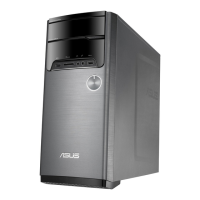
ASUS Desktop PC
M32CD / V32CD / L32CD
User Guide

Questions and Answers

  • B
    brobinsonSep 2, 2025
    Why does my Asus V32CD system often hang or freeze?
    • J
      joshuacervantesSep 2, 2025
      If your Asus Desktop system often hangs or freezes, send the damaged hard disk drive to ASUS Service Center for servicing. Replace with a new hard disk drive. Replace with compatible memory modules. Remove the extra memory modules that you have installed, then try again. Move your computer to an area with better air flow. Reinstall the OS and reinstall compatible softwares.
  • K
    kwilliamsAug 31, 2025
    How to fix no display output after turning on Asus V32CD Desktop (black screen)?
    • R
      Ryan Freeman Jr.Aug 31, 2025
      If there's no display output (black screen) after turning on your Asus Desktop, connect the signal cable to the correct display port (onboard VGA or discrete VGA port). If you are using a discrete VGA card, connect the signal cable to the discrete VGA port. Try connecting to another monitor.
  • A
    Allison McknightAug 29, 2025
    How to fix Asus V32CD Desktop when only one monitor has display?
    • E
      Emily BennettAug 29, 2025
      If you're using multiple monitors with your Asus Desktop and only one displays, ensure both monitors are powered on. During POST, only the monitor connected to the VGA port has display, as dual display functions only under Windows. If a graphics card is installed, connect the monitors to the output port on the graphics card. Check if the multiple displays settings are correct.
  • T
    Timothy CarrollAug 27, 2025
    What to do if my Asus V32CD Desktop computer hangs?
    • E
      Emily ValdezAug 27, 2025
      If your Asus Desktop computer hangs, simultaneously press the + + keys on the keyboard, then click Task Manager. If the keyboard is not responding, press and hold the Power button on the top of your chassis until the computer shuts down. Then press the Power button to turn it on.
  • A
    arnoldbrandonAug 26, 2025
    What to do if my Asus V32CD computer has no display on the monitor?
    • K
      Katherine HooverAug 26, 2025
      If there's no display on your monitor, first check that the monitor is powered on and properly connected to the video output port on your Asus Desktop. If your computer has a discrete graphics card, make sure the monitor is connected to a video output port on that card. Also, inspect the monitor video connector for bent pins, and ensure the monitor is properly plugged into a power source.
  • G
    Gary HardinAug 25, 2025
    How to connect to a wireless network using Asus WLAN Card?
    • S
      Sara AndersonAug 25, 2025
      To connect to a wireless network using the ASUS WLAN Card on your Desktop, ensure that you enter the correct network security key for the wireless network you want to connect to. Connect the external antennas (optional) to the antenna connectors on the ASUS WLAN Card and place the antennas on the top of your computer chassis for the best wireless performance.
  • W
    williamballardAug 22, 2025
    What to do if my Asus V32CD Desktop computer system speed is too slow?
    • A
      Amanda LynchAug 22, 2025
      If your Asus Desktop is running slowly, try closing some programs to free up resources. Use anti-virus software to scan for and repair any viruses on your computer. As a last resort, you can reinstall the operating system.

Asus V32CD Specifications

General IconGeneral
BrandAsus
ModelV32CD
CategoryDesktop
LanguageEnglish

Related product manuals