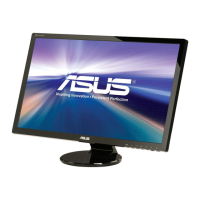
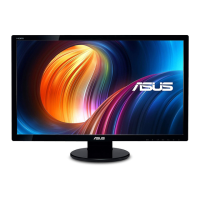
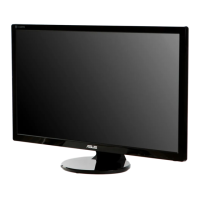
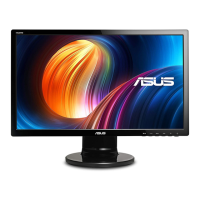
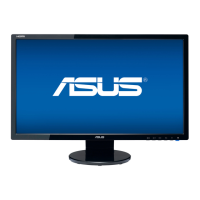
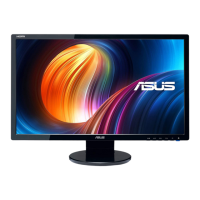
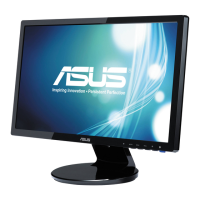
This document is a user manual for the ASUS VE278Q/VK278Q Series LED Monitors, published in July 2010.
Function Description:
The ASUS VE278Q/VK278Q Series LED monitors are widescreen displays designed to provide a crisp, broad, and bright visual experience. They come with a host of features to enhance viewing, including SPLENDID™ Video Enhancement Technology for various preset video modes. The monitors support Picture-in-Picture (PIP) functionality, allowing two different video sources to be displayed simultaneously. The VK278Q model includes a built-in webcam and supports LifeFrame 2 software for creating photos and video clips. The monitors are designed for both PC and HDMI input, supporting a wide range of resolutions and timing lists.
Important Technical Specifications:
- Model: VE278Q and VK278Q
- Panel Size: 27.0"W (68.6cm)
- Max. Resolution: 1920x1080
- Brightness (Typ.): 300cd/m²
- Intrinsic Contrast Ratio (Typ.): 1000:1
- Viewing Angle (CR=10): 160°(V)/170°(H)
- Display Colors: 16.7 M (6bit Hi FRC)
- Response Time: 2ms (Gray to Gray)
- Webcam (built-in): 2.0M (only for VK278Q)
- Satellite Speaker: 3W x 2 stereo
- Earphone Output: Yes
- Sound from HDMI: Yes
- Input Ports: HDMI-IN, DVI, D-Sub (VGA), DisplayPort, Audio Line-in
- USB-IN Port: Yes (only for VK278Q)
- Power ON Consumption: 45W
- Tilt: -5° ~ +20°
- VESA Wall Mounting: Yes (100mm x 100mm)
- Physical Dimension (WxHxD):
- VE278Q: 643x445.6x220 mm
- VK278Q: 643x459.6x220 mm
- Box Dimension (WxHxD): 732x560x176 mm
- Net Weight (Esti.): 6.5 kg
- Gross Weight (Esti.): 9.8 kg
- Voltage Rating: AC 100~240V (Built-in)
Usage Features:
- OSD (On-Screen Display) Menu: Provides comprehensive control over monitor settings.
- Splendid: Offers six video preset modes (Scenery, Standard, Theater, Game, Night View, sRGB) with SPLENDID™ Video Enhancement Technology. Each mode has a Reset option.
- Color: Adjusts Brightness, Contrast, Saturation, Color Temp. (Cool, Normal, Warm, User Mode), and Skin Tone (Reddish, Natural, Yellowish). Brightness can also be adjusted via a hotkey.
- Image: Controls Sharpness, Trace Free (response time), Aspect Control (Full, 4:3, 1:1, Over Scan for HDMI), ASCR (dynamic contrast ratio), Position (H-Position, V-Position for VGA), and Focus (Phase, Clock for VGA).
- Sound: Adjusts Volume, Bass, Treble, Balance, and Mute. Volume can also be adjusted via a hotkey.
- PIP Settings: Enables Picture-in-Picture mode, allowing display of two video sources simultaneously. Users can select PIP Mode (on/off), PIP Source (VGA, DVI, HDMI, DisplayPort), Size (Small, Middle, Large), Position (Right-Top, Left-Top, Right-Bottom, Left-Bottom), and SWAP sources. Note that DVI and HDMI cannot be selected as both Main and PIP sources simultaneously.
- Input Select: Allows switching between VGA, DVI, HDMI, and DisplayPort input signals.
- System Setup: Includes Splendid Demo Mode, AI Light (automatic backlight adjustment based on surroundings), OSD Setup (H-Position, V-Position, OSD Timeout, DDD/CI, Transparency), Information, Language (English, French, German, Spanish, Italian, Dutch, Russian, Traditional Chinese, Simplified Chinese, Japanese), and All Reset.
- Monitor Adjustment: The monitor's angle can be adjusted from -5° to 20° for optimal viewing.
- VESA Wall Mount: The detachable stand allows for VESA wall mounting (100 x 100 mm), requiring a separately purchased UL Listed Wall Mount Bracket with a minimum weight/load of 22.8 Kg (Screw size: 4 x 12 mm).
- LifeFrame 2 Software (VK278Q only): Bundled software for webcam use, enabling users to create photos and video clips. Supports Microsoft® Windows® 7/Vista/XP Service Pack 2.
Maintenance Features:
- Care & Cleaning:
- Disconnect cables and power cord before repositioning or cleaning.
- Lift and carry the monitor by grasping its edges, not by the stand or cord.
- Turn off and unplug the monitor before cleaning.
- Clean the monitor surface with a lint-free, non-abrasive cloth.
- Stubborn stains can be removed with a cloth dampened with mild cleaner.
- Avoid cleaners containing alcohol or acetone. Use cleaners intended for LED displays.
- Never spray cleaner directly on the screen to prevent liquid from dripping inside.
- Troubleshooting (FAQ): The manual provides solutions for common issues such as:
- Power LED not ON
- Power LED amber with no screen image
- Screen image too light or dark
- Screen image not centered or sized properly
- Screen image bounces or has a wave pattern
- Screen image has color defects
- Screen image is blurry or fuzzy
- No sound or low sound
- Webcam not working (for VK278Q only)
- Safety Information:
- Read all documentation before setup.
- Do not expose to rain or moisture.
- Do not open the monitor cabinet due to high voltages.
- Contact qualified service technician for power supply issues.
- Ensure all cables are correctly connected and undamaged.
- Do not block ventilation slots.
- Operate only from the indicated power source.
- Use appropriate power plug.
- Avoid overloading power strips.
- Avoid dust, humidity, and temperature extremes.
- Unplug during lightning storms or long periods of disuse.
- Do not push objects or spill liquid into slots.
- Use with UL listed computers (100-240V AC).
- Contact a qualified service technician for technical problems.

 Need help?

 To Next Page
 General