
 Need help?
Do you have a question about the Asus VG249Q1A and is the answer not in the manual?
Step-by-step guide for assembling the monitor stand and base.
Instructions on how to connect various cables to the monitor.
Details how to use the monitor's control buttons for adjustments.
Explains how to navigate and change settings within the OSD menu.
Describes the sub-functions available within the Gaming OSD menu.
Describes the Image settings within the OSD menu.
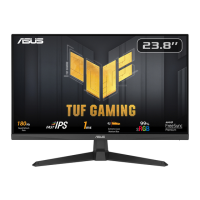
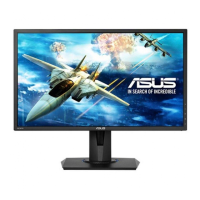
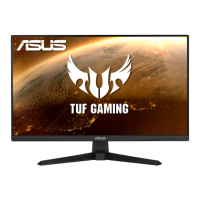
This document serves as the user guide for the ASUS VG249Q1A gaming monitor, providing comprehensive instructions for its setup, operation, and maintenance. The monitor is designed to offer a crisp, broader, and brighter display, enhancing the visual experience for users, particularly gamers.
The ASUS VG249Q1A is a widescreen LED gaming monitor equipped with a variety of features aimed at improving the gaming experience. Its core function is to display high-definition visuals from connected devices, supporting various resolutions and refresh rates. The monitor incorporates ASUS's GameVisual™ Video Intelligence Technology, offering seven preset video modes tailored for different content types, including Scenery, Racing, Cinema, RTS/RPG, FPS, sRGB, and MOBA modes. This allows users to quickly optimize display settings for specific activities.
A key feature for gamers is the GamePlus function, which provides a suite of in-game tools. These include a Crosshair for improved aiming in First Person Shooter (FPS) games, a Timer for tracking in-game events, an FPS Counter to monitor frame rates, and a Display Alignment tool for multi-monitor setups. These tools are designed to give gamers a competitive edge and enhance their overall experience.
The monitor also supports Overclocking, allowing users to adjust the refresh rate for smoother gameplay. The OverDrive function further refines motion clarity by adjusting response time, with a customizable range from 0 to 100. For compatible graphics sources, FreeSync Premium dynamically adjusts the display refresh rate, ensuring a stutter-free and low-latency experience, which is crucial for fast-paced gaming. Additionally, the ELMB (Extreme Low Motion Blur) feature helps reduce motion blur and ghosting, making fast-moving objects appear clearer on screen.
Beyond gaming-specific functions, the monitor offers standard image adjustment capabilities. Users can control Brightness, Contrast, and VividPixel, an ASUS exclusive technology that enhances visual clarity and detail. The ASCR (ASUS Smart Contrast Ratio) function dynamically adjusts the display's contrast ratio for improved image depth. Aspect Control allows users to switch between "Full" and "4:3" aspect ratios, accommodating different content sources. A Blue Light Filter is integrated to reduce the emission of high-energy blue light, which can contribute to eye strain and discomfort during prolonged use. This filter has multiple levels, with Level 4 being optimized for TUV Low Blue Light Certification.
The monitor also includes audio capabilities with built-in stereo speakers and an earphone output port, allowing users to choose their preferred audio setup. Input selection is straightforward, supporting both HDMI and DisplayPort signals.
Setting up the ASUS VG249Q1A monitor is designed to be user-friendly. The assembly process involves aligning the arm with the base and securing it with a bundled screw. The monitor's stand allows for tilt adjustments, with an angle range from +23° to -5°, enabling users to find the most comfortable viewing position. For those who prefer wall mounting, the detachable stand is VESA compatible, and instructions are provided for detaching the arm and base.
Connecting cables is intuitive, with clearly labeled ports for HDMI (HDMI1, HDMI2), DisplayPort, earphone output, and AC power.
The monitor's settings are accessed and adjusted through an On-Screen Display (OSD) menu, navigated using a 5-way control button located on the back of the monitor. This button allows users to toggle between options, select items, and adjust parameters. Shortcuts are available for frequently used functions like GameVisual and GamePlus, providing quick access without delving deep into the OSD menu. The MyFavorite function allows users to customize and save their preferred settings as shortcut keys, further streamlining the adjustment process.
The OSD menu is organized into several main functions: Gaming, Image, Color, Input Select, MyFavorite, and System Setup.
The monitor's power indicator changes color to reflect its status: white for ON, amber for Standby mode, and off when the monitor is OFF.
Proper care and cleaning are essential for maintaining the monitor's performance and longevity. Before repositioning or cleaning, users are advised to disconnect all cables and the power cord. When moving the monitor, it's important to grasp the edges of the monitor, avoiding lifting it by the stand or cord.
For cleaning, the monitor should be turned off and unplugged. The surface can be cleaned with a lint-free, non-abrasive cloth. Stubborn stains can be removed with a cloth dampened with a mild cleaner. Users are cautioned against using cleaners containing alcohol or acetone and should never spray cleaner directly onto the screen to prevent damage or electric shock.
The manual also outlines normal symptoms that users might observe, such as initial screen flickering (which should disappear after turning the power switch off and on), slightly uneven brightness depending on the desktop pattern, and temporary afterimages if the same image is displayed for extended periods. These are considered normal operational characteristics.
Safety information is provided to prevent injury and damage to the device. This includes warnings against opening the monitor cabinet due to high voltages, attempting to repair the power supply yourself, blocking ventilation slots, and exposing the monitor to rain or moisture. It also emphasizes using the appropriate power source and plug, avoiding overloaded power strips, and protecting the monitor from dust, humidity, temperature extremes, and power surges. The importance of an earthing connection for the mains plug is highlighted as a safety feature.
The document also offers advice on alleviating eye strain during prolonged use, recommending regular short breaks, focusing on distant objects, and performing eye exercises. It also notes the benefits of the Blue Light Filter in reducing harmful blue light exposure.
Troubleshooting tips are included to help users resolve common issues, such as the power LED not turning on, no screen image, image quality problems (too light/dark, bouncing, color defects), and audio issues (no sound or low sound). These tips guide users through checking cable connections, adjusting OSD settings, and identifying potential electrical interference.
 General
| Color | black |
|---|---|
| Screen Type | led |
| Tiltable | yes |
| Wall Mount | 100mm x 100mm |
| Webcam | no |
| OS Compatibility | windows |
| Screen Size | 23.8 inches |
| Panel Type | ips |
| Aspect Ratio | 16:9 |
| Resolution | 1920 x 1080 |
| Native Resolution | 1920 x 1080 |
| Refresh Rate | 144hz |
| Horizontal Viewing Angle | 178 degrees |
| Vertical Viewing Angle | 178 degrees |
| Response Time | 1 milliseconds |
| Brightness | 250 candela per square meter |
| Contrast Ratio | 1000:1 |
| Synchronization | freesync (amd adaptive sync) |
| Horizontal Scan Rate | 180 kilohertz |
| HDR | no |
| Built-In Speakers | yes |
| HDMI Ports | 1 |
| Display Port Inputs | 1 |
| Mini Display Port | 0 |
| VGA Ports | 1 |
| DVI | 0 |
| Thunderbolt Ports | 0 |
| Headphones Output | yes |
| Power Saving Mode | 0.5 watts |
| Power Consumption | 16 watts |
| Depth with Stand | 8.6 inches |
| Height with Stand | 14.37 inches |
| Width with Stand | 21.3 inches |
| Depth without Stand | 8.6 inches |
| Height without Stand | 12.80 inches |
| Net Weight without Stand | 14.3 pounds |




 To Next Page