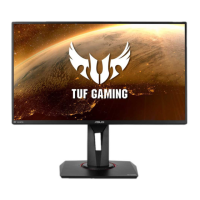
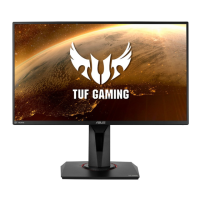
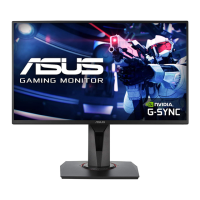
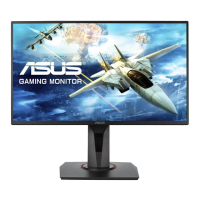
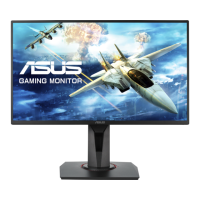
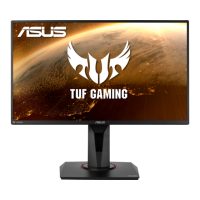
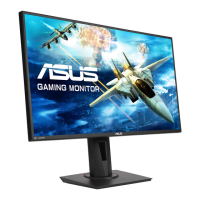
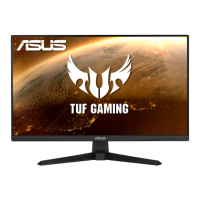
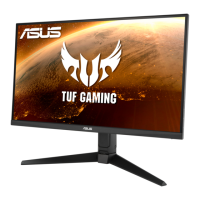
This document is the User Guide for the ASUS VG259Q3A Series LCD Monitor.
Function Description
The ASUS VG259Q3A Series LCD Monitor is designed for optimal viewing and offers various features for adjusting display settings, enhancing gaming experiences, and ensuring user comfort. It serves as a visual output device for computers and other compatible sources, providing a high-definition display with a focus on performance and user customization. The monitor supports multiple input sources, including HDMI and DisplayPort, and includes an On-Screen Display (OSD) menu for comprehensive control over its functions.
Important Technical Specifications
Model: VG259Q3A
Panel Size: 24.5" W (62.2cm)
Max. Resolution: 1920x1080@180Hz
Brightness (Typ.): 250cd/m²
Intrinsic Contrast Ratio (Typ.): 1000:1
Viewing Angle (CR=10): 178°(V)/178°(H)
Display Colors: 16.7M colors (8bits)
Color Saturation: 72% NTSC
Response Time: 1ms (Gray to Gray), 1ms MPRT
Satellite Speaker: 2W x 2 stereo
Earphone Output: Yes
Sound from HDMI/DP: Yes
Digital input: HDMI v2.0 x 2, DisplayPort v1.2 x 1
Power ON Consumption (Max.): 18W
Chassis Colors: Black
Power saving mode: < 0.5W
Power off mode: < 0.3W
Tilt: -5° ~ +23°
Phys. Dimension (WxHxD): 559 x 401 x 174 mm
Phys. Dimension without stand (WxHxD) (For VESA Wall Mount): 559 x 329 x 58 mm
Box Dimension (WxHxD): 620 x 412 x 170 mm
Net Weight (Esti.): 3.1 kg
Net Weight (Esti. w/o stand): 3.1 kg
Gross Weight (Esti.): 5.6 kg
Voltage Rating: 100~240V, 50/60Hz, 1.5A
Operational temperature: 0~40°
Supported Timing List (HDMI / DP input - Full / Equivalent):
The monitor supports a wide range of PC and Video timings, including:
- PC Timing Resolutions: From 640x480 (60-75Hz) up to 1680x1050 (60Hz). Specific resolutions include 720x400, 800x600, 832x624, 1024x768, 1152x864, 1280x720, 1280x800, 1280x960, 1280x1024, 1440x900.
- Detail Timing Resolutions: 1920x1080 at 60Hz, 144Hz, 165Hz, and 180Hz.
- Video Timing Resolutions: From 640x480P (60Hz) up to 1920x1080P (60Hz). Includes 720x480P, 720x576P, 720(1440)x480I, 720(1440)x576I, 1280x720P, 1440x480P, 1440x576P, 1920x1080I.
Supported Timing List (OSD Aspect Control 4:3):
When OSD Aspect Control is set to 4:3, the monitor supports:
- PC Timing Resolutions: From 640x480 (60-75Hz) up to 1680x1050 (60Hz).
- Detail Timing Resolutions: 1024x768 (165Hz), 1152x864 (165Hz), 1280x960 (165Hz), 1280x1024 (165Hz), 1680x1050 (165Hz), 1920x1080 (165Hz).
- Video Timing Resolutions: From 640x480P (60Hz) up to 1920x1080P (120Hz).
Usage Features
Assembly:
- Align the screw hole on the arm with the bundled screw on the base.
- Insert the base into the arm.
- Fix the base to the arm by fastening the bundled screw (M6 x 17mm).
Connecting Cables:
The monitor provides the following ports on the rear:
- Earphone-out Port
- DP - in Port
- HDMI-2 Port
- HDMI-1 Port
- AC-IN Port
Monitor Introduction (Controls):
The monitor features control buttons on the back for adjusting image settings:
- Power Indicator: Displays status (White for ON, Amber for Standby, OFF for OFF).
- Power Button: Turns the monitor on/off.
- GameVisual Button: Shortcut to switch between eight video preset modes (Scenery Mode, Racing Mode, Cinema Mode, RTS/RPG Mode, FPS Mode, sRGB Mode, MOBA Mode, and User Mode) with GameVisual™ Video Intelligence Technology.
- GamePlus Button: Provides in-game enhancements like Crosshair, Timer, Stopwatch, and Display Alignment.
- Close Button: Exits the OSD menu.
- (5-way) Button: Navigates the OSD menu and selects items.
Adjusting the Monitor:
- For optimal viewing, adjust the monitor angle to a comfortable position.
- Hold the stand to prevent falling when changing the angle.
- The monitor's angle can be adjusted from +23° to -5°.
Detaching the Arm/Stand (for VESA wall mount):
- Disconnect power and signal cables.
- Remove the four (4) screws securing the arm to the rear of the monitor.
- Detach the stand (arm and base) from the monitor.
- A VESA wall mount kit (100 x 100 mm) is purchased separately.
- Use only UL Listed Wall Mount Bracket with minimum weight/load 15 kg (Screw size: M4 x 10 mm).
OSD (On-Screen Display) Menu:
The OSD menu provides extensive configuration options:
- Activate OSD: Press the Central of 5-way button.
- Navigate: Use the Up/Down buttons to toggle options, and the Center key to select.
- Adjust Parameters: Use Up/Down buttons to select parameters, and Left/Right to adjust values.
OSD Function Introduction:
- Gaming:
- Variable OD: Adjusts the overdrive level (1-5).
- Variable Refresh Rate: Enables Adaptive-Sync for dynamic refresh rate adjustment.
- ELMB Setup: Reduces motion blur and ghosting. ELMB is disabled if input V frequency is less than 85Hz.
- GamePlus: Activates FPS Counter, Crosshair, Timer, Stopwatch, or Display Alignment.
- GameVisual: Selects from eight preset modes.
- Shadow Boost: Enhances dark areas of the image.
- Image:
- Brightness: Adjusts display brightness (0-100).
- Contrast: Adjusts display contrast (0-100).
- VividPixel: ASUS Exclusive Technology for enhanced visuals (0-100).
- ASCR: Enables/disables dynamic contrast ratio. Disabled when ELMB is on.
- Aspect Control: Adjusts aspect ratio to "Full", "Equivalent", or "4:3".
- Blue Light Filter: Reduces blue light emission (Level 1-4). Levels 1-3 are user-configurable for brightness, while Level 4 is optimized for TUV Low Blue Light Certification and brightness is not configurable.
- Color:
- Color Temp.: Preset modes (Cool, Normal, Warm) and User Mode.
- Saturation: Adjusts color saturation (0-100). In User Mode, R, G, B colors are configurable (0-100).
- Input Select: Selects input source (DisplayPort, HDMI-1, HDMI-2) and toggles Auto Input Detection.
- MyFavorite: Allows setting shortcuts and customized settings.
- Shortcut: Assigns functions like GamePlus, GameVisual, Variable OD, Brightness, Mute, Shadow Boost, Contrast, Input Select, Blue Light Filter, Color Temp., Volume, Customized Setting-1, and Customized Setting-2 to shortcut keys.
- Customized Setting: Allows saving personalized settings.
- System Setup:
- Language: Selects OSD language (English, French, German, Spanish, Italian, Dutch, Russian, Polish, Czech, Croatia, Hungary, Romania, Portugal, Turkey, Simplified Chinese, Traditional Chinese, Japanese, Korean, Persian, Thai, Indonesian, Ukrainian, and Vietnamese).
- Sound: Adjusts output volume or mute audio.
- Power Indicator: Turns the power LED on/off.
- Power Key Lock: Disables/enables the power key.
- Key Lock: Disables all key functions.
- Power Setting: Selects power setting mode.
- OSD Setup: Adjusts OSD position, timeout, transparency, and DDC/CI.
- Information: Displays monitor information.
- All Reset: Resets all settings to factory default.
Maintenance Features
Care & Cleaning:
- Before cleaning, disconnect cables and power cord.
- Lift the monitor carefully, avoiding pressure on the screen.
- Clean the monitor surface with a lint-free, non-abrasive cloth dampened with mild cleaner.
- For stubborn stains, use a cloth dampened with mild cleaner.
- Avoid using alcohol or acetone-based cleaners on the LCD.
- Never spray cleaner directly on the screen.
Troubleshooting (FAQ):
- Power LED not ON: Check power button, power cord connection, and Power Indicator OSD setting.
- Power LED amber, no screen image: Check monitor and computer ON status, signal cable connection, bent pins, and test with another monitor.
- Screen image too light/dark: Adjust Contrast and Brightness via OSD.
- Screen image bounces/wave pattern: Check signal cable connection and move electrical devices causing interference.
- Screen image color defects: Inspect signal cable, check for bent pins, perform OSD Reset, adjust R/G/B color settings, or select Color Temperature via OSD.
- No sound/low sound: Adjust volume settings on monitor and computer, ensure sound card driver is installed and activated.
Safety Information:
- Read all documentation before setup.
- Do not expose to rain or moisture.
- Do not open the monitor cabinet due to high voltages.
- If power supply is broken, contact a qualified service technician.
- Ensure all cables are connected correctly and undamaged.
- Do not block ventilation slots.
- Operate only from the indicated power source.
- Use the appropriate power plug.
- Do not overload power strips/extension cords.
- Avoid dust, humidity, temperature extremes.
- Place on a stable surface.
- Unplug during lightning storms or long periods of disuse.
- Do not push objects or spill liquid into slots.
- Use with UL listed computers (100-240V AC).
- Socket-outlet must be near equipment and easily accessible.
- Contact a qualified service technician for technical problems.
- Provide earthing connection before mains plug, disconnect after pulling out mains plug.
WARNING (Headphones):
- Excessive sound pressure from headphones can result in hearing loss.
WARNING (Power Plug):
- If provided with a 3-pin attachment plug, plug the cord into a grounded 3-pin outlet. Do not disable the grounding pin or use a 2-pin adapter.
Stability Hazard:
- The product may fall, causing serious personal injury or death. Securely attach to floor/wall according to instructions.
- A product may fall, causing serious personal injury or death, especially to children. Follow simple precautions:
- Always use cabinets or stands recommended by manufacturer.
- Always use furniture that can safely support the product.
- Always ensure the product is not overhanging the edge of the supporting furniture.
- Always educate children about the dangers of climbing on furniture.
- Always route cords and cables connected to your product so they cannot be tripped over, pulled, or grabbed.
- Never place a product in an unstable location.
- Never place the product on tall furniture (e.g., cupboards) without anchoring both the furniture and the product to a suitable support.
- Never place the product on cloth or other materials that may be located between the product and supporting furniture.
- Never place items that might tempt children to climb, such as toys and remote controls, on top of the product or furniture on which the product is placed.
- If the existing product is going to be retained and relocated, the same considerations as above should be applied.
Restriction on Hazardous Substances statement (India):
- This product complies with the "India E-Waste (Management) Rules, 2016" and prohibits use of Lead, Mercury, Hexavalent Chromium, polybrominated biphenyls(PBBs) and polybrominated diphenyl ethers(PBDEs) in concentration exceeding 0.1% by weight in homogeneous materials and 0.01% by weight in homogeneous materials for cadmium, except of exemptions listed in Schedule 2 of the Rule.
WEEE Symbol Statement:
- This symbol indicates that the product must not be disposed of with your other household waste. It is your responsibility to dispose of waste equipment by handing it over to a designated collection point for the recycling of waste electrical and electronic equipment. Separate collection and recycling of waste equipment at the time of disposal will help to conserve natural resources and ensure that it is recycled in a manner that protects human health and the environment.
Eye Care:
- Take short breaks (at least 5 mins) after around 1 hour of continuous computer work.
- Periodically focus on distant objects to minimize eye strain and dryness.
- Perform eye exercises (look up/down, roll eyes, move eyes diagonal).
- Blue light filter reduces harmful blue light to avoid CVS (Computer Vision Syndrome).

 Need help?

 To Next Page
 General