Need help?
Do you have a question about the Asus VP228HE and is the answer not in the manual?
Device complies with FCC rules and Class B digital apparatus limits.
Apparatus compliance with Canadian ICES-003 for radio noise emissions.
Explains symbols and terms used for warnings, cautions, and notes.
Provides updated product information online.
Lists additional documents included in the package.
A brief introduction to the ASUS LCD monitor and its features.
Lists all items included in the monitor package for verification.
Step-by-step guide on attaching the monitor base and arm.
Instructions for connecting various cables to the monitor.
Overview of monitor controls, buttons, and power indicator status.
Guide on detaching the monitor stand for VESA wall mounting.
Guidance on tilting the monitor for optimal viewing comfort and stability.
Details OSD menu navigation, reconfiguration, and function introductions.
Technical specifications for various VP228 models including resolution and dimensions.
Common problems and their possible solutions for monitor operation and display issues.
List of supported PC, IBM, MAC, and VESA timings for optimal display performance.
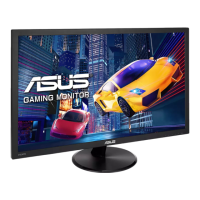
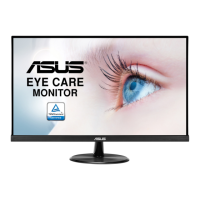
This document is a user guide for the ASUS VP228 Series LCD Monitor, providing comprehensive instructions for its setup, operation, and maintenance. The monitor is designed to offer a crisp, broader, and brighter display, enhancing the user's viewing experience with a host of features.
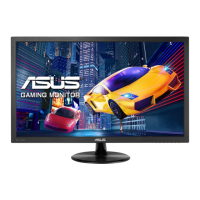
The ASUS VP228 Series LCD Monitor serves as a visual display unit for computers, offering various input options including VGA, DVI, and HDMI (depending on the specific model). It is equipped with an On-Screen Display (OSD) menu that allows users to adjust a wide range of image settings and system configurations. The monitor supports multiple display modes optimized for different content types, such as scenery photos, document editing, movie watching, and gaming. It also incorporates features aimed at enhancing visual comfort and energy efficiency.
The monitor is designed for ease of assembly and adjustment. Users can easily attach the monitor base to the arm and fix it with a screw, then adjust the monitor's angle from -5° to +20° for optimal viewing comfort. For wall mounting, the detachable stand can be removed by loosening screws and detaching the arm/stand from the monitor body. The monitor is compatible with VESA wall mount kits (100 x 100 mm) and requires a UL Listed Wall Mount Bracket with a minimum weight/load of 12 kg.
The control buttons, located on the back of the monitor, provide access to the OSD menu. These include a MENU button to enter the OSD, a Close button to exit, an Input Select button to switch between VGA, DVI, and HDMI input signals, and two Shortcut keys. The default settings for the shortcut keys are Brightness and Blue Light Filter, but users can customize them to quickly access other functions like Splendid modes, Contrast, Color Temp., Volume, or GamePlus. An Auto Button is also available to automatically adjust the image to its optimized position, clock, and phase, particularly useful for VGA input.
The OSD menu is structured into several main functions:
Proper care and cleaning are essential for maintaining the monitor's longevity and performance. Before lifting or repositioning the monitor, it is recommended to disconnect all cables and the power cord. When handling, users should grasp the edges of the monitor, avoiding lifting it by the stand or cord.
For cleaning, the monitor should be turned off and unplugged. The surface can be cleaned with a lint-free, non-abrasive cloth. Stubborn stains may be removed with a cloth dampened with a mild cleaner. It is crucial to avoid cleaners containing alcohol or acetone and to use a cleaner specifically intended for LCDs. Spraying cleaner directly on the screen is not recommended, as it may drip inside and cause electric shock.
The user guide also outlines normal symptoms that do not indicate a fault:
Safety information is provided to prevent damage and injury:
The manual also warns against using unspecified head- or earphones, as this can lead to hearing loss due to excessive sound pressures. Troubleshooting tips are included for common issues such as the power LED not turning on, no screen image, image quality problems, and no sound.
 General
| Color | black |
|---|---|
| Screen Type | led |
| Tiltable | yes |
| Wall Mount | 100mm x 100mm |
| Webcam | no |
| OS Compatibility | windows |
| Screen Size | 21.5 inches |
| Aspect Ratio | 16:9 |
| Resolution | 1920 x 1080 |
| Native Resolution | 1920 x 1080 |
| Refresh Rate | 75hz |
| Horizontal Viewing Angle | 170 degrees |
| Vertical Viewing Angle | 160 degrees |
| Response Time | 1 milliseconds |
| Brightness | 250 candela per square meter |
| Contrast Ratio | 100, 000, 000:1 |
| Horizontal Scan Rate | 83 kilohertz |
| Built-In Speakers | yes |
| VGA Ports | 1 |
| DVI | 1 |
| Power Saving Mode | 0.5 watts |
| Power Consumption | 21.1 watts |
| Width with Stand | 20.20 inches |
| Net Weight without Stand | 7.7 pounds |

 To Next Page