Need help?
Do you have a question about the Asus VP28U Series and is the answer not in the manual?
Device complies with FCC Rules, Part 15, regarding interference.
Details usability features like ergonomics, image quality, safety, emissions.
Details environmental features like CSR, energy consumption, RoHS, recycling.
Lists normal monitor behaviors like flickering, uneven brightness, afterimages.
Explains icons and text conventions used in the manual.
Directs users to ASUS websites for updated information.
Mentions optional documents that may be included.
Standard welcome message for purchasing the ASUS monitor.
Lists items included in the monitor package.
Instructions for assembling the monitor stand and base.
Guide on connecting various cables to the monitor.
Overview of the monitor's features and controls.
Introduces the QuickFit feature for alignment, paper, and photo sizing.
Instructions for removing the monitor stand for wall mounting.
Guidance on adjusting the monitor's angle and viewing position.
Overview of the On-Screen Display menu system.
Introduces the 'Splendid' function and its various modes.
Explains the Blue Light Filter feature and its levels for eye comfort.
Details how to adjust color parameters like Brightness, Contrast, and Saturation.
Details image adjustments like Sharpness, Trace Free, and Aspect Control.
Allows selection of the input source (HDMI, DisplayPort).
Configuration options for the monitor system.
Provides detailed technical specifications for the monitor models.
Lists common problems and their possible solutions.
Lists supported PC video timings for different input ports.
Lists supported video timings for different input ports.
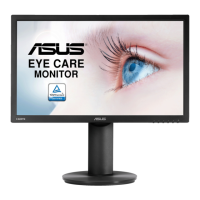
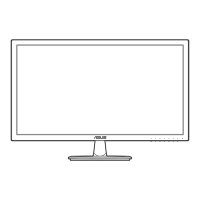
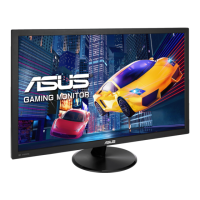
This document serves as a user guide for the ASUS VP28U Series LCD Monitor, providing comprehensive instructions for setup, operation, and maintenance. The monitor is designed to offer a crisp, broader, and brighter display, enhancing the overall viewing experience for users.
The ASUS VP28U Series LCD Monitor is a widescreen display that integrates various features to optimize visual performance and user convenience. It supports multiple input sources, including HDMI and DisplayPort, allowing for versatile connectivity with different devices. The monitor is equipped with an On-Screen Display (OSD) menu, which provides extensive control over image settings, color adjustments, and system configurations.
A key feature of this monitor is the SPLENDID™ Video Intelligence Technology, which offers eight preset display modes tailored for different content types. These modes include Standard, sRGB, Scenery, Theater, Game, Night View, Reading, and Darkroom, each optimized to provide the best visual experience for specific applications like document editing, photo viewing, movie watching, or gaming. The monitor also incorporates a Blue Light Filter with four adjustable levels, designed to reduce harmful blue light emissions and alleviate eye strain, especially during prolonged use. This feature is particularly beneficial for users concerned about Computer Vision Syndrome (CVS) and Age-Related Macular Degeneration (AMD).
For image quality, the monitor allows users to adjust sharpness, contrast, brightness, and saturation. It includes Trace Free technology to speed up response time, VividPixel for lifelike visuals, and ASCR (ASUS Smart Contrast Ratio) for dynamic contrast adjustments. Aspect Control enables users to select various aspect ratios, such as Full, 4:3, and Overscan, to suit different content formats. Additionally, the monitor supports Adaptive-Sync/FreeSync technology, which dynamically adjusts the display refresh rate to match the graphics source's frame rates, ensuring a stutter-free and low-latency experience, particularly for gaming.
The monitor also features GamePlus, a toolkit designed to enhance the gaming environment. This includes functions like a Crosshair overlay for improved aiming in First Person Shooter (FPS) games, a Timer for tracking in-game events, an FPS Counter to display the current frame rate, and Display Alignment tools for multi-monitor setups.
Setting up the monitor is straightforward. Users can easily assemble the stand by attaching the base to the arm and securing it with a screw, then adjusting the monitor to a comfortable viewing angle. For VESA wall mounting, the stand is detachable, requiring the removal of four screws after detaching the base and hinge cover. It is recommended to use a UL Listed Wall Mount Bracket with appropriate weight/load capacity and screw size (M4 x 10 mm).
The monitor's controls are intuitively located on the back, featuring a central button for OSD menu access, and directional keys (Up, Down, Left, Right) for navigation and adjustments. The Power LED indicates the monitor's status (White for enabled, Orange for standby). Shortcut keys are assigned to specific functions, such as Input Select (Up key), Brightness (Down key), and Power Off (Right key). The Down key also serves as a Key Lock shortcut, which can be enabled or disabled by pressing and holding it for five seconds.
Within the OSD menu, users can customize various settings. The "Color" function allows for fine-tuning of brightness, contrast, saturation, color temperature (Cool, Normal, Warm, User Mode), and skin tone (Reddish, Natural, Yellowish). The "Image" function provides controls for sharpness, Trace Free, Aspect Control, VividPixel, ASCR, and Adaptive-Sync/FreeSync. The "Input Select" menu enables switching between HDMI-1, HDMI-2, and DisplayPort inputs.
The "System Setup" menu offers additional configurations, including Splendid Demo Mode, Volume control, GamePlus activation, QuickFit function, DisplayPort Stream settings (DP 1.1 or DP 1.2 for different resolutions and refresh rates), ECO Mode for power saving, OSD Setup (Timeout, DDC/CI, Transparency), Language selection, Key Lock, Information display, Power Indicator on/off, Power Key Lock, and an All Reset option to revert to factory defaults.
The QuickFit function is a practical tool that provides three patterns: Grid, Paper size, and Photo size. The Grid pattern assists designers in organizing content and layouts, while the Paper size patterns (A4, B5, Letter) allow users to view documents in their actual dimensions. The Photo size patterns (8x10, 5x7, 4x6, 3x5, 2x2) are useful for photographers to accurately view and edit photos in real size.
The "MyFavorite" function allows users to load and save their preferred monitor settings, providing quick access to personalized configurations.
The user guide emphasizes several important care and cleaning procedures to ensure the longevity and optimal performance of the monitor. Before moving or cleaning the monitor, it is crucial to disconnect all cables and the power cord. When lifting or carrying the monitor, users should grasp the edges of the display, avoiding the stand or the cord.
For cleaning, the monitor surface should be wiped with a lint-free, non-abrasive cloth. Stubborn stains can be removed with a cloth dampened with a mild cleaner. It is important to avoid cleaners containing alcohol or acetone and never to spray cleaner directly onto the screen, as this could lead to liquid dripping inside and causing an electric shock.
The guide also outlines normal symptoms that may occur with the monitor, such as screen flickering during initial use (which can be resolved by cycling the power switch), slightly uneven brightness depending on the desktop pattern, and temporary afterimages if the same image is displayed for extended periods. These are considered normal and do not indicate a fault. In cases where the screen becomes black, flashes, or stops working, users are advised to contact their dealer or service center for repair, rather than attempting to fix it themselves.
Safety information is thoroughly covered, including warnings against opening the monitor cabinet due to high voltages, instructions for proper power supply connection, and precautions against blocking ventilation slots, overloading power strips, and exposing the monitor to dust, humidity, or extreme temperatures. Users are also advised to unplug the unit during lightning storms or extended periods of disuse to prevent damage from power surges. The importance of an earthing connection for the mains plug is highlighted for safety.
To alleviate eye strain, the manual recommends taking short, frequent breaks from the display, periodically focusing on distant objects, and performing eye exercises. It also reiterates the benefits of the Blue Light Filter in reducing harmful blue light.
 General
| Screen Size | 28 inches |
|---|---|
| Resolution | 3840 x 2160 (4K UHD) |
| Panel Type | TN |
| Refresh Rate | 60 Hz |
| Response Time | 1 ms (GTG) |
| Brightness | 300 cd/m² |
| Contrast Ratio | 1000:1 |
| Adaptive Sync | AMD FreeSync |
| Aspect Ratio | 16:9 |
| Viewing Angle | 170° (H) / 160° (V) |
| Built-in Speakers | No |
| VESA Mount | 100 x 100 mm |
| Connectivity | HDMI 2.0, DisplayPort 1.2 |
| Weight | 5.4 kg |
| Color Support | 1.07 billion colors |

 To Next Page