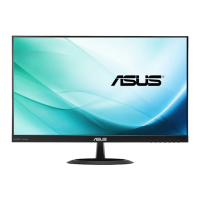
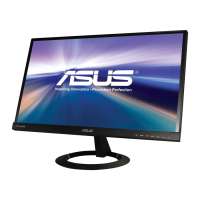
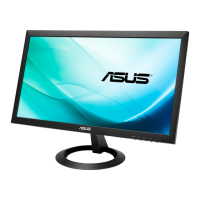
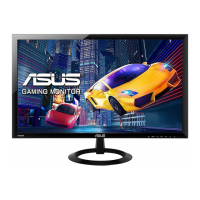
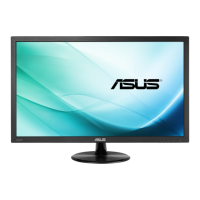
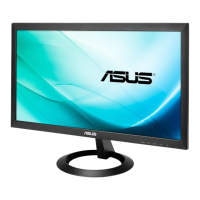
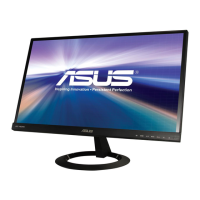
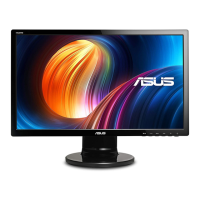
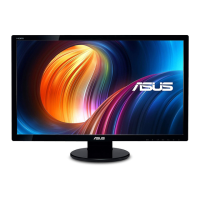
The ASUS VX238 series LCD Monitor is a widescreen display designed to provide a crisp, broad, and bright visual experience for users. This monitor series offers a range of features to enhance viewing, making it suitable for various applications from document editing to gaming and movie watching.
Function Description
The primary function of the ASUS VX238 series LCD Monitor is to display visual content from connected devices such as personal computers, game consoles, DVD players, and other consumer video devices. It supports full HD video content (480p, 576p, 720p, 1080i/p) via HDMI, ensuring high-quality image reproduction. The monitor is equipped with an On-Screen Display (OSD) menu that allows users to configure various display settings to suit their preferences.
Key functionalities include:
- Display Modes: The monitor offers six SPLENDID™ Video Enhancement preset modes: Scenery Mode, Standard Mode, Theater Mode, Game Mode, Night View Mode, and sRGB. These modes are optimized for different types of content, providing enhanced visuals for photos, documents, movies, and games.
- Image Adjustment: Users can fine-tune image quality through settings like Brightness, Contrast, Saturation, Color Temperature, Skin Tone, Sharpness, Trace Free, Aspect Control, ASCR (ASUS Smart Contrast Ratio), Position (for VGA input), and Focus (for VGA input). These adjustments allow for personalized visual output.
- Input Selection: The monitor supports multiple input sources, including VGA, DVI (for VX238T/VX238N models), and HDMI (for VX238H model). Users can easily switch between these inputs to display content from different devices.
- Audio Output: For models like VX238H/T/S, an audio-in port allows connection to a PC audio source, and an earphone jack (VX238H only) provides private listening. The OSD menu includes a volume control for adjusting the earphone output.
- Power Management: The monitor features power management functionality, automatically entering sleep/standby mode after 10 seconds of no signal input to conserve energy. An ECO Mode is also available for further power saving.
Usage Features
The ASUS VX238 series LCD Monitor is designed with user convenience and flexibility in mind, offering several features that enhance its usability:
- QuickFit Function: This innovative feature allows users to preview documents or photo layouts directly on the screen without needing to print test copies. By pressing the QuickFit hotkey, users can cycle through different pattern sizes, such as Alignment Grid, Photo 4x6, 3x5, 2x2, 8x10, and 5x7, to ensure accurate sizing and composition before printing. This saves time and resources by reducing the need for physical test prints.
- Adjustable Viewing Angle: The monitor's stand allows for tilt adjustments from -5° to +20°, enabling users to find the most comfortable viewing angle. This ergonomic design helps reduce strain during prolonged use.
- Intuitive OSD Menu: The On-Screen Display (OSD) menu is easily navigable using the monitor's control buttons. Users can access and adjust various settings, including display modes, color settings, image properties, input sources, and system configurations. The OSD also includes an "Information" section that displays details like input port, resolution, refresh rates, and model name, which can be helpful for troubleshooting or verification.
- Hotkey Access: Several functions are accessible via dedicated hotkeys on the front panel. For instance, the QuickFit function has its own hotkey, and the Brightness and Contrast settings can be quickly adjusted using specific buttons. For VGA mode, an auto-adjustment feature can optimize image position, clock, and phase by pressing a button for 2-4 seconds.
- Multi-language Support: The OSD menu supports 21 languages, including English, French, German, Spanish, Italian, Dutch, Russian, Polish, Czech, Croatian, Hungarian, Romanian, Portuguese, Turkish, Traditional Chinese, Simplified Chinese, Japanese, Korean, Persian, Thai, and Indonesian, making it accessible to a wide range of international users.
- Connectivity Options: Depending on the model, the monitor offers DVI, HDMI, and VGA ports, providing versatile connectivity with various devices. For models with multiple video signal cables connected, users can easily select the desired signal via the Input Select key or through the OSD menu.
- Built-in Speakers: The monitor includes built-in 2 x 1.5 W speakers, providing integrated audio output for convenience, eliminating the need for external speakers in many scenarios.
Maintenance Features
Maintaining the ASUS VX238 series LCD Monitor is straightforward, with guidelines provided to ensure its longevity and optimal performance:
- Cleaning Instructions: For cleaning the monitor surface, it is recommended to turn off and unplug the monitor, then use a lint-free, non-abrasive cloth. Stubborn stains can be removed with a cloth dampened with a mild cleaner. Users are advised to avoid cleaners containing alcohol or acetone and to never spray cleaner directly on the screen to prevent liquid from dripping inside and causing electrical shock.
- Safe Handling: When lifting or repositioning the monitor, users should disconnect cables and the power cord. It is important to grasp the edges of the monitor and avoid lifting it by the stand or the cord to prevent damage.
- Ventilation: The monitor cabinet has slots and openings for ventilation. These should not be blocked, and the product should not be placed near radiators or heat sources without proper ventilation to prevent overheating.
- Environmental Considerations: Users should avoid exposing the monitor to dust, humidity, and temperature extremes. It should not be placed in areas where it might get wet and should always be on a stable surface.
- Power Surge Protection: To protect the monitor from damage due to power surges, it is advisable to unplug the unit during lightning storms or if it will not be used for a long period.
- Troubleshooting Guide: The manual includes a comprehensive troubleshooting section (FAQ) that addresses common issues such as the power LED not turning on, no screen image, image quality problems (too light/dark, not centered, blurry, color defects), and sound issues. This guide provides step-by-step solutions, including checking cable connections, adjusting OSD settings, and moving electrical devices that might cause interference.
- Factory Reset: The OSD menu offers an "All Reset" function, allowing users to revert all settings to the factory default status. This can be useful for resolving configuration issues or starting fresh with settings.
- Professional Service: In case of technical problems that cannot be resolved through the troubleshooting guide, users are advised to contact a qualified service technician or their retailer. The manual explicitly states not to attempt to repair the screen or open the monitor cabinet due to dangerous high voltages inside.
- Takeback Services: ASUS provides recycling and takeback programs, demonstrating a commitment to environmental protection. Users can find detailed recycling information on the ASUS website, encouraging responsible disposal of products, batteries, and packaging materials.

 Need help?
 General
 Weight and Dimensions

 To Next Page