EasyManua.ls Logo

AT&T Moxee - User Manual

AT&T Moxee
3 pages
Print Icon
To Next Page IconTo Next Page
Loading...
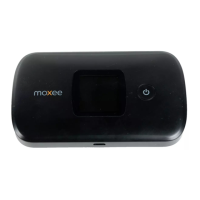
AT&T Moxee Hotspot for Arkansas K-12 Students
Welcome to your AT& Hotspot with unlimited data for Arkansas K-12 students provided by the Arkansas Department of
Education, Division of Elementary and Secondary Education. This will allow connectivity to educational sites for your
remote learning. This Hotspot has CIPA, Child Internet Protection Act, software and will not allow access to sites that
have been determined to be inappropriate for minors.
This device has been tested and will be ready to use. Please see the included Quick set up guide connection to your
laptop or tablet.
Your device will have the SIM card installed and be ready to go. See this YouTube video, https://youtu.be/gHv_bThiCdA
for instructions to set it up and QR Code for more AT&T consumer products and special promos.
Users may go by any AT&T store or contact AT&T support at 800-331-0500 for additional support. You will need to have
the cell number of the device (written on the box) handy when calling in and your Account number 287301460802 and
the passcode to your account is 72201. Please note this support is for device connectivity. They will not be able to help with
application passwords or special application access or availability of blocked sites.
1.
Your device comes with a charger. To charge, plug one end of the charger into an electrical
outlet and the other end into the device’s MicroUSB port.
Setting up Wi-Fi connection
1.
Press and hold the Power Button for 3 seconds until the wel- come logo appears on the
display. After a few seconds, the Wi-Fi signal icon will appear on the display.
2.
Look for the network (SSID)
“Moxee HotspotXX_2.4G”
or
“Moxee HotspotXX_5G”
, where XX are the last two digits of the device IMEI.
3.
Click
“Connect
and enter the default password found on your device. Your Wi-Fi SSID and
password information can be found on your device’s
“Wi-Fi Info
screen or on the SSID label
located underneath the battery cover.
Be sure to hang on to your device box and the info on it. Online link to Moxee Device Help
https://www.att.com/device-support/index/Moxee/K779HSDL/
Moxee Hotpot User Manual (English)
https://www.att.com/ecms/dam/att/devicesupport/EMB-Moxee-K779HSDL-UserManual-051220.pdf
For questions, escalations or additional orders you can email ArkansasEducation@att.com or g53940@att.com
Question and Answer IconNeed help?

Do you have a question about the AT&T Moxee and is the answer not in the manual?

Summary

Moxee Hotspot Device Overview

Device Components and Indicators

Identifies key physical parts of the Moxee Hotspot device, including buttons, ports, and status indicators.

Moxee Mobile Hotspot Features

Connectivity and Battery Life

Details the device's ability to connect multiple devices, its long-lasting battery, and dual-band Wi-Fi capabilities.

Security and Management

Explains the security features like password protection and VPN pass-through, and the web interface for management.

Overview

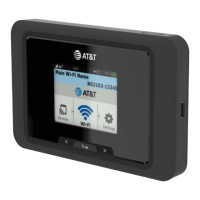
The Moxee Hotspot is a portable mobile hotspot device designed to provide Wi-Fi connectivity, particularly for educational purposes for K-12 students in Arkansas, with unlimited data provided by the Arkansas Department of Education. It is equipped with CIPA (Child Internet Protection Act) compliant software to block inappropriate content.

Function Description:

The primary function of the Moxee Hotspot is to create a personal Wi-Fi network, allowing up to 16 Wi-Fi enabled devices (such as laptops, tablets, and gaming consoles) to connect to the internet via the AT&T 4G LTE network. It supports dual-band Wi-Fi (2.4 GHz and 5 GHz) to optimize connection speed and range. The 5 GHz band offers faster speeds for activities like video streaming and gaming, while the 2.4 GHz band provides extended coverage, useful for maintaining connectivity over longer distances or inside buildings. The device is designed for remote learning, ensuring students have reliable internet access.

Important Technical Specifications:

  • Networks: Operates on AT&T 4G LTE bands 2, 4, 5, 12, 66, with LTE Roaming on band 14.
  • Display: Features a 1.44" Color LCD Display for easy status monitoring.
  • OS Support: Proprietary operating system.
  • Processor: Powered by a Qualcomm MDM9607, 1.3GHz processor.
  • Memory: Includes 256MB RAM and 256MB ROM.
  • Battery: Equipped with a removable 2300mAh Li-ion battery. This battery provides approximately 8.25 hours of general business usage, which includes about 3.5 hours of video conferencing, email checking, file downloads, and web browsing. Actual battery life can vary based on network conditions, connected devices, device settings, content streamed, and battery age.
  • Dimensions: Measures 112mm (L) x 65mm (W) x 16mm (H) and weighs 121g (with battery), making it compact and portable.
  • Connectivity: Supports Wi-Fi 802.11 a/b/g/n/ac 2x2 MIMO Dual-Band (2.4GHz & 5GHz) and can host up to 16 devices.
  • Ports: Includes a Micro-USB 2.0 port for charging.
  • Security: Features WPS (Wi-Fi Protected Setup), NAT firewall for enhanced security, and Wi-Fi security protocols with password protection. It also supports VPN pass-through for connecting to protected business networks.

Usage Features:

  • Easy Setup: The device comes with the SIM card pre-installed and is ready to use. A Quick Setup Guide is included for connecting to a laptop or tablet.
  • Power On/Off: To power on, press and hold the Power Button for 3 seconds until the welcome logo appears on the display, followed by the Wi-Fi signal icon.
  • Wi-Fi Connection: Users can find the network (SSID) as "Moxee HotspotXX_2.4G" or "Moxee HotspotXX_5G," where "XX" represents the last two digits of the device's IMEI. The default password is located on the device's "Wi-Fi Info" screen or on the SSID label under the battery cover.
  • User Interface: A convenient Web User Interface allows users to manage settings, block unwanted devices, and view important messages.
  • Status Indicators: The device display shows various icons including Menu, Signal and Roaming status, Network mode, Wi-Fi signal, Unread message, and Battery status.
  • Charging: The device is charged via its Micro-USB port using the included charger. A full charge takes approximately 2.8 hours, with an 80% charge achieved in about 1.3 hours.
  • Support: Users can contact AT&T support at 800-331-0500 for device connectivity issues, using the device's cell number, account number (287301460802), and passcode (72201). Note that support is for device connectivity only, not for application passwords or access to blocked sites.

Maintenance Features:

  • Battery Management: The device has a removable Li-ion battery, allowing for potential replacement if needed.
  • Firmware Updates: While not explicitly detailed, devices of this nature typically receive firmware updates to improve performance and security.
  • Troubleshooting: The device's LCD display provides visual cues for status and potential issues. The Web User Interface offers tools for managing settings and diagnosing problems.
  • Physical Access: A notch is provided for easily removing the back cover, likely for battery access or to view the SSID label.
  • Documentation: Online resources such as the Moxee Device Help page and the Moxee Hotspot User Manual (English) are available for detailed information and troubleshooting.
  • Contact for Issues: For questions, escalations, or additional orders, users can email ArkansasEducation@att.com or g53940@att.com.

AT&T Moxee Specifications

General IconGeneral
BrandAT&T
ModelMoxee
CategoryWireless Router
LanguageEnglish

Related product manuals