EasyManua.ls Logo

AT&T Velocity 2 - User Manual

AT&T Velocity 2
64 pages
Print Icon
To Next Page IconTo Next Page
Loading...
User Guide
AT&T Velocity
®
2

Questions and Answers

  • C
    Catherine SmithJul 28, 2025
    What to do if I forgot my AT&T Wireless Router password?
    • L
      Lauren GarciaJul 28, 2025
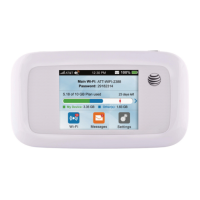
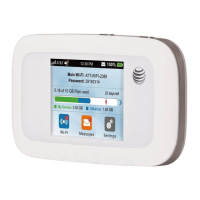
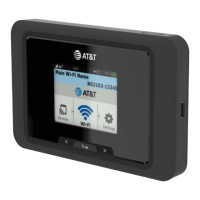
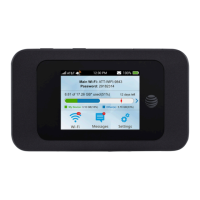
      The Main Wi-Fi network password can be found on your Velocity 2 home screen. The default password is also located on a label on your Velocity 2. If the Guest Wi-Fi network is enabled, you can find its password by tapping the arrow on your Velocity 2 home screen. If you have changed the Main Wi-Fi or Guest Wi-Fi network passwords and have forgotten them, you will need to restore the factory default settings.
  • A
    Amanda RushAug 7, 2025
    What to do if connected device cannot access the internet on AT&T Velocity 2 Wireless Router?
    • J
      Jordan PattersonAug 7, 2025
      If your connected device cannot access the internet, ensure that the nano-SIM card is correctly inserted in your AT&T Velocity 2 Wireless Router. Try moving the Velocity 2 to a location where the signal is stronger. If the problem persists, contact your service provider.
  • S
    stephanie72Nov 15, 2025
    How to fix Wi-Fi connection issues on AT&T Velocity 2?
    • R
      Robert WilsonNov 15, 2025
      If you cannot establish a Wi-Fi connection between your wireless device and the AT&T Velocity 2, try refreshing the Wi-Fi network list on your wireless device and select the correct SSID (network name), which is displayed on your Velocity 2 home screen. Ensure you enter the correct password, also displayed on the home screen. Also, verify that the wireless device is set to obtain an IP address automatically in its TCP/IP properties. To configure this in Windows 7: 1. Right-click 'Network' and select 'Properties'. 2. Select 'Change adapter settings'. 3. Right-click 'Wireless Network Connection' and select 'Properties'. 4. Select 'Internet Protocol Version 4 (TCP/IPv4)' and click 'Properties'. 5. Select 'Obtain an IP address automatically' and 'Obtain DNS server address automatically', ...

Summary

Get Started

Know Your Velocity 2

Overview of the Velocity 2's capabilities and features, including its Wi-Fi network creation.

Manage Your Device and Settings

Instructions for managing device settings using the touch screen and AT&T Wi-Fi Manager.

Connect to the Internet

Guide on connecting wireless devices to the mobile hotspot's Wi-Fi network.

Guest Wi-Fi

Enabling and using a secondary Wi-Fi network for temporary guests.

Use Your Velocity 2

Security Credentials

Details on the different passwords required for accessing the device and networks.

View Your Data Usage

How to check data plan usage estimates on the device and via the Wi-Fi Manager.

Manage Wi-Fi

Viewing and managing connected devices, including blocking and unblocking.

Messages

Receiving, reading, and deleting important messages from the service provider.

File Sharing

Sharing files via Wi-Fi or USB connection using the device's microSDXC card.

Battery

Tips and settings to extend the battery life of the Velocity 2.

Security

Customizing Wi-Fi network names and passwords, and changing administrator login.

Configure International Data Roaming

Choosing whether to allow the hotspot to be used while roaming internationally.

View Details

Accessing device information such as wireless number, hardware version, and IMEI.

Software Update

Checking for and installing software or firmware updates for the device.

Replace the SIM Card

Step-by-step instructions for replacing the preinstalled nano-SIM card.

Reset Your Velocity 2

Restoring the device to factory default settings and its implications.

Advanced Settings

Set Wi-Fi Network Options

Configuring Wi-Fi coverage, sleep mode, band selection, and network mode.

View Network Information

Accessing detailed network status, connection, and signal strength.

Enable Port Forwarding

Configuring port forwarding to allow external access to servers on the network.

Enable MAC;IP;Port Filtering

Setting up filtering rules to block or accept specific internet traffic.

Enable DMZ

Configuring a demilitarized zone for enhanced network protection.

Enable VPN Passthrough

Enabling VPN Passthrough for devices to connect to a Virtual Private Network.

Configure APN Details

Setting up Access Point Name (APN) details for network connection.

Set Router Options

Configuring router settings, including DHCP server options.

Troubleshooting

Specifications

Mechanical Specifications

Details on the device's physical attributes like weight, dimensions, display, memory, and battery.

Supported RF Bands

Information on the radio frequency bands the device supports for LTE and UMTS/HSPA+.

Health and Safety Information

FCC Regulations

Compliance information regarding FCC rules and potential interference.

RF Exposure Information (SAR)

Details on radio frequency energy exposure limits and compliance.

Distraction

Guidance on operating machinery and product handling to ensure safety.

Electrical Safety

Precautions related to accessories, faulty products, and device heating.

Interference

Statements on interference with medical devices and general precautions.

Medical Devices

Consulting doctors and manufacturers regarding device interference with medical equipment.

Hospitals

Instructions to power off the device in hospitals and healthcare facilities.

Aircraft

Instructions to power off the device when on aircraft or in airports.

Warranty

Limited Warranty

Details of the limited warranty, what it covers, and exclusions.

How to Get Warranty Service

Information on obtaining warranty service, including contact numbers and required details.

Other Warranty Programs

Information on potential additional warranty programs available with the purchase.

AT&T Velocity 2 Specifications

General IconGeneral
BrandAT&T
ModelVelocity 2
Network Compatibility4G LTE
Wi-Fi Standards802.11 a/b/g/n/ac
SecurityWPA/WPA2
Weight0.5 lbs
SIM Card TypeNano SIM
Device TypeMobile Hotspot
4G LTE Bands2, 4, 5, 12, 30
Wi-Fi Frequency2.4 GHz & 5 GHz
BandsDual Band
Max Wi-Fi Users10

Related product manuals