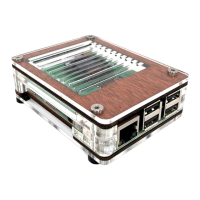
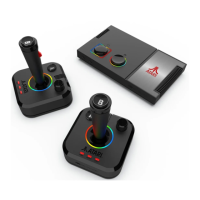
This document serves as a Quick-Start Guide for the Atari Ultimate Fight Stick with Trackball, a retro gaming device designed for use with a Raspberry Pi. The device functions as a dedicated arcade-style controller, providing an authentic gaming experience for over 140 classic Atari games. It is specifically compatible with Raspberry Pi 3B, 3B+, and 3A+ models, and comes pre-installed with an Atari Games Micro SD Card.
Function Description:
The Atari Ultimate Fight Stick with Trackball is an all-in-one gaming solution that brings the arcade experience into your home. Its primary function is to serve as a robust and intuitive controller for playing a vast library of classic Atari games. The device integrates a Raspberry Pi, which acts as the core processing unit, running the Retropie program and Emulation Station to manage and launch games. The inclusion of both a joystick and a trackball allows for versatile gameplay, accommodating a wide range of arcade titles that utilize different control schemes. The fight stick is designed to be connected to an HDTV via an HDMI port, displaying the game interface and gameplay on a larger screen. Internet connectivity, either through Ethernet or Wi-Fi, is essential for the initial setup, including downloading the latest game images and updates. The device is housed in a cabinet that requires unlocking with an enclosed key to access internal components for initial setup, such as connecting cables.
Usage Features:
The usage of the Atari Ultimate Fight Stick is straightforward, designed to get users into gaming quickly.
- Initial Setup: The guide outlines a step-by-step process for connecting the device. This involves unlocking the cabinet with the provided key, opening it to access the HDMI cable and power adapter plug, and then connecting one end of the HDMI cable to the Raspberry Pi. Both the HDMI and power cables are then routed through the back of the cabinet, with the HDMI plugging into an HDTV and the power adapter into an outlet. An optional Ethernet connection can also be made at this stage for internet access.
- Powering On: The fight stick is powered on using a toggle switch located on the back of the cabinet, just inside the opening.
- First Boot and Wi-Fi Connection: Upon the first boot, users are prompted to connect to Wi-Fi. The interface guides them through selecting a network and entering the password. A virtual keyboard is available for input, activated by clicking a checkbox. If an Ethernet cable is used, this step is bypassed.
- Navigation: The joystick and buttons on the fight stick are used to navigate the on-screen menus and prompts. The joystick moves the mouse cursor, while the right top and bottom buttons are used to select options.
- Software Installation: After initial network setup, users are guided to install the Atari Retropie program. This involves clicking a checkbox to select the installation, then confirming with "INSTALL" and "YES" buttons. This process downloads the latest Atari game image, which can take 10-30 minutes depending on internet speed. Once complete, the Raspberry Pi reboots.
- Game Selection and Play: After rebooting and loading, the main game interface appears. Users can select a game platform (e.g., Arcade Games) using the joystick and the "Enter" button (bottom left). A game listing screen then appears, showing available games with previews and short descriptions. Selecting a game initiates a loading screen, followed by the actual game.
- Controller Mapping: The guide highlights that different games may have varying controller button configurations. Users may need to experiment to determine the function of each button (e.g., start game, select players, shoot, jump). The main menu, accessible by hitting the "Start" button, allows for reconfiguring buttons if desired.
- Exiting Games: To exit any game and return to the main menu, users must simultaneously press the white "Start" and "Select" buttons.
- Game Access Options: The device offers multiple ways to access games. The "All Games" menu displays all available games categorized by platform. The "Last Played" option lists games in the order they were most recently played.
- Advanced Settings: The Retropie menu provides advanced configuration settings, including audio settings, UI settings, game collection settings, and more. Users are directed to retropie.org for further information on these advanced features.
Maintenance Features:
Proper maintenance, particularly regarding the Raspberry Pi's operating system, is crucial for the longevity and functionality of the device.
- Proper Shutdown Procedure: Since the Raspberry Pi is a full-fledged computer, improper shutdown can corrupt the operating system. The guide emphasizes a specific shutdown procedure:
- Press the "Start" button on the controller to bring up the main menu.
- Select "Quit" from the main menu.
- Select "Shutdown System" from the quit menu.
- Wait 10 seconds for the system to shut down completely before turning off the power switch.
- Software Updates: The Raspberry Pi ecosystem is constantly evolving. Users are encouraged to periodically visit microcenter.com/pi for the latest information on programming the Raspberry Pi and retropie.org for advanced Retropie information, implying that software updates and maintenance might be available through these channels.
- Troubleshooting: The guide provides tips for troubleshooting, such as ensuring the correct HDMI input is selected on the TV or monitor if nothing appears on screen. For further assistance, users can visit Micro Center stores, chat online, email via microcenter.com, or call their technical support team.
The Atari Ultimate Fight Stick with Trackball offers a comprehensive and user-friendly platform for enjoying classic Atari games, with clear instructions for setup, gameplay, and system maintenance.

 Need help?
 General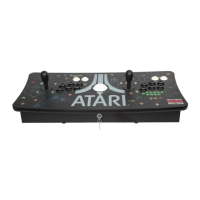

 To Next Page