16
1.
2.
3.
4.
1.
2.
3.
4.
Plug in AC adapter and press the Power button to turn on.
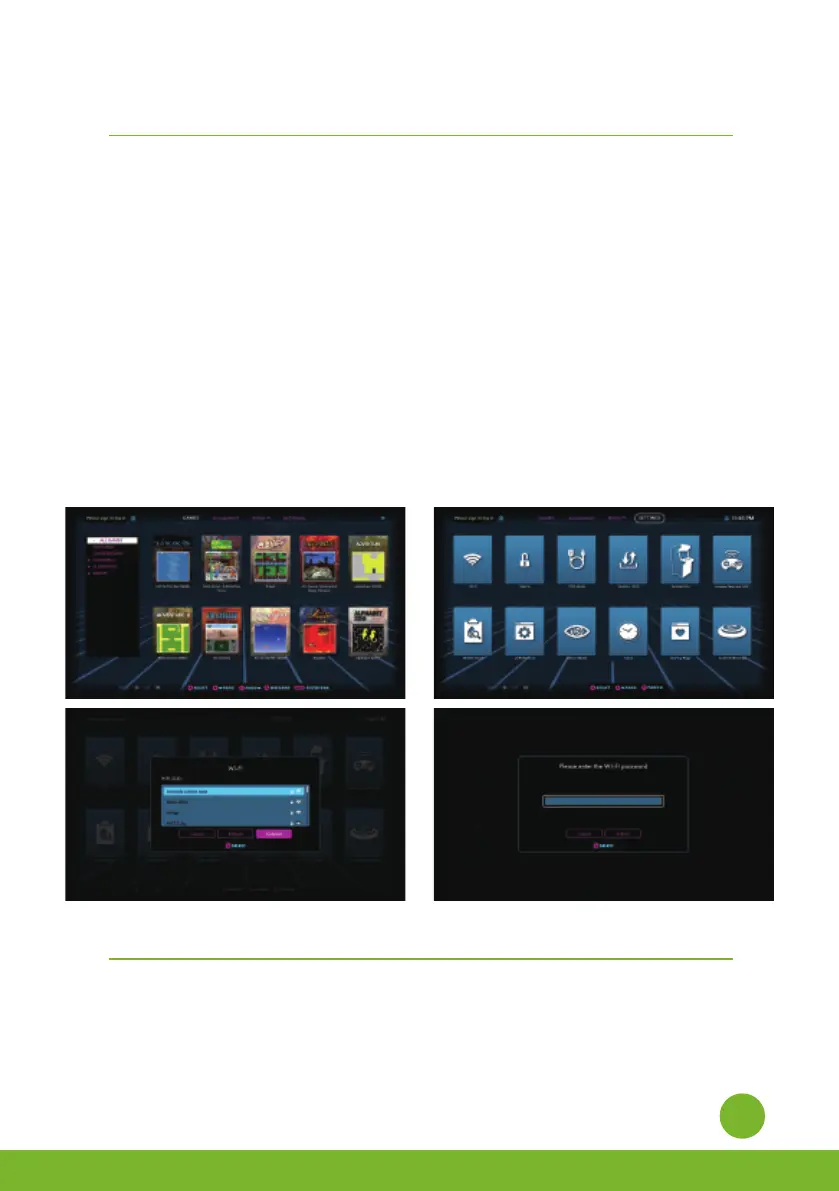
Use P1 joystick to select and play 150 pre-loaded games. (Note: Internet connection is not required.
The games can be played offline.)
Connect internet via Ethernet (Ethernet cable is not included) or Wi-Fi to play more games on ArcadeNet®.
To connect through Wi-Fi:
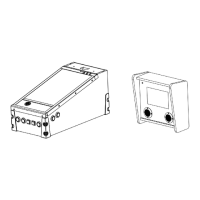
4-1. Select [Wi-Fi] under the [SETTINGS] page.
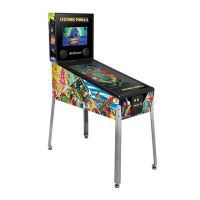
4-2. Select the Wi-Fi SSID you would like to connect to, and select [Connect].
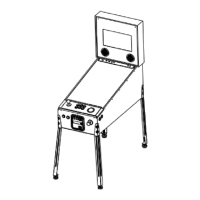
If prompted, enter the Wi-Fi password using the on-screen keyboard and select [Submit] when done.
Branchez l'adaptateur secteur et appuyez sur le bouton d'alimentation pour allumer l'appareil.
Utilisez le joystick P1 pour sélectionner et jouer aux 150 jeux préchargés. (Remarque : une
connexion Internet n'est pas nécessaire, les jeux peuvent être joués hors ligne).
Connectez-vous à Internet via Ethernet (le câble Ethernet n'est pas inclus) ou Wi-Fi pour jouer à
d'autres jeux sur ArcadeNet®.
Pour se connecter via Wi-Fi :
4-1. Sélectionnez [Wi-Fi] dans la page [PARAMETRES].
4-2.
Sélectionnez le réseau Wi-Fi auquel vous souhaitez vous connecter, puis sélectionnez [Connecter].
Si vous y êtes invité, saisissez le mot de passe Wi-Fi à l'aide du clavier à l'écran et sélectionnez
[Submit] (Soumettre) lorsque vous avez terminé.
1.
2.
3.
4.
5.
Power on the arcade.
Connect internet via Ethernet (Ethernet cable is not included) or Wi-Fi.
Go to [SETTINGS] and select [Version].
If there is a newer version, follow the instructions to download the latest firmware. Make sure the
internet connection is stable during this process.
Once the firmware is downloaded successfully, select [Upgrade] and the device will reboot
automatically to activate the new firmware version.
Note: If you encounter any issues on firmware update, please refer to:
https://www.atgames.net/arcades/release-notes/ or contact support@atgames.net
QUICK START GUIDE/ GUIDE DE DÉMARRAGE RAPIDE
Note: All screenshots shown are for illustration purposes only. Actual screens may vary.
Note : Les captures d’écran n’ont qu’une vocation illustrative. La disposition de l’écran de démarrage peut varier
HOW TO UPDATE FIRMWARE/
COMMENT METTRE A JOUR LE MICROPROGRAMME :


 To Next Page