1 2 4 5
Troubleshooting
Sma WiFi
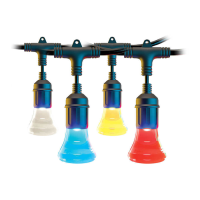
Color String Lights
Get the app
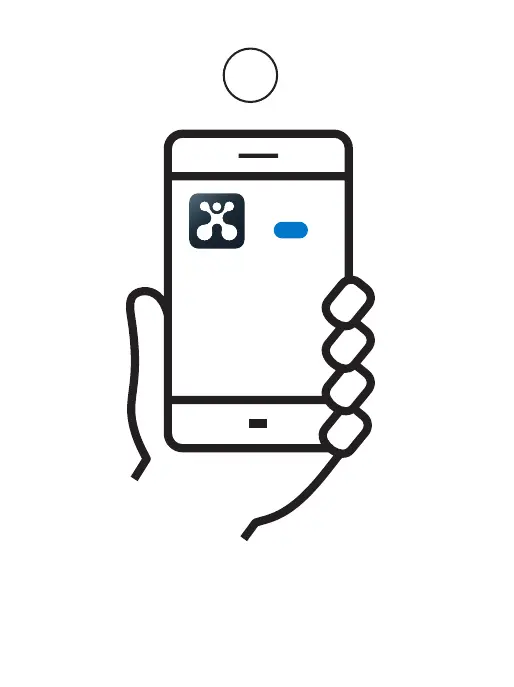
Download the Atomi Sma app
from the App Store or Google Play.
Atomi Sma
GET
Register
3
Add your Atomi Sma device
Press “Add Device” or the “+” sign and
select “Go to add” on the popup that appears.
Add Device
WiFi
Password
Continue
Select the right network
Enter your home WiFi name and
password, then press “Continue”
Make sure you’re connected to a 2.4GHz WiFi network
(Atomi Sma can’t connect to 5GHz networks).
Let’s get staed!
Sma WiFi
Color String Lights
Quick Sta Guide
Register
Follow the on-screen instructions and register an account.
Make sure to allow access to Location (Android),
Bluetooth and Local Network (iOS).
If not flashing, press and hold the Power buon for 10s to reset.
Plug in your Atomi Sma device
And confirm that the lights are flashing red.
If the popup does not appear, close the app and try again.
Still nothing? Read the “Troubleshooting” section on this user guide.
I can’t find the atomi-sma-XXXX network in
my WiFi list.
Make sure your Atomi Sma device is plugged in and the
lights are flashing red. If not, unplug your Atomi Sma
device and plug it back in to reboot.
My WiFi network doesn’t appear in the Atomi
Sma app.
Use your smaphone to confirm that you have at least two
WiFi bars in the vicinity of your Atomi Sma device. If not,
move your Atomi Sma device closer to your router. (The
list will refresh every 10 seconds).
Cannot connect to my WiFi network.
Make sure that you have entered the correct WiFi
password during the WiFi setup. Check if there are
problems with your internet connection. If the WiFi signal is
too weak, reset your WiFi router and try again.
I’m geing “Failed to Add Device”, “Failed to
find router” or “DHCP” error.
- Confirm that your phone is connected to a 2.4GHz WiFi
network.
- Check whether the router password you entered is correct.
- Confirm that the DHCP service is enabled on your router
seings.
- Make sure that your WiFi signal is strong.
- Temporarily disable your 5GHz network.
- If you have a mesh network/router that does not allow
you to disable 5GHz, try to move faher away from your
router until your phone moves to the 2.4GHz band.
- For more Connection Troubleshooting tips, visit
atomisma.com/connection-troubleshooting/
My Atomi Sma device appears as
“Unavailable” or “Oine" in the app.
Refresh the device list.
I just replaced my router.
If you replace your router, you will need to reset your
devices and add them again to the app.
How to reset my device.
Press and hold the Power buon for 10s. Confirm that the
lights sta flashing.
The popup does not appear when adding a
device.
Make sure that you are allowing the app to access your
phone's Location (Android), Bluetooth and Local Network
(iOS). For more details, visit our website’s Suppo page.
If the popup still doesn’t appear, follow the steps below:
1. Press "Add Device" or the “+” sign and select your sma
device.
2. Follow the on-screen instructions (Make sure you
connect to a 2.4GHz WiFi Network).
v3.05/21


 To Next Page
 Loading...