07
16
Instruction for the operation of touch screen
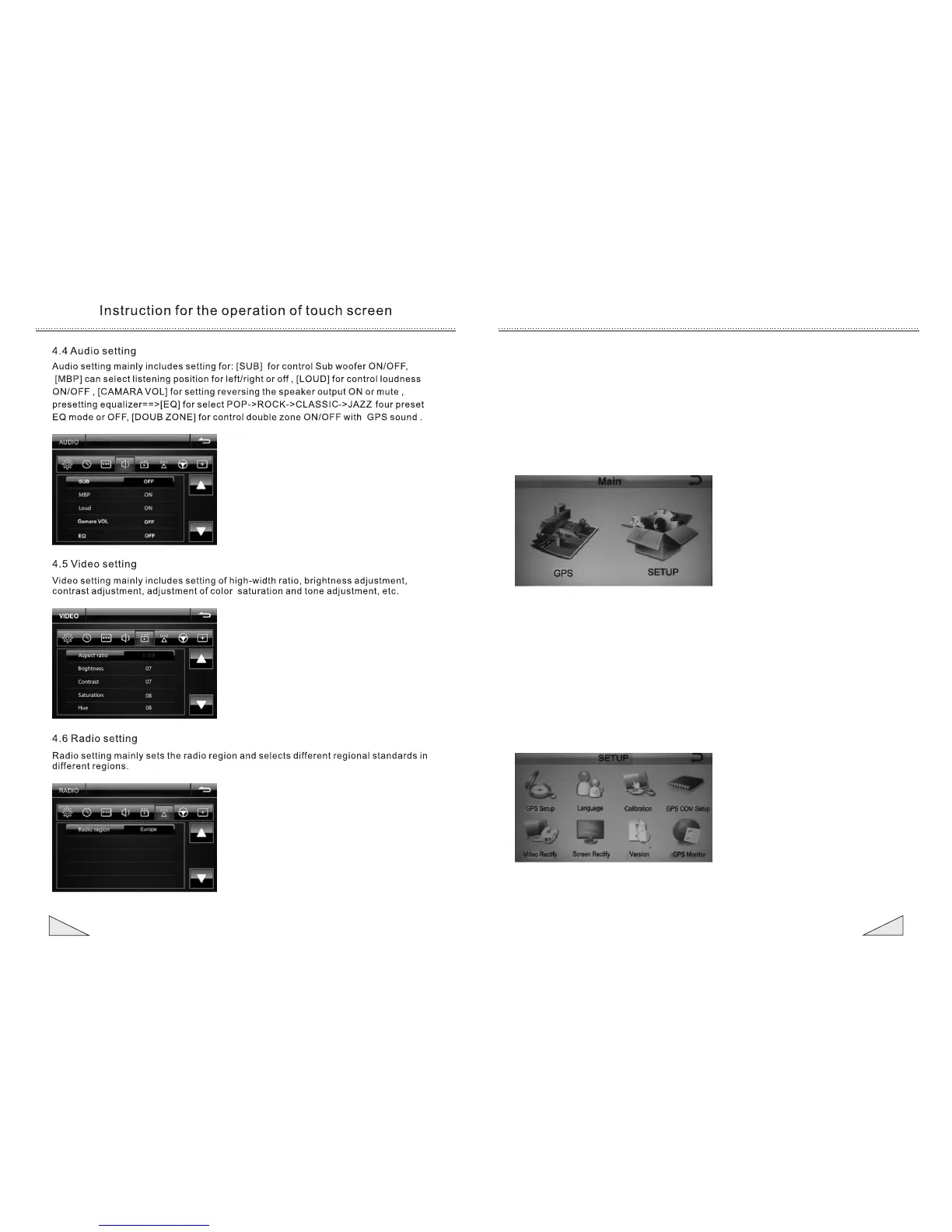
10. Instruction for the GPS operation
Insert the GPS navigation card into the GPS card slot and press the 【GPS】icon on
the main menuto enter GPS main interface. Press [setting] icon to set GPS path setting,
language setting, video adjustment, screen adjustment, touch validation and check the
version information; After the navigation path is set, press [navigation] icon to enter the
interface of navigation map.
10.1 GPS Main interface
NOTE:Password for into the GPS settings menu : 888888
10.2 GPS setting interface
10.2.1 Set navigation node
Find the destination on the map, click the destination, then touch [CURSOR] menu on the
right of map, touch the icon of [set as Destination] at the top right corner to set the
destination (The set destination will be marked with mosaic). The actual satellite
navigation can be applied after the setting is finished.
For the simulated navigation, click [Set as Start] in [More Options] at the bottom right
corner to set the start (The start is marked in blue). GPS system will plan the route from
the start to the destination automatically. When the route is determined, the simulated
navigation can be conducted.


 To Next Page
 Loading...