- 13 -
LOCATING A PARTICULAR POINT IN A TRACK
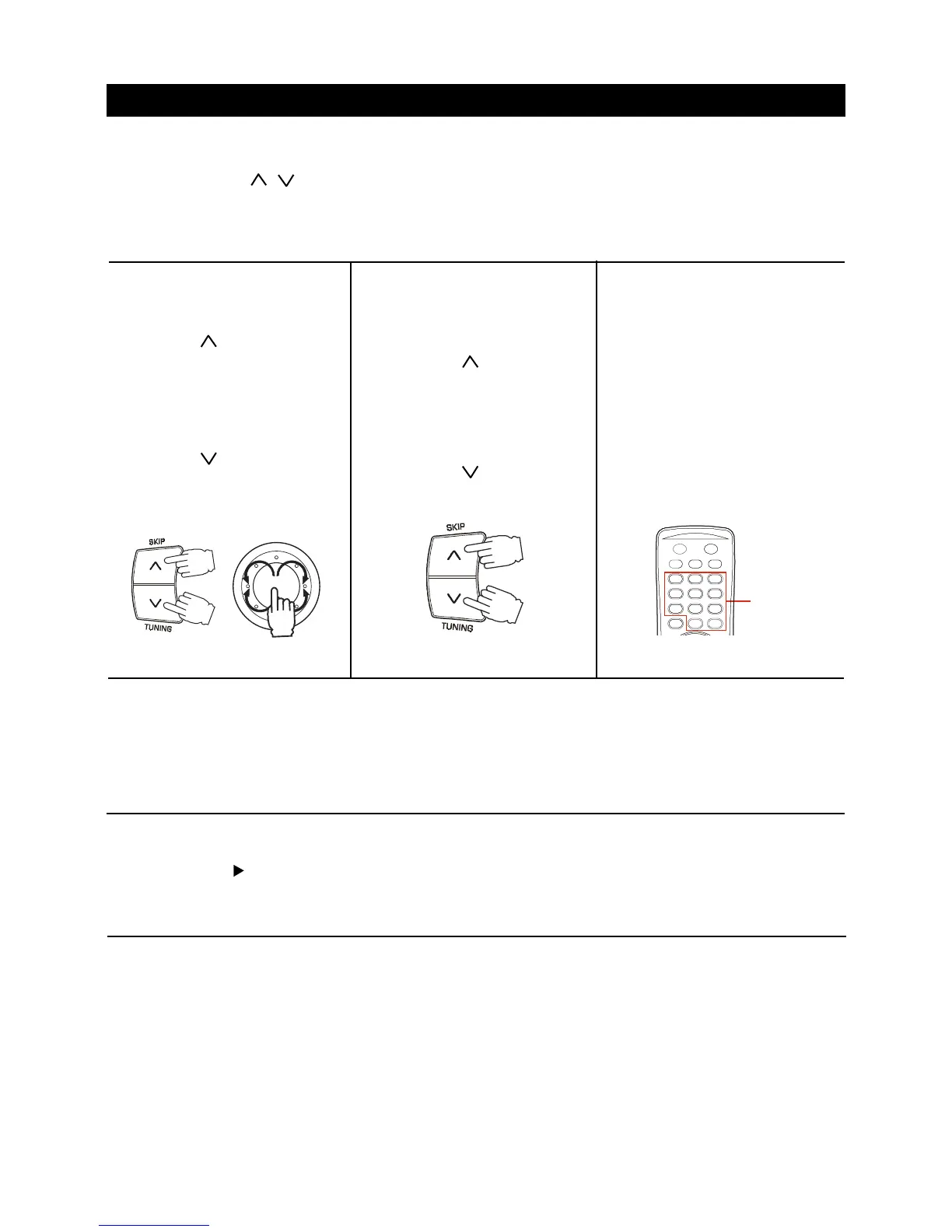
Press it once
Note : Searching and skipping can be done during playback or pause stage but are effective for the currently
selected disc only.
Use DISC SKIP button to choose another disc.
COMPACT DISC OPERATION
Keep it pressed
A specific track directly
Press the numbered buttons to enter
the track number.
Example:
To select the 25
th
track, press the
+10, +10 and 5 buttons.
To select the 10
th
track, press the
+10 and 0 buttons.
The selected track starts to play
and play continues to the end of
that disc.
Notes: 1. During playback, disc tray can be opened to change/add disc, but DISC SKIP button will become
invalid and the current disc playback will not be interrupted.
2. The SKIP / buttons can only be used to choose a track of the current disc. To choose a track
of another disc, DISC SKIP button should be pressed to get to the desired disc first.
Locating a particular point in
a track
To move backward at high
speed
Keep the SKIP button pressed
during play and release at the
desired point.
To move forward at high
speed
Keep the SKIP pressed during
play and release at the desired
point.
Searching for the beginning
of a track
To find a previous track
Press the SKIP button repeatedly
or turn the JOG-DIAL switch
counterclockwise until you find the
track.
To find a next tracks
Press the SKIP button repeatedly
or turn the JOG-DIAL switch
clockwise until you find the track.
RANDOM PLAY
Shuffle play - playing in a random order
Random play all disc:
1. Press the RANDOM button, the word RANDOM will appear on the display.
2. Press the PLAY button.
To cancel random play
Press the RANDOM button until the RANDOM disappears.
Note
You can set or cancel the random play in playback mode or stop mode.
NUMBERED
BUTTONS


 To Next Page