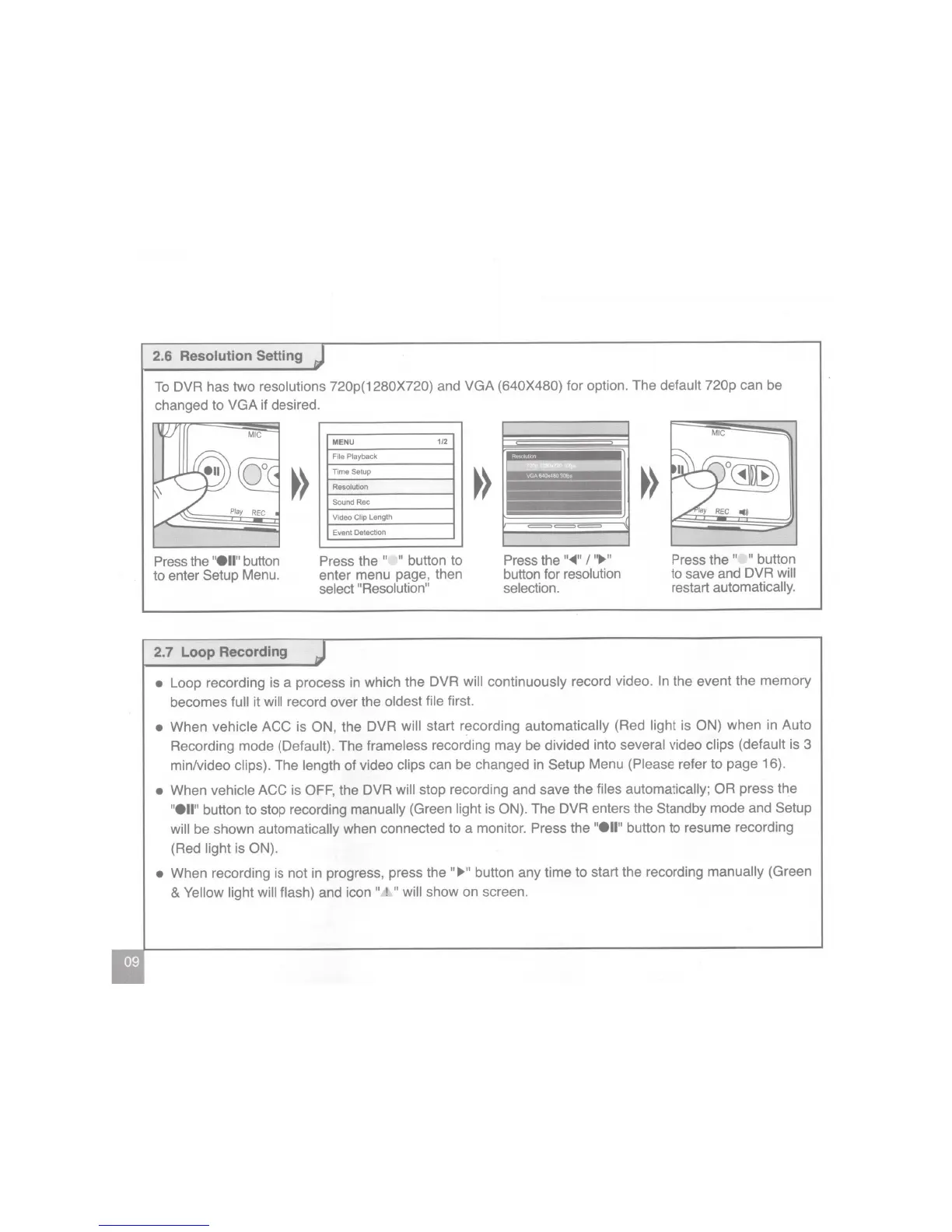
2.6 Resolution Setting
To
DVR
has two
resolutions
720p(1280X720) and
VGA
(640X480) for option. The
default
720p can be
changed to
VGA
if desired.
Press
the
"ell"
button
to enter
Setup
Menu.
2. 7 Loop Recording
MENU
1/2
File Playback
nmeSelup
ResoluUon
Sound
Rec
Video
Clip
Length
Event DetecUon
Press
the
" "
button to
enter menu page, then
select "Resolution"
Press
the
"<IIIII"
I
"~"
button for
resolution
selection.
Press
the
" "
button
to save and
DVR will
restart
automatically.
•
Loop recording is a process
in
which the
DVR will continuously
record video.
In
the event the memory
becomes
full
it
will
record over the
oldest file
first.
• When
vehicle
ACC is
ON,
the
DVR will
start recording
automatically
(Red
light is
ON)
when in Auto
Recording mode (Default).
The frameless
recording may be divided into
several
video clips (default
is 3
min/video
clips).
The
length
of video
clips
can be changed in
Setup
Menu
(Please
refer to page 16).
• When
vehicle
ACC is
OFF, the
DVR will stop recording and save the
files automatically; OR
press the
"ell"
button to stop recording
manually
(Green
light
is
ON).
The DVR enters the
Standby
mode and Setup
will be shown
automatically when connected to a monitor.
Press
the
"ell"
button to resume recording
(Red
light
is
ON).
•
When recording is not in progress, press the
"~"
button any time to start the recording
manually
(Green
&
Yellow light will flash)
and icon
"
!
"
will
show on screen.


 To Next Page
 Loading...