70
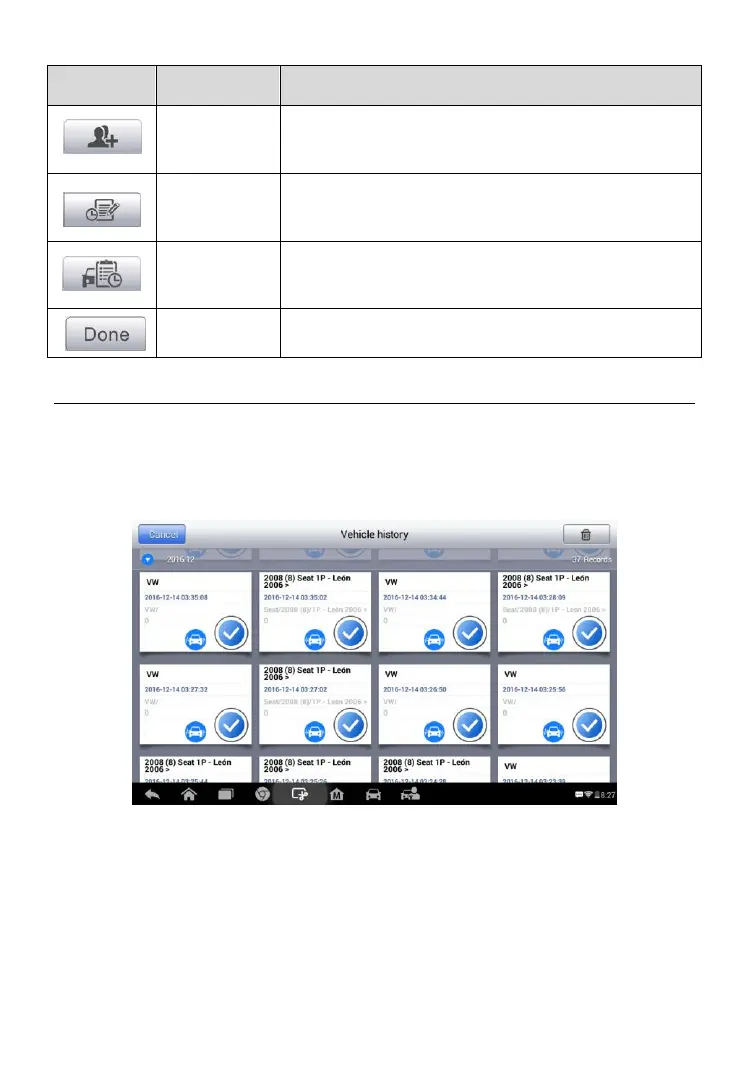
Tap this button to create a new customer account
file.
Tap this button to open a note form. Audio, video,
image and text files may be attached.
Tap this button to display the Vehicle History with
corresponding test vehicle records.
Complete editing and save the file.
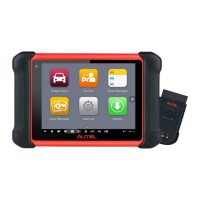
Vehicle History
This function stores test vehicle history records, including vehicle information
and the retrieved DTCs from previous diagnostic sessions. All information is
displayed in summarized details. Tap on a record to resume a diagnostic
session on a “stored vehicle”.
1. Top Toolbar Buttons – navigates and makes various controls of the
application.
2. Main Section – displays all the vehicle history records information.
To activate a test session for the recorded vehicle
1. Tap the Shop Manager application on the MaxiCOM Job Menu.
2. Select Vehicle History
Figure 6-1 Sample Vehicle History Screen



 To Next Page