35
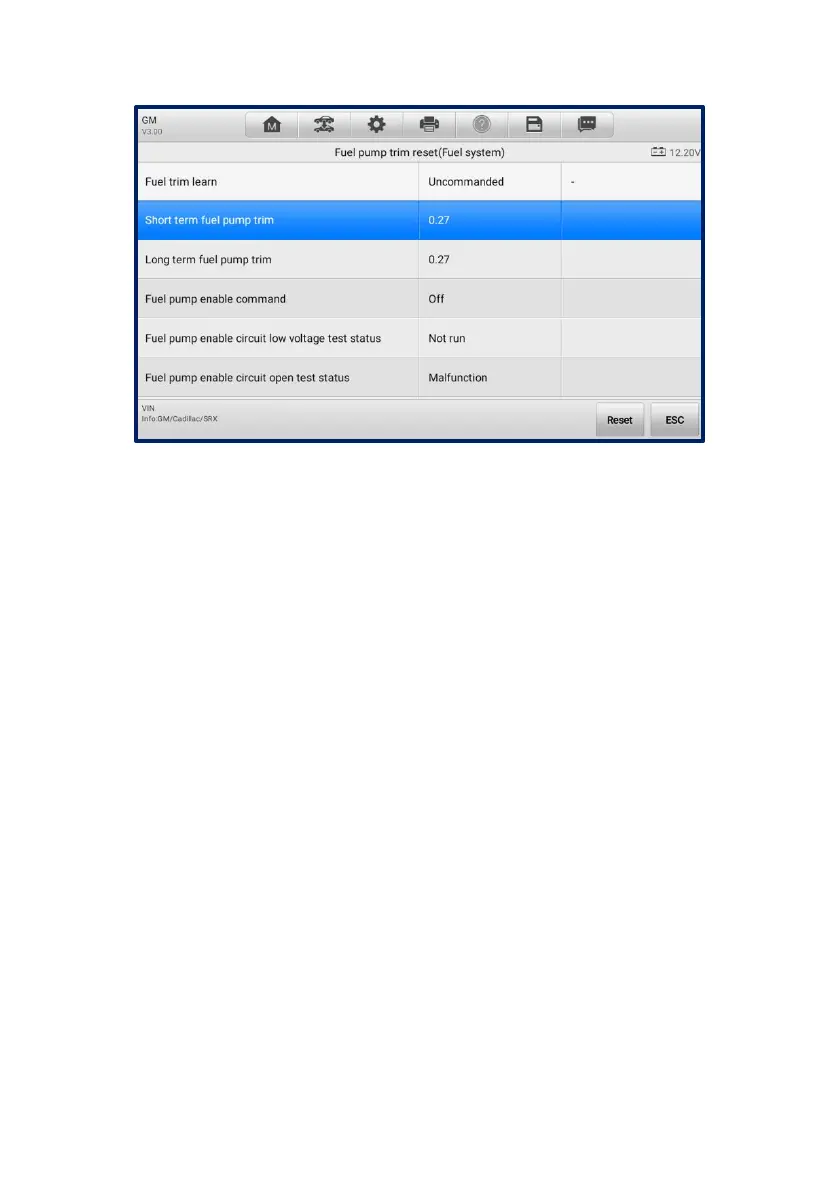
Select a function to display detailed information and the execution screen.
Figure 4-20 Special Function Screen 2
List Tab Page:
Column 1 — displays the description of the function being performed or the live data
corresponding to the special function.
Column 2 — displays the execution status such as Completed or Activated or the
corresponding live data values.
Column 3 — displays the measurement units of the live data.
Tap a function button to perform the selected function or exit the function.
4.4.2.6 Coding
Selecting the Coding function opens a menu of operation options that varies by vehicle
make and model. Follow all on-screen instructions while performing the coding
operations.
The main section of the Coding screen displays a list of vehicle components and coding
information that mainly consists of two parts:
1. All available systems for coding are displayed on the left side, and the coding data
or value on the right side.
2. The bottom of the main section displays the function buttons that enable you to
manipulate the operation.
Check the vehicle condition and coding information carefully. Use the function button to
edit the codes for corresponding components. Tap Send when you finish editing all items.
When the operation is completed, an execution status message such as “Completed”,
“Finished” or “Successful” may appear.
Tap the ESC button to exit the function.






 To Next Page